Peel Pop
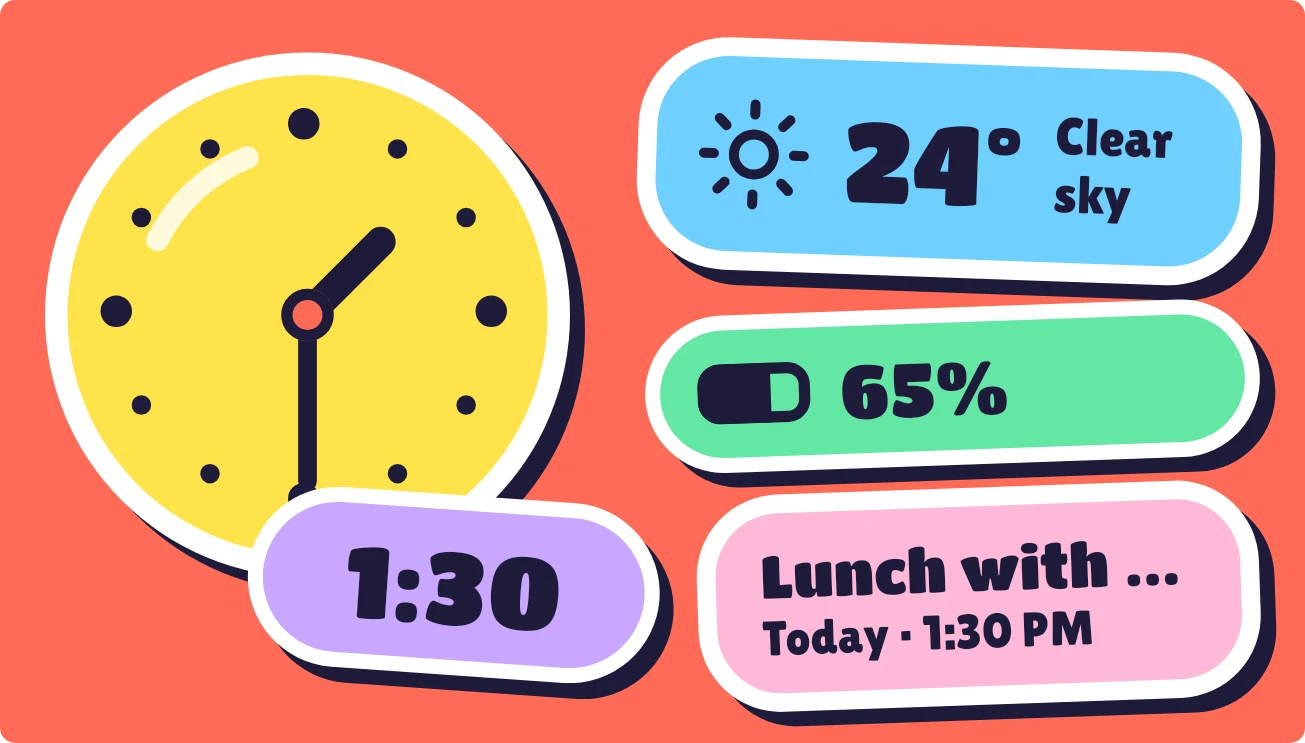
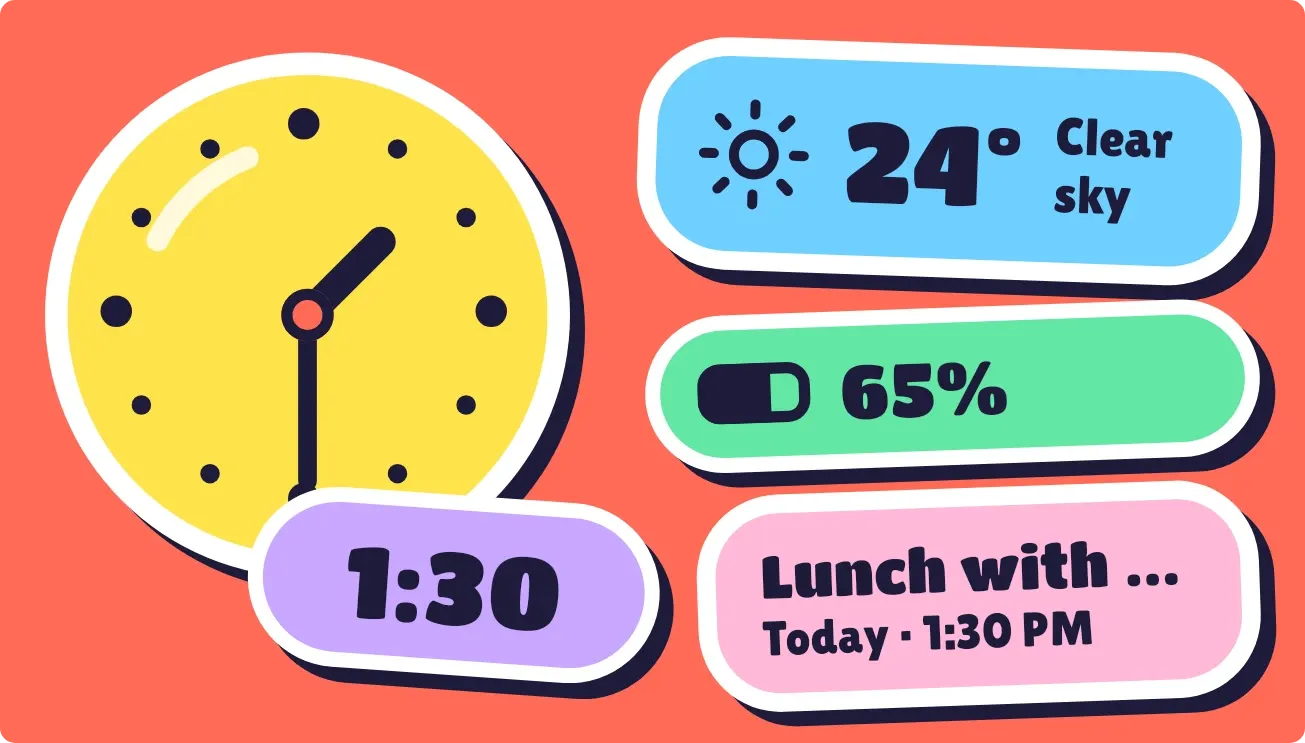
Peel Pop lays out its parts as die-cut stickers on a coral background. A yellow analog clock with hour and minute hands sits on the left, with a purple sticker showing the time as digits. Blue, green and pink stickers show the weather, battery percent and your next event.
- Size
- 4x2 cells
- Kit
- Playful
- Shows
- Battery, Calendar, Time and date, Weather
- Look
- Stickers, bold shapes and colourful
- Colours
- Red, yellow and blue, light background
- Good for
- Daily overview, work day and meetings
- Android
- 10 or newer
- Needs
- READ_CALENDAR (optional)
- Price
- Free
Kiwi is in beta and is not on Google Play yet. Join to request an invitation.
- agenda
- analog-clock
- battery
- big-numbers
- blue
- bold
- bright
- calendar
- cartoon
- clear-sky
- clock
- coral
- die-cut
- green
- next-event
- pink
- playful
- progress
- purple
- rounded
- sticker
- sun
- temperature
- weather
- yellow
What changes
- The hour and minute hands on the clock follow the current time, and the purple sticker shows the same time in digits.
- The blue sticker shows a sky icon, the temperature in degrees and a short condition such as Clear sky. Tapping it refreshes the weather.
- Until weather is available, the blue sticker reads Set a city in Kiwi instead.
- The green sticker fills a battery bar to match the charge level and shows the percent beside it. A lightning bolt appears while the phone is charging.
- The pink sticker shows the title of your next event, then the day and time, such as Today · 12:00 PM. It reads Nothing coming up when no event is ahead.
- Without calendar access, the pink sticker reads Allow calendar. Tapping the clock opens the clock, and tapping the event sticker opens the calendar.
Data and settings
- Time: reads the current time for the clock hands and the digital time.
- Weather: reads the current temperature and sky condition for the city you set in Kiwi.
- Battery: reads the charge level and whether the phone is charging.
- Calendar: reads your next event's title, day and start time. This needs calendar permission, which is optional.
- City: the place the weather is shown for, set in Kiwi.
Set it up
- Open Peel Pop in Kiwi, either from its kit or from this page.
- Tap Use.
- Confirm your launcher's prompt to place the widget.
- To see the weather, set a city in Kiwi.
- To see your next event, allow calendar access when asked.
Permissions
- Calendar (optional: it works without it). Your next events come from the calendar on this phone. Only the times and titles of what's coming up; never sent anywhere, and never changed.
Good to know
- The weather sticker needs an internet connection and a city before it can show the temperature and sky.
- Your next event appears only after you allow calendar access. Until then the sticker reads Allow calendar.
- Only the single next event is shown, and a long event title is cut off with an ellipsis.
- The weather condition text is kept to two lines, so longer descriptions may be shortened.
Widgets like Peel Pop
 Lime QuartetWatch Face
 Jelly GlanceGlass
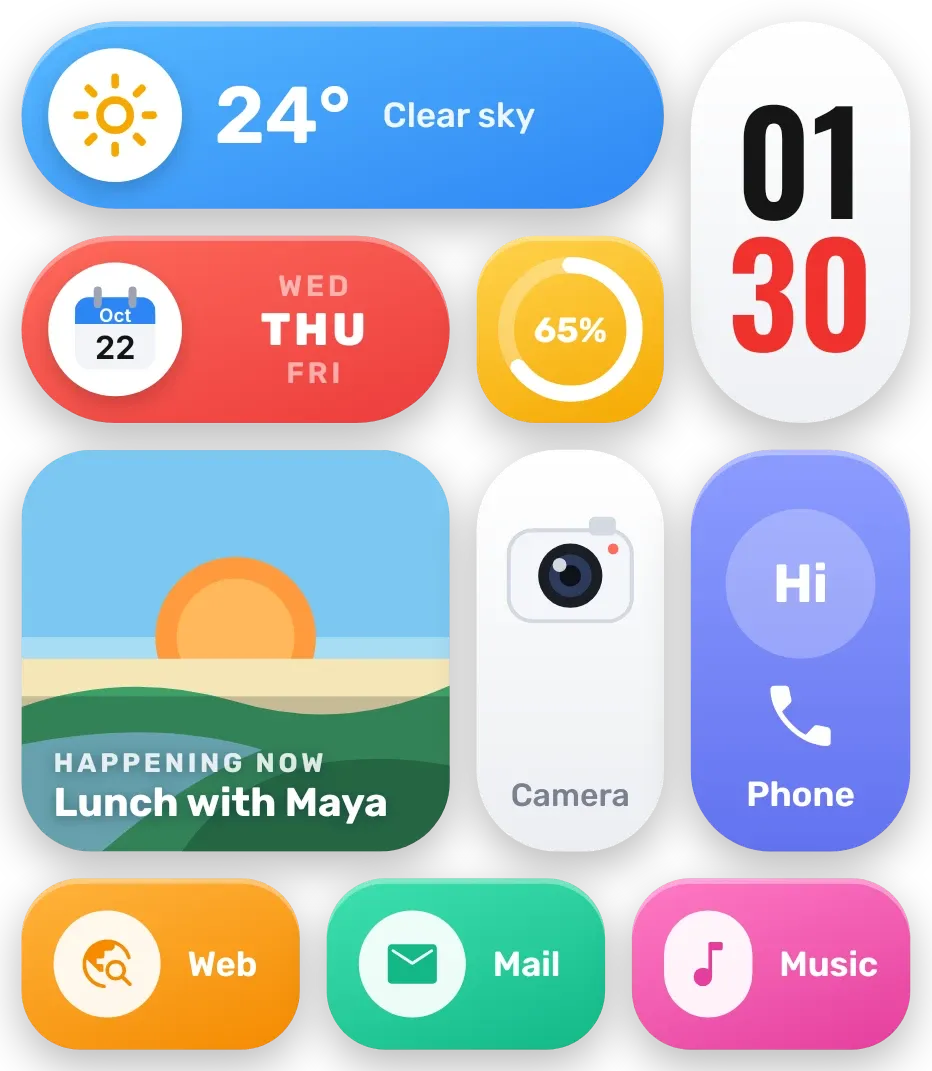 Sherbet GridBento