Best Android widgets: our picks from Kiwi
20 widgets picked for two things: how they look on a home screen, and whether they show something you would check. All of them are from Kiwi's catalog, so this is a list of what we would put on our own phones, not a survey of the Play Store. Every picture is the widget itself.
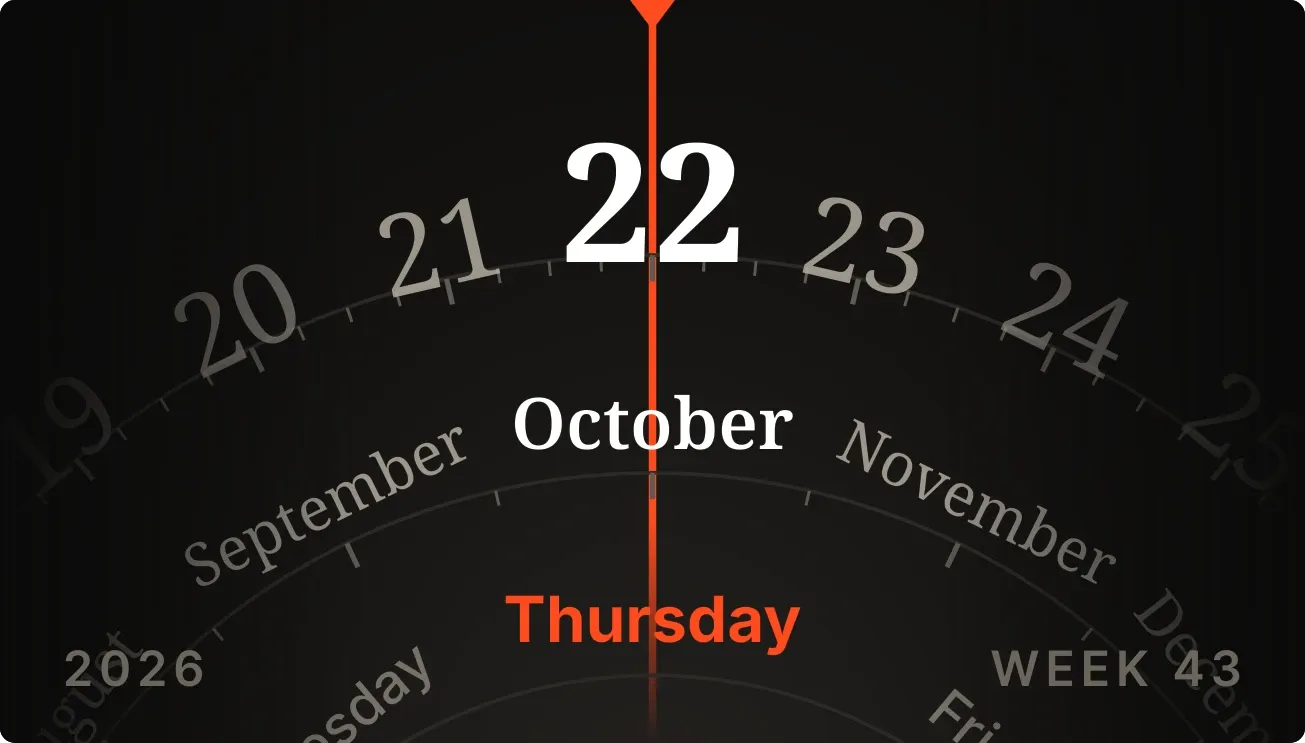
1. Dayslide
A slide-rule dial of arcs: days, months and weekdays fan out from a vermilion needle that marks today, with the year and week below.
Instruments · 4x2
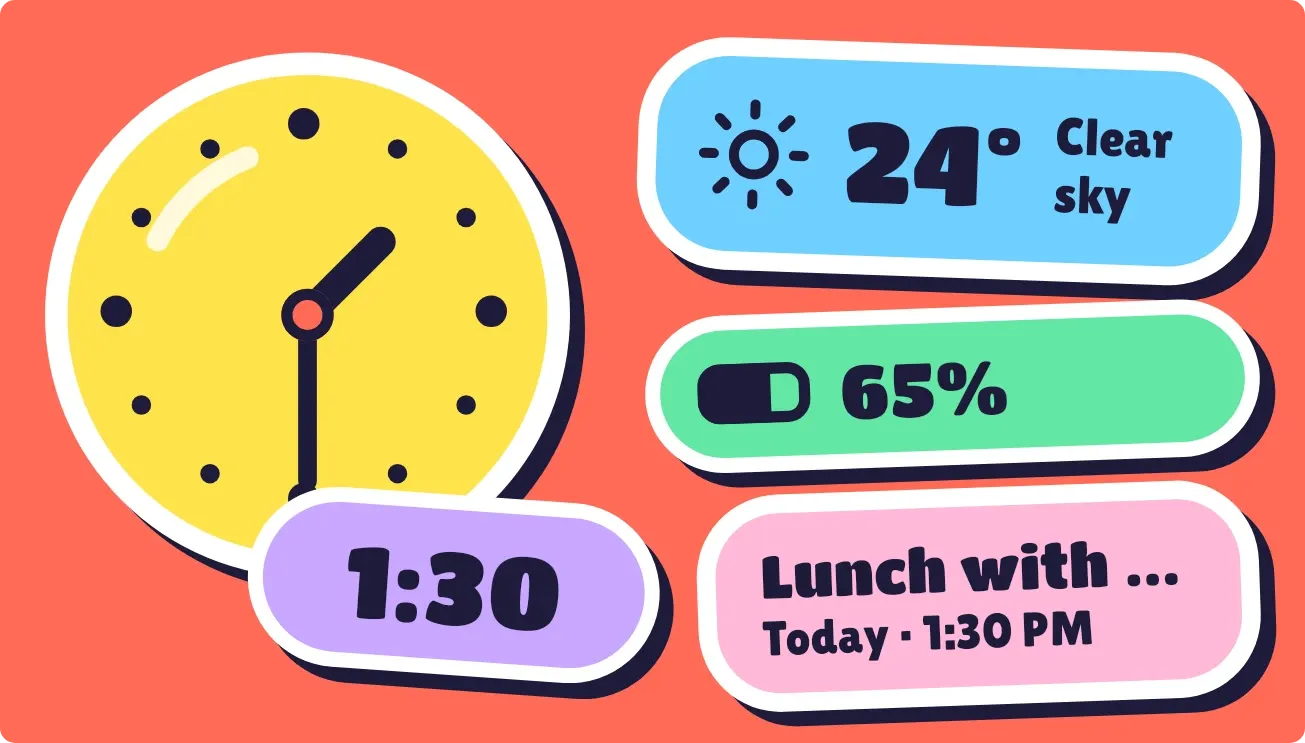
2. Peel Pop
Die-cut stickers on coral: a yellow analog clock with live hands, the time, temperature and sky, battery percent, and your next event.
Playful · 4x2 · Battery, Calendar, Time and date, Weather
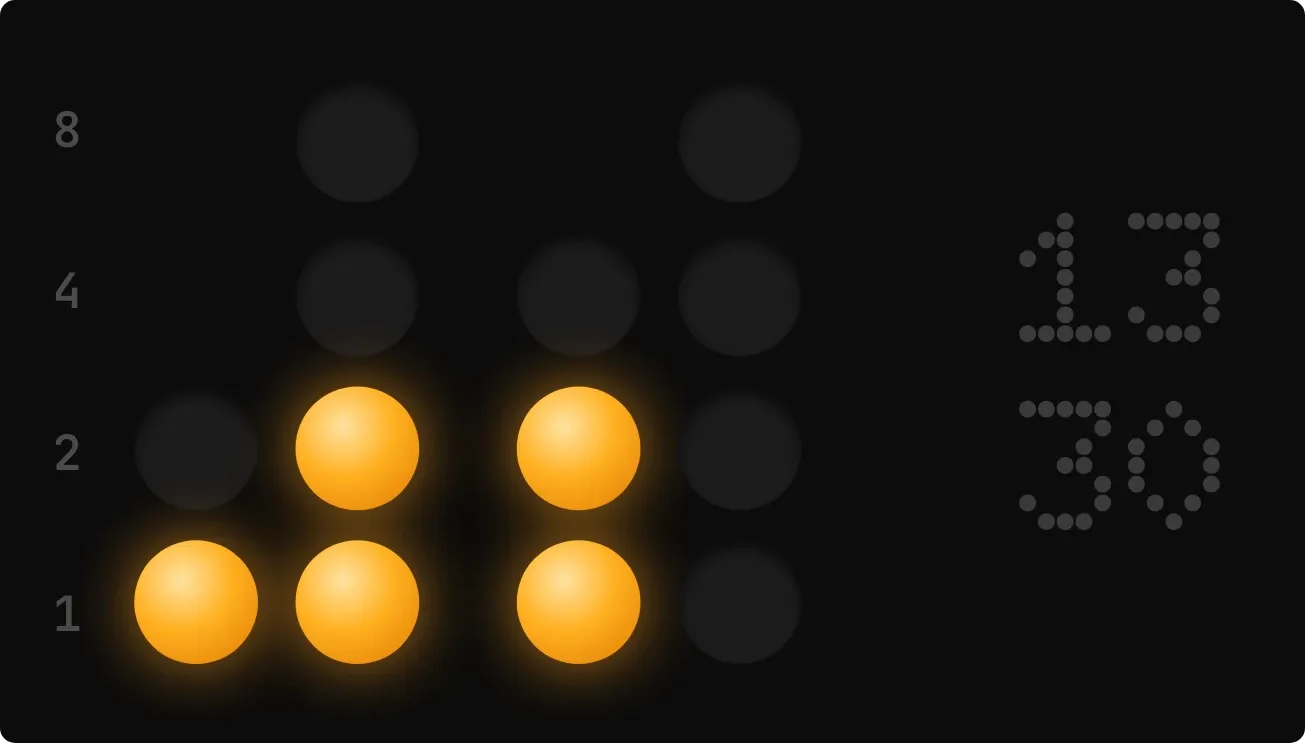
3. Ember Abacus
Glowing amber beads stacked in columns show the time in binary, each lit bead adding to its digit, with the plain time beside them.
Instruments · 4x2 · Time and date
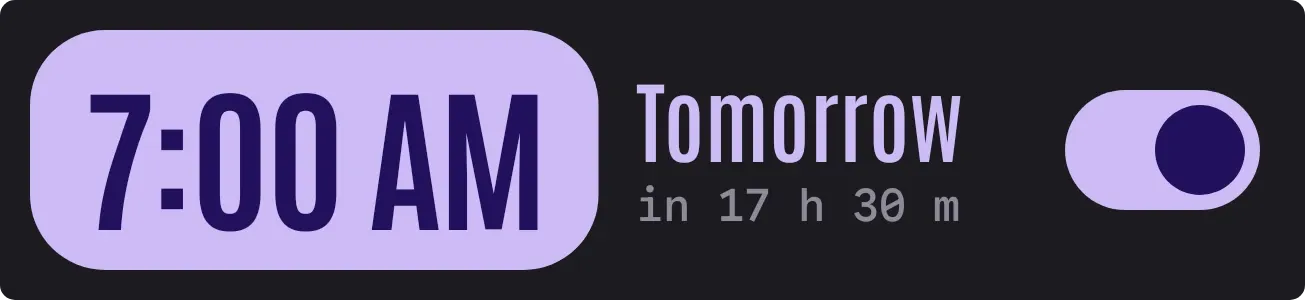
4. Lilac Lullaby
A lilac capsule holding your alarm time in tall condensed digits, with a countdown to it and a switch; it fades to grey when the alarm is off.
Material Expressive · 4x1 · Sky

5. Pillow Well
A pressed-in pill-shaped search well beside raised mic and Lens buttons, sitting on a soft blue blob in pale grey neumorphic tones.
Soft UI · 4x1
6. Dogear Nib
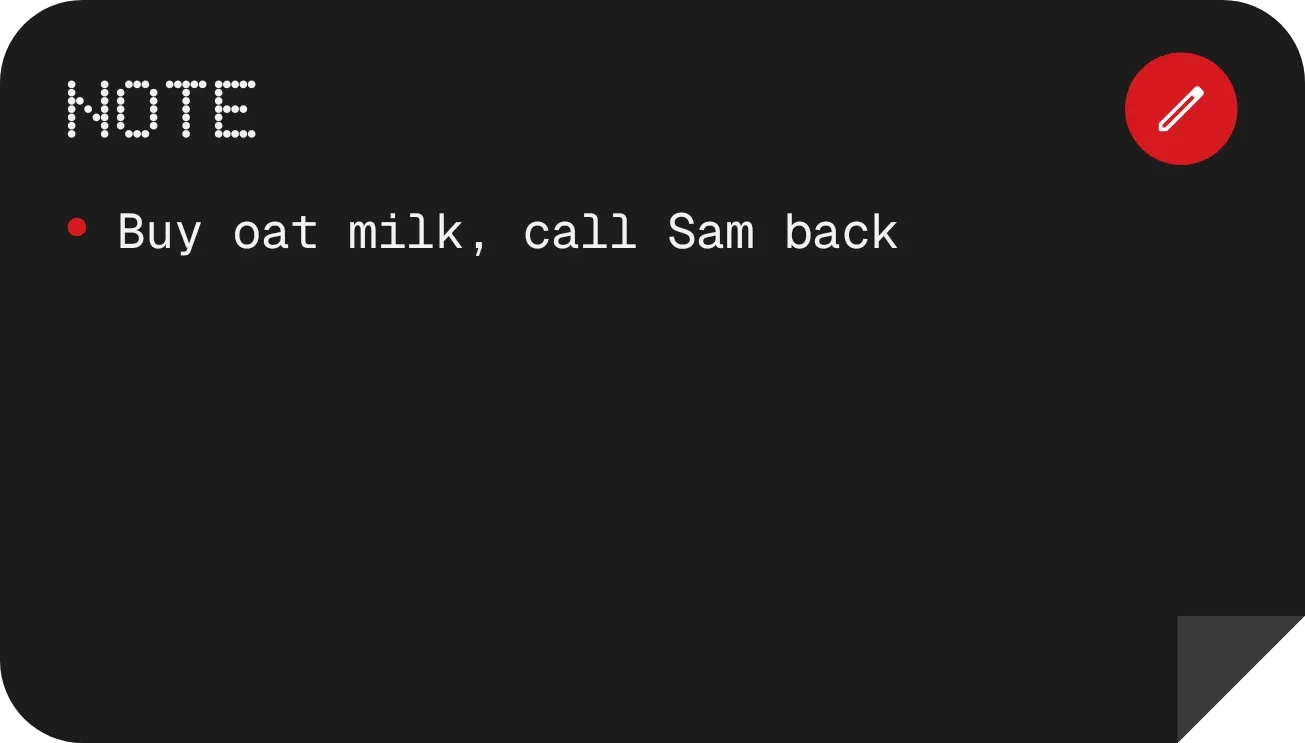
A black card with a dog-eared corner and a dot-matrix NOTE heading, a red pen to edit, and your line of text beside a red bullet.
Nothing · 4x2 · Notes and to-dos
7. Pearl Runway
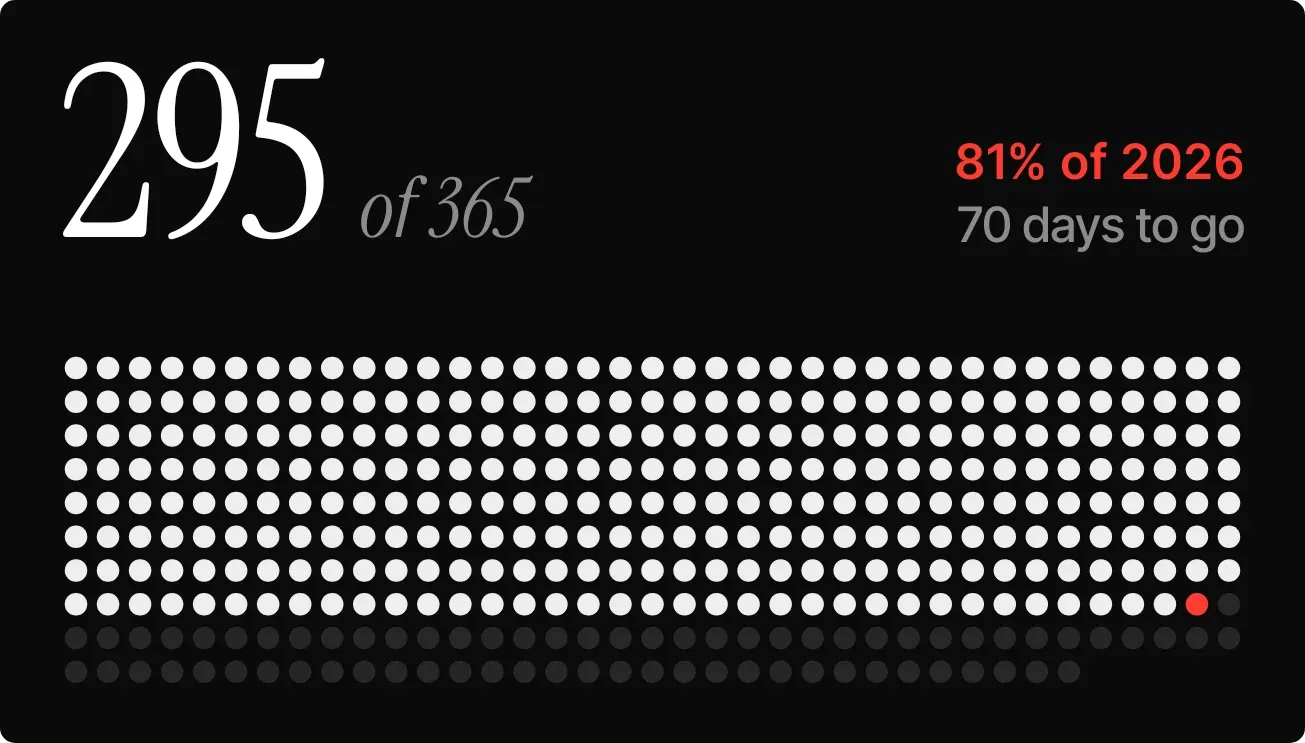
A field of pearl-white dots, one per day of the year: days gone fill in, today glows red, and the big serif number counts how far you've come.
Instruments · 4x2 · Time and date

8. Rail Bloom
Cobalt striped card with a railway photo in a puffy cloud cutout, a big italic song title, and a wavy progress line that ripples while playing.
Material Expressive · 4x2 · Now playing
9. Dawn Dangler
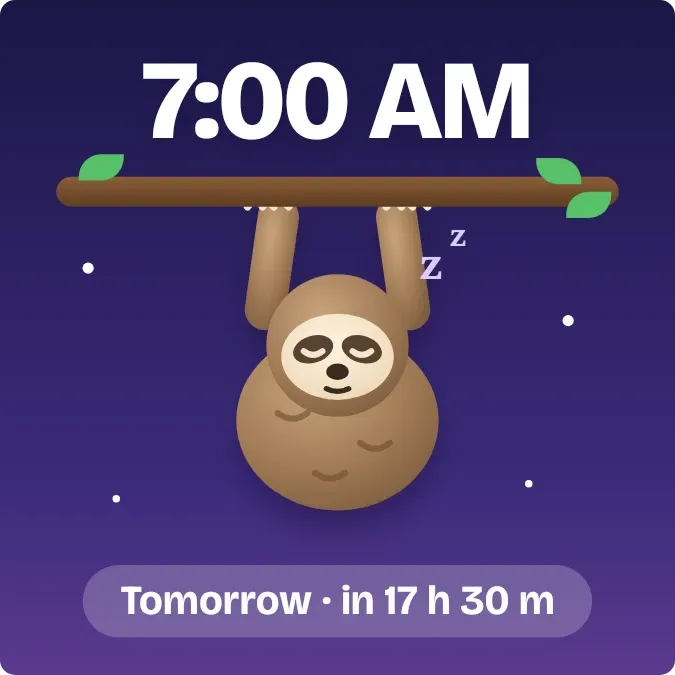
A plush sloth dangles from your alarm time, asleep under a night sky, stirring at dawn and wide awake in the last hour.
10. Lemon Rosette
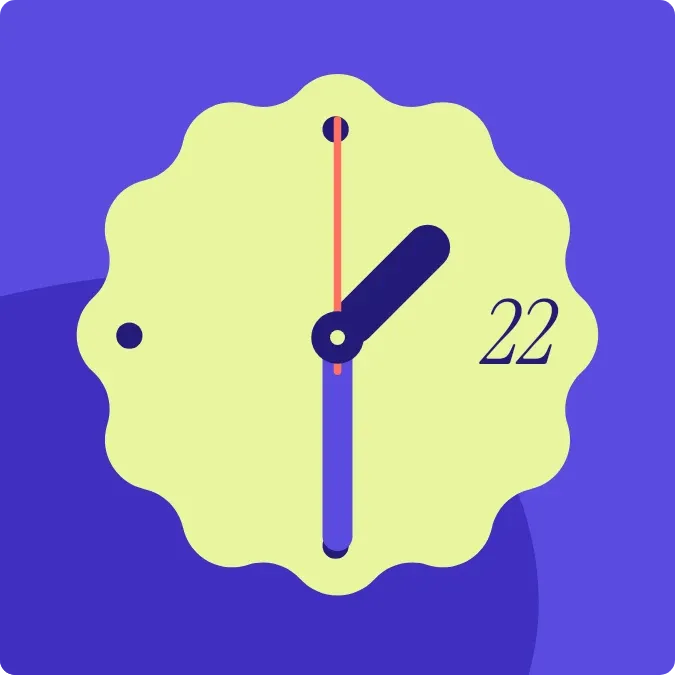
A scalloped lemon-yellow face on indigo blobs, with thick hands sweeping past dotted hours, a red second hand, and an italic date.
Material Expressive · 2x2 · Time and date

11. Mint Scrawl
A dark pill bar with a mint scalloped pencil badge; your note sits in big italic serif with a mint underline, shrinking when it runs long.
Material Expressive · 4x1 · Notes and to-dos
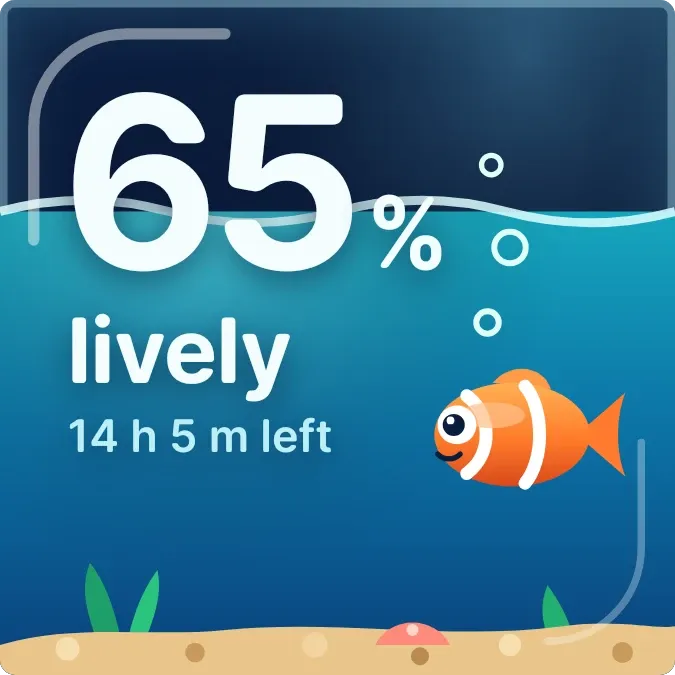
12. Nap Tank
Your battery as a fish tank: the water drains as charge falls, and the clownfish grows drowsier, eyes half shut, until it sleeps.
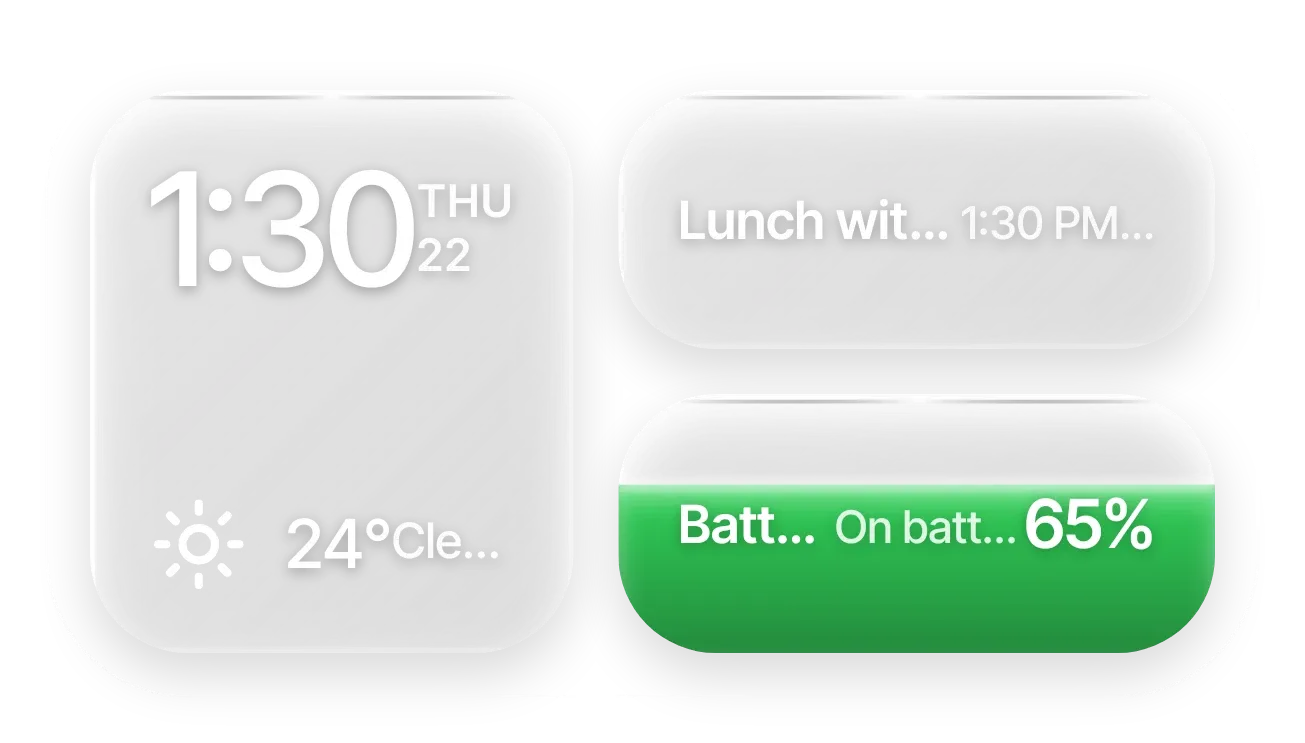
13. Frost Stack
Frosted glass panes showing the time and date, weather, your next meeting, and a green battery pill that fills with your charge level.
Glass · 4x2 · Battery, Calendar, Time and date, Weather
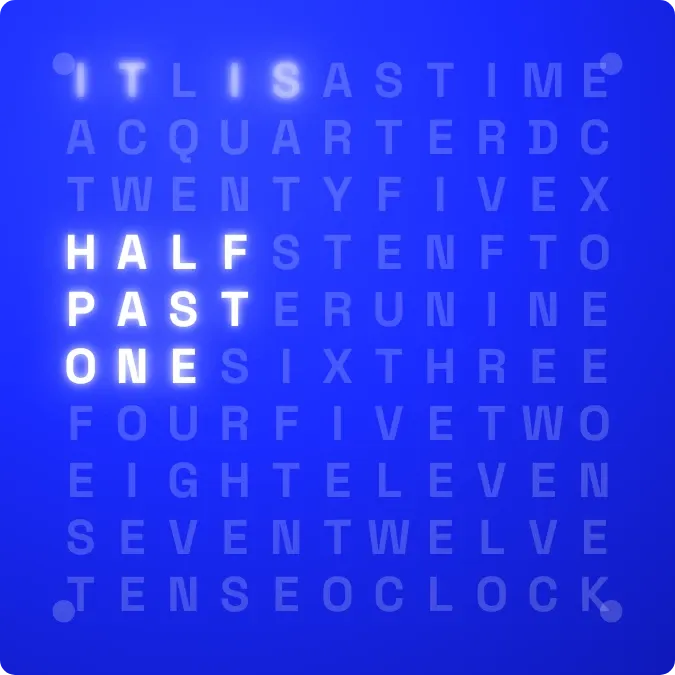
14. Lightword
A field of blue letters where only the words for the time glow white, like HALF PAST ONE, with corner dots counting leftover minutes.
Instruments · 2x2 · Time and date

15. Wheelie Count
A mint suitcase mascot with bunny ears rolls beside a big pink-outlined number of days left until your trip, with a sticker note and the date.
Playful · 2x2 · Time and date
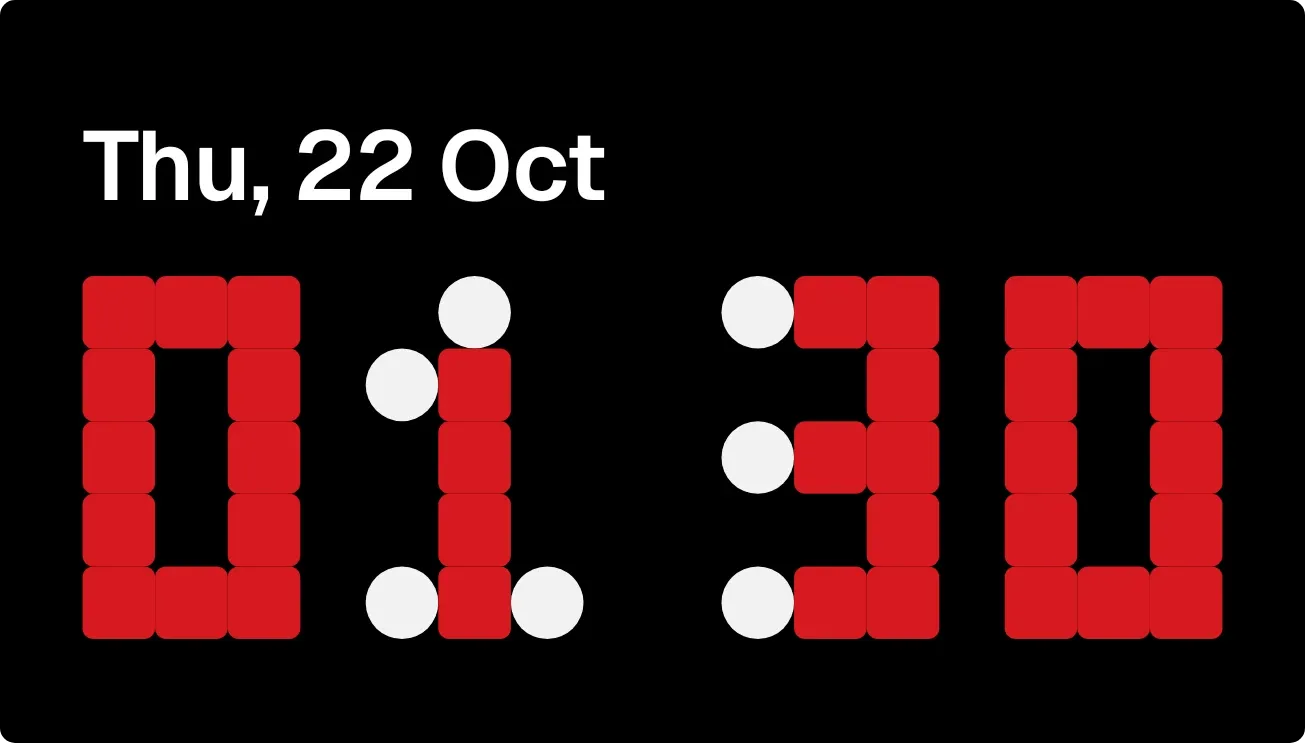
16. Loose Ends
Red block digits on black, their loose ends breaking off as white dots, with the date above; the dots move as the time changes.
Nothing · 4x2 · Time and date
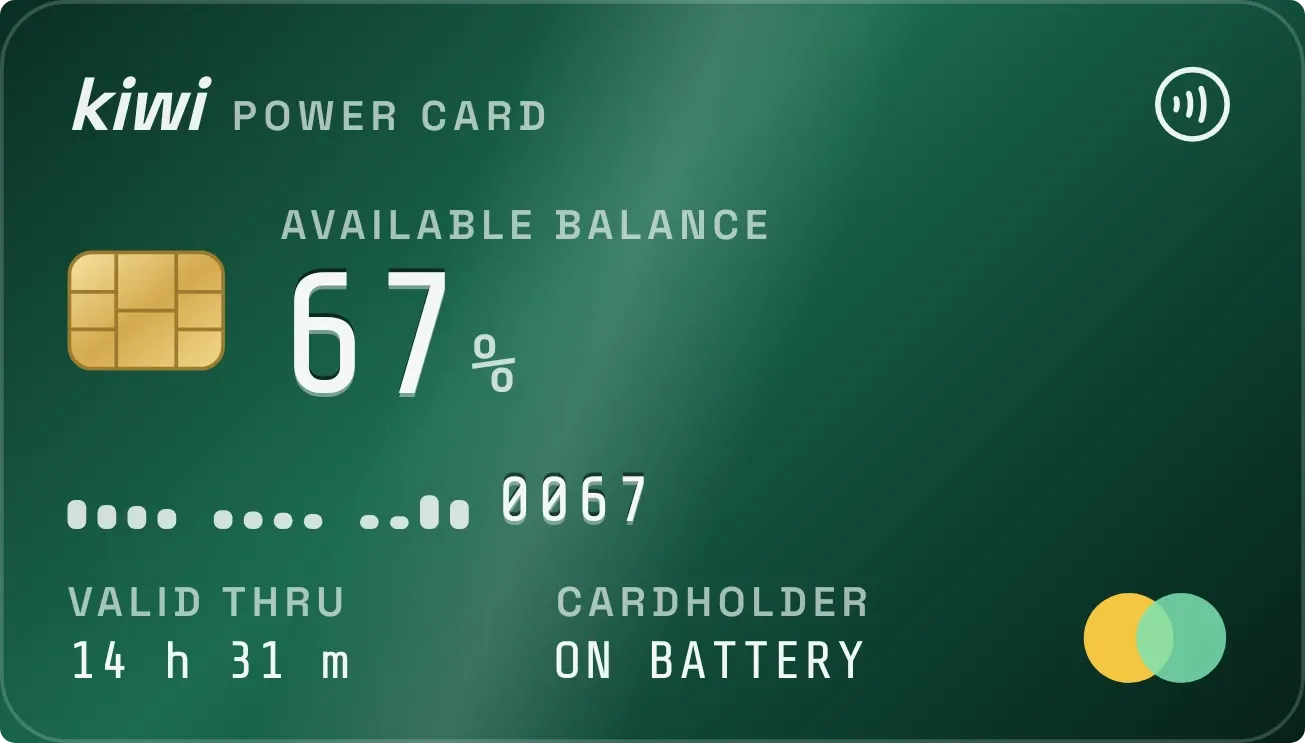
17. Emerald Vault
Battery as a green metal bank card: the percentage is the balance, a row of bars shows its history, and time left sits at the bottom.
Tactile Hardware · 4x2 · Battery
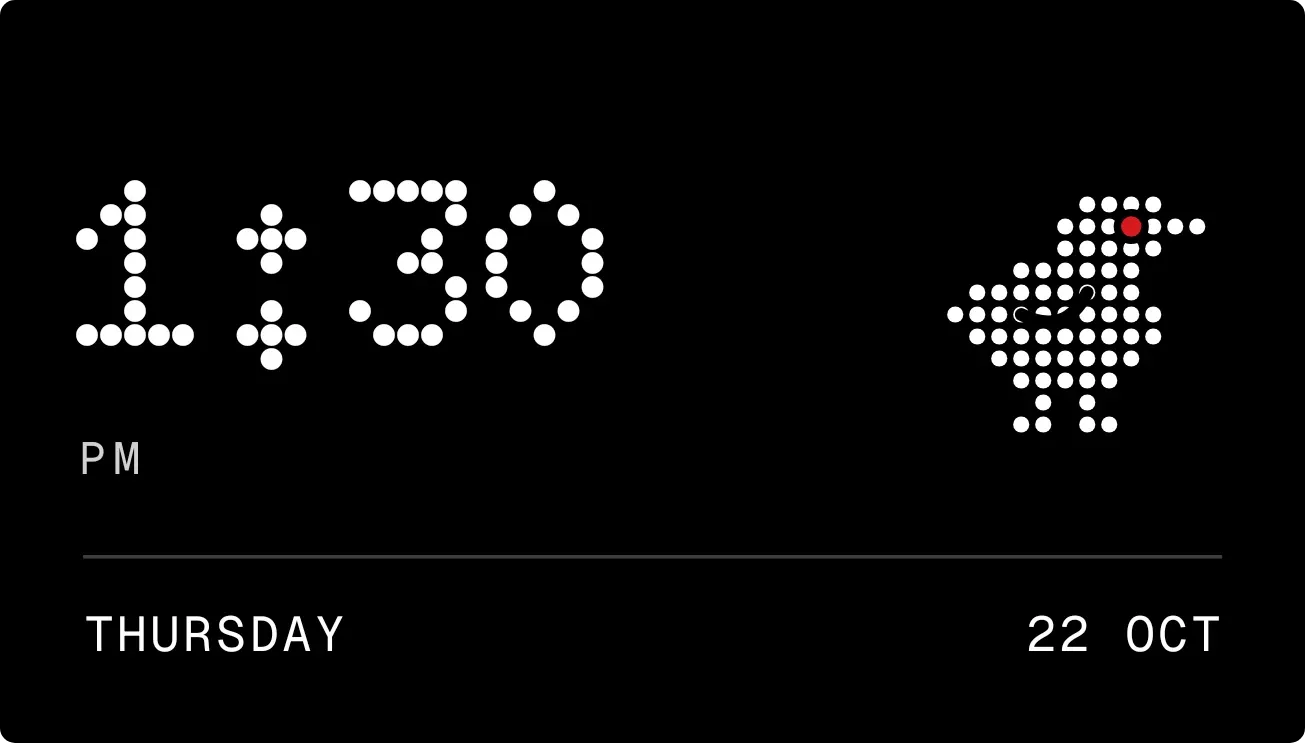
18. Redeye Roost
A black dot-matrix clock with a dotted bird perched beside the time: red-eyed by day, tucked in asleep at night, with the date in a dotted strip below.
Nothing · 4x2 · Time and date
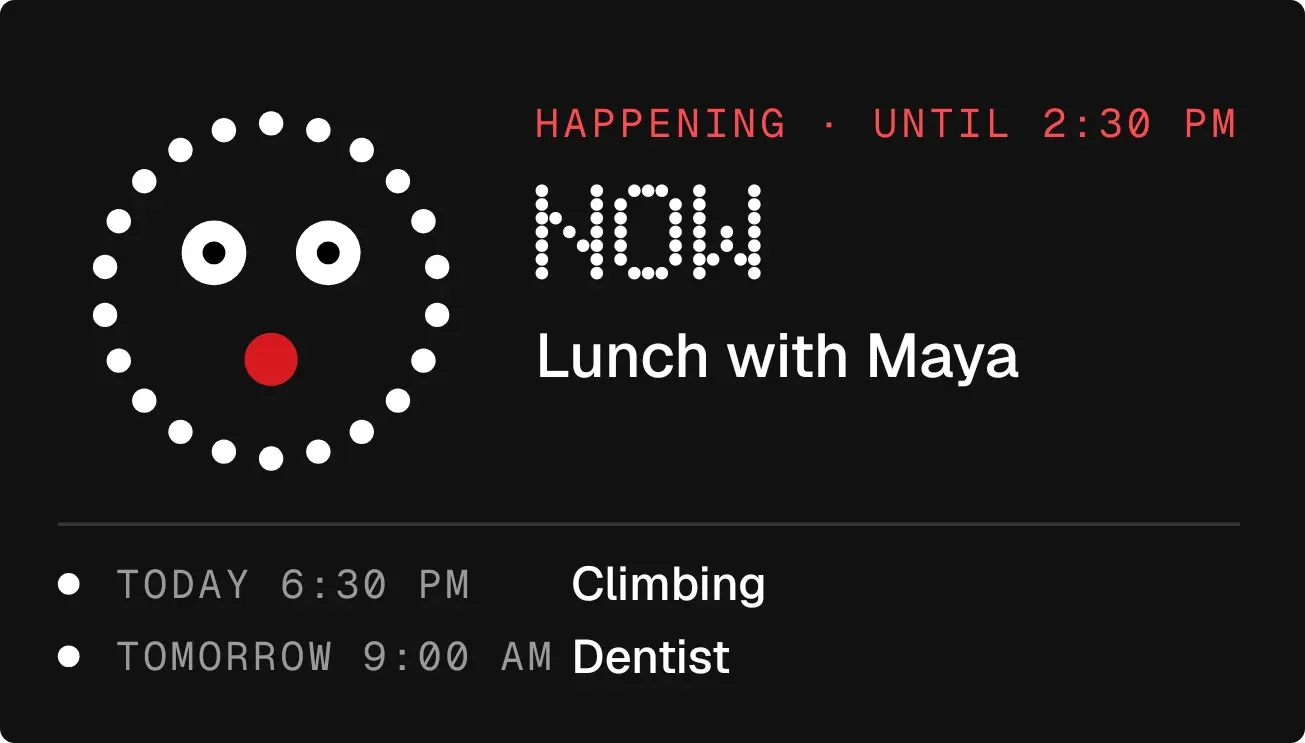
19. Cheshire Count
A ring of white dots grins beside your next event, its dotted minutes counting down, with the next two events listed below.
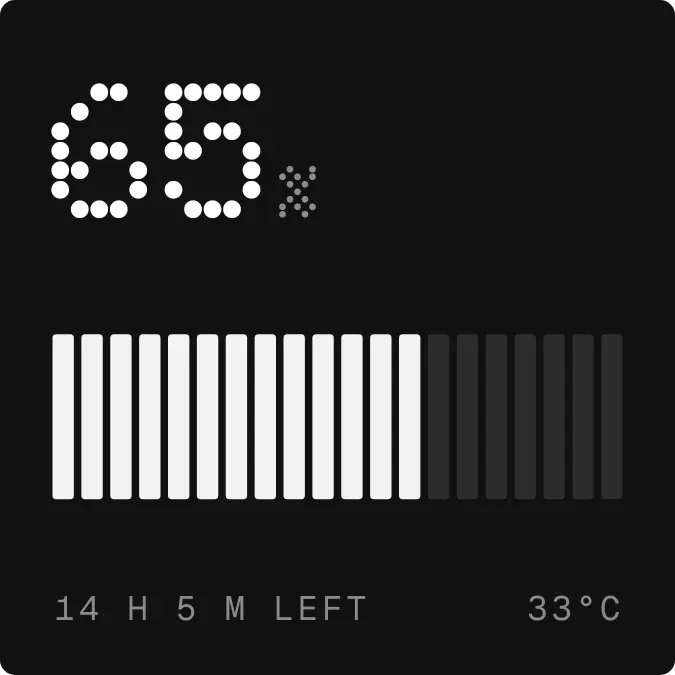
20. Halflit Stripes
Battery level in dotted white numerals above twenty stripes that light up as charge fills them, with time left and temperature beneath on black.
How to add a widget on Android
- The usual way: long-press an empty spot on the home screen, tap Widgets, find the app, drag the widget out, then resize it by long-pressing it again.
- The Kiwi way: open a widget in the app and tap Use. It is placed for you at the size you choose, with your own data already in it.
- Changing it later: switch to another widget in the same spot from the app, or resize on the home screen. Nothing to rebuild.