Clock widgets for Android
Android clock widgets in dot matrix, in words, on a dial or in binary. Choose a design that leaves room for your apps, or combine the time with weather and battery in one panel. Each uses the time from your phone.
116 designs across 14 Kiwi kits · Android 10 or newer. Previews show the designs; readings change with your data.
Choose a clock you can read at a glance
Selected from Kiwi's catalog for different layouts and everyday uses. Open a preview to see the design's details and the kit it belongs to.
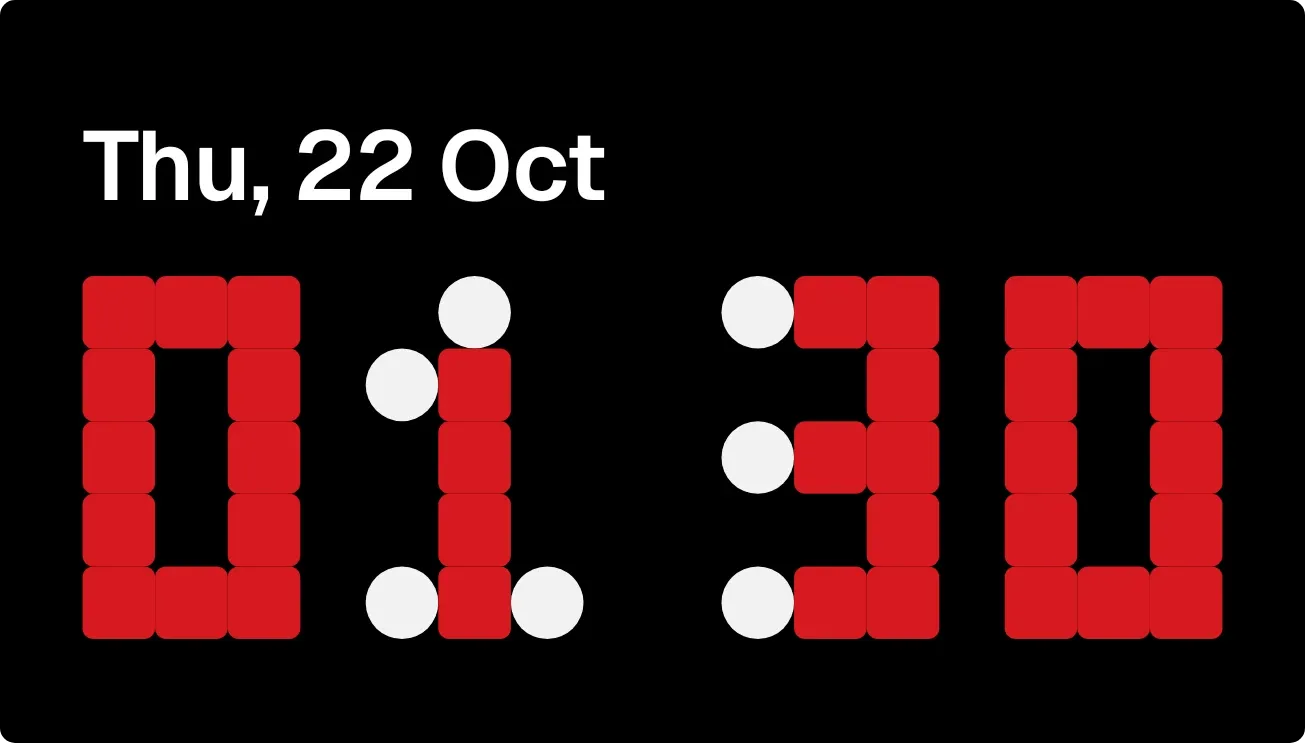
Large digits and a date
Loose Ends
Block Dot Clock uses large red digits and a date label. Choose it when you want the time to stand out against your wallpaper.
Free · 4x2 · Nothing
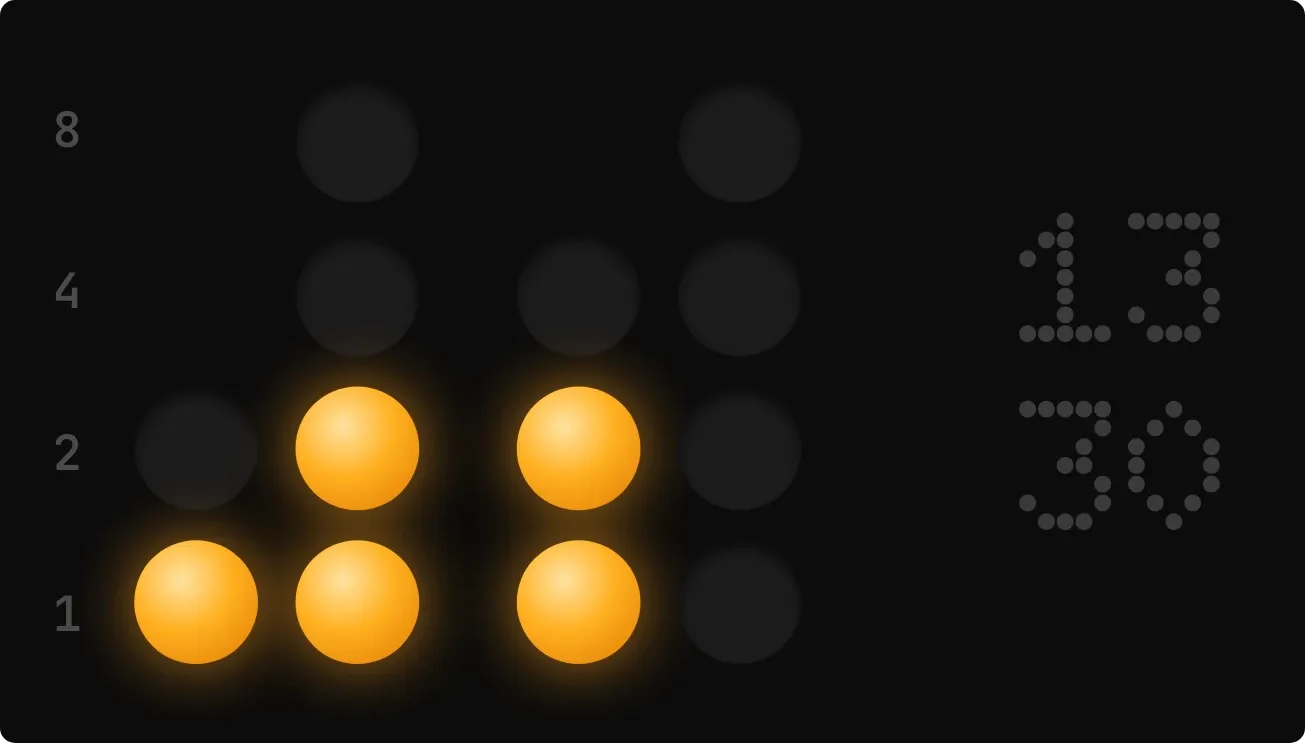
A clock with a different look
Ember Abacus
Binary Clock pairs amber binary digits with a plain time reading. You can read the time without decoding the lights.
Free · 4x2 · Instruments
| Widget | Size | Free / Pro | Special access | Setup |
|---|---|---|---|---|
| Loose Ends | 4x2 | Free | None | Uses your phone's time and date. |
| Ember Abacus | 4x2 | Free | None | Uses your phone's time; this design has a 24-hour layout. |
Sizes are launcher grid cells: columns × rows. Special access means permissions such as calendar or usage access; weather still needs internet for fresh data.
How to put one on your home screen
- Install Kiwi from Google Play on Android 10 or newer. Open a design from this page and find it in its named kit in Kiwi.
- Check the Free or Pro label and preview the clock with your data. For a combined clock and weather design, choose a city in Kiwi's weather settings.
- Leave room for the listed grid size, tap Use and follow your launcher's placement prompt. Placement and resizing depend on your launcher.
Before you add a clock widget
- Are the clock widgets free?
- Each design has a Free or Pro label beside its preview. The recommendations above use those catalog labels; other designs may require Pro. Check the label in Kiwi before adding a widget.
- How much home screen space do I need?
- Sizes such as 2×2 and 4×2 describe cells in your launcher's grid. A 4×2 design needs four columns and two rows at its starting size. Leave space before adding it; your launcher controls placement and resizing.
- Why is the clock showing the wrong time?
- Check your phone's date, time and time zone settings first: these clocks use the phone's time. If only the widget appears stuck, open Kiwi and return to the home screen. Check whether Android has restricted Kiwi's background activity if the problem continues.
- Can I switch between 12-hour and 24-hour time?
- It depends on the design. Some clocks follow your phone's time format; others use a fixed layout, such as the 24-hour Binary Clock. Preview the design in Kiwi before placing it.
- Do clocks work without internet or KWGT?
- A clock using only your phone's time does not need internet or a KWGT preset pack. Combined widgets can need a connection for other readings, such as weather. Check each design's data and permission requirements.
More clock widgets from Kiwi
Browse the remaining designs by look, size and Free or Pro access.
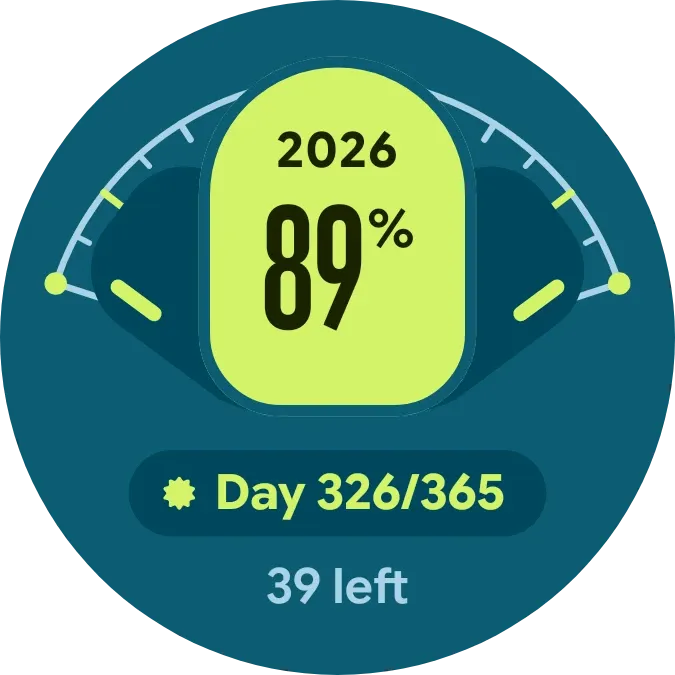 YearwingMaterial Expressive · 2x2 · Free
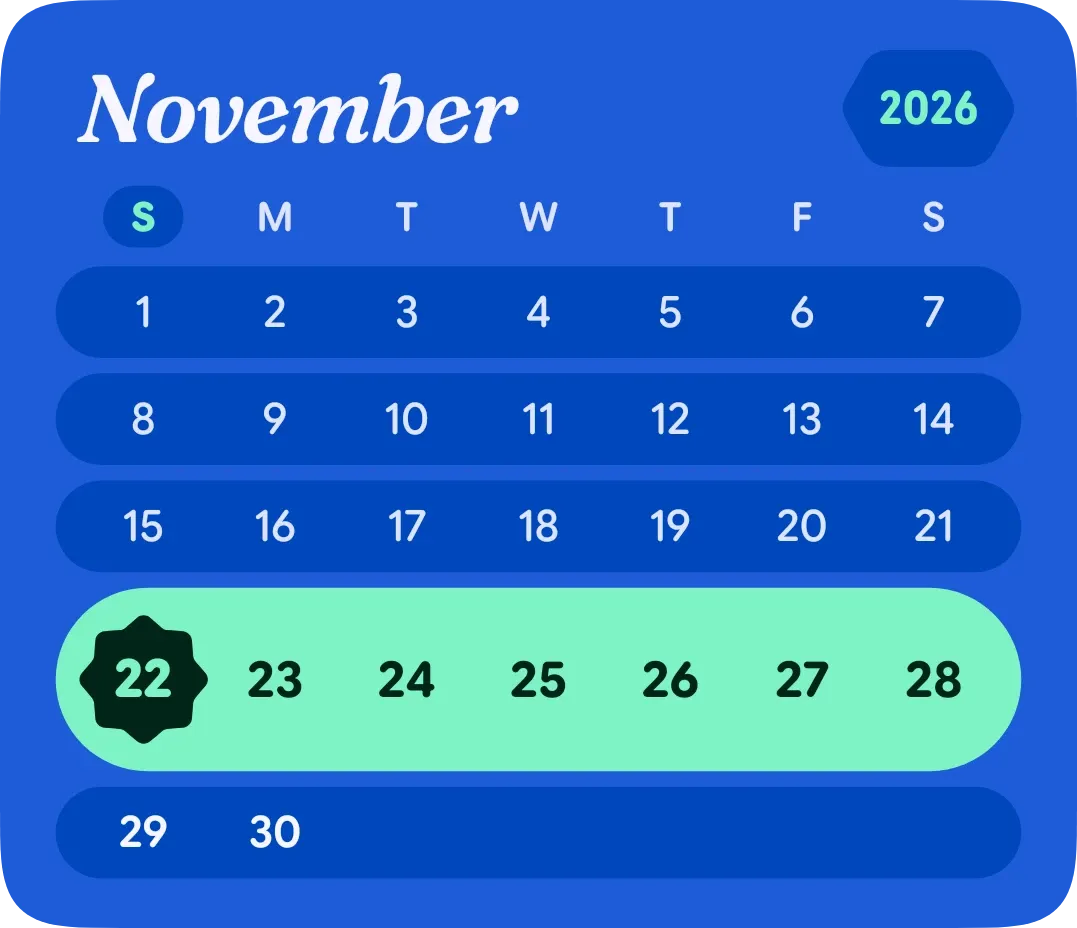 WeekliftMaterial Expressive · 4x3 · Free
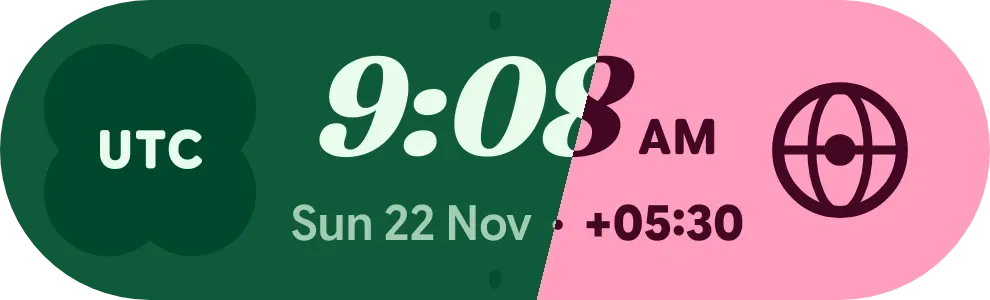 Melon MeridianMaterial Expressive · 3x1 · Free
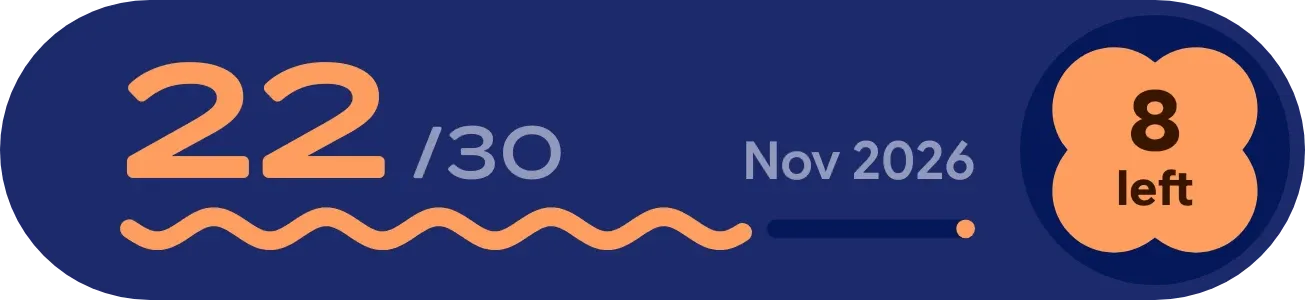 MonthsurfMaterial Expressive · 4x1 · Free
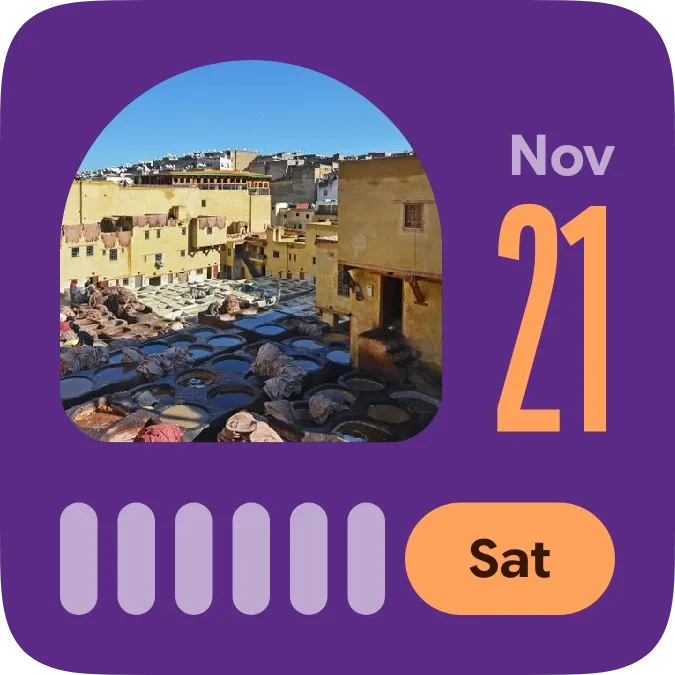 Plum PostcardMaterial Expressive · 2x2 · Free
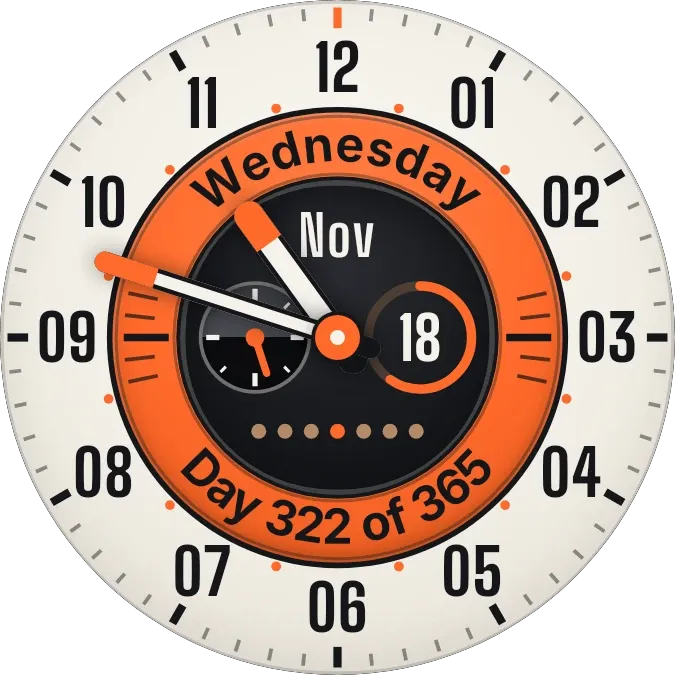 TracksideWatch Face · 2x2 · Free
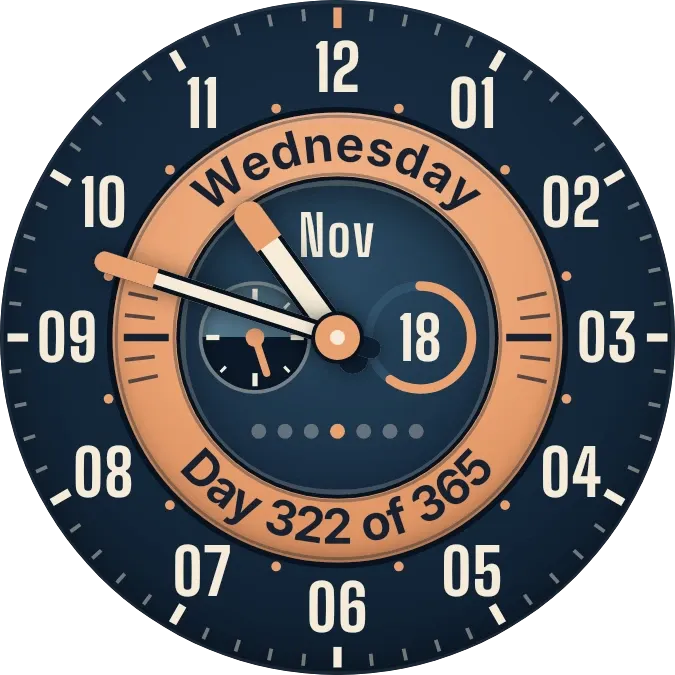 Atlantic CopperWatch Face · 2x2 · Free
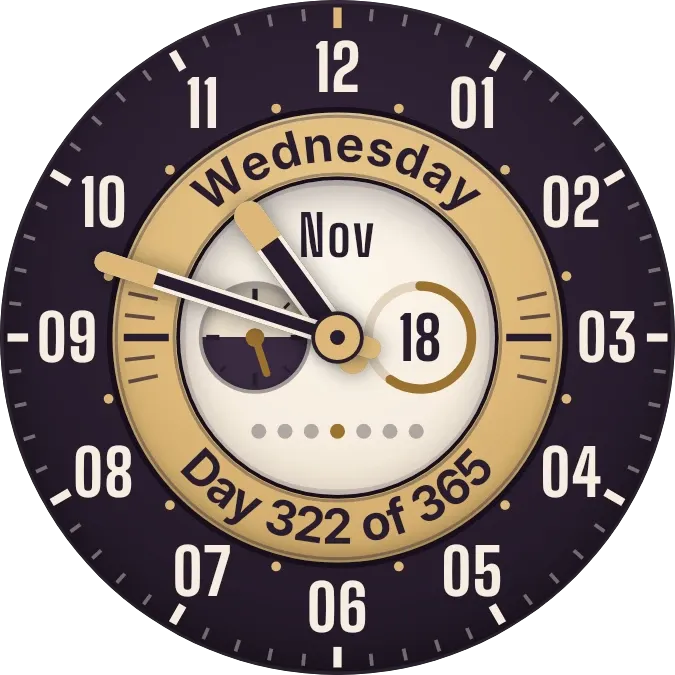 Gilt PlumWatch Face · 2x2 · Free
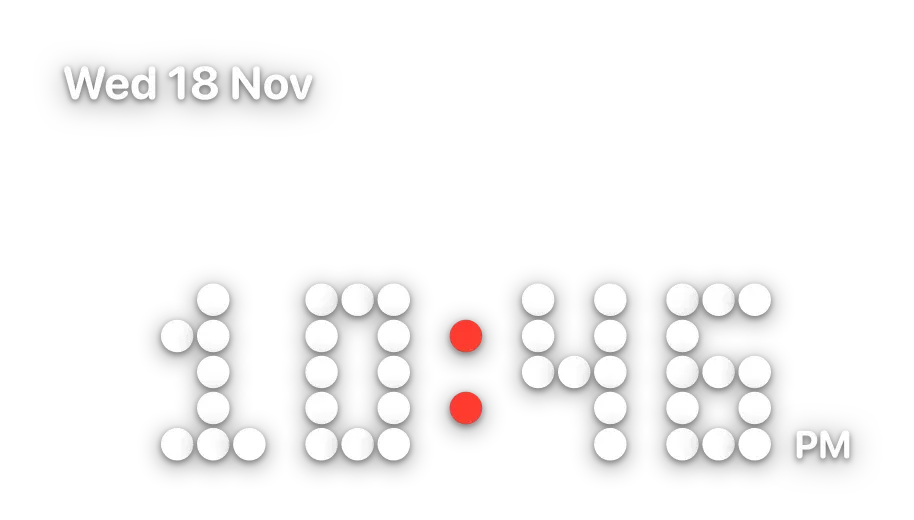 PeppercornNothing · 4x2 · Free
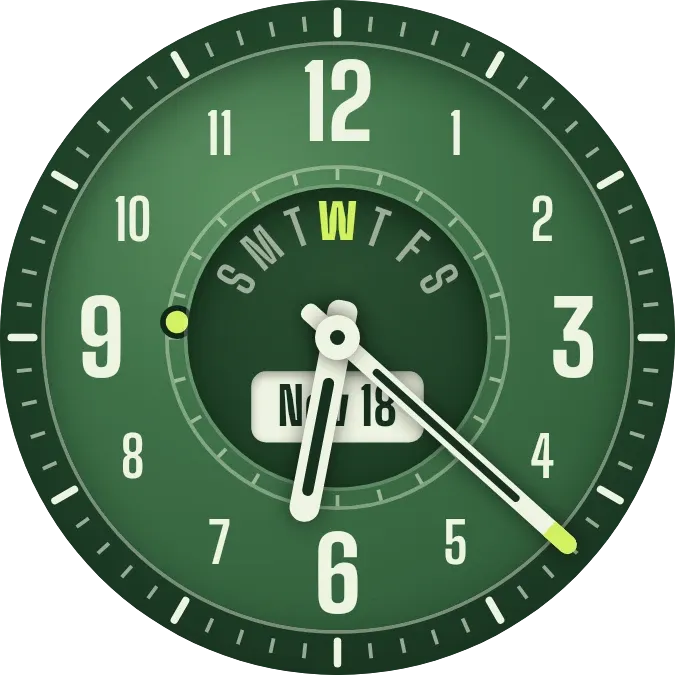 FernworksWatch Face · 2x2 · Free
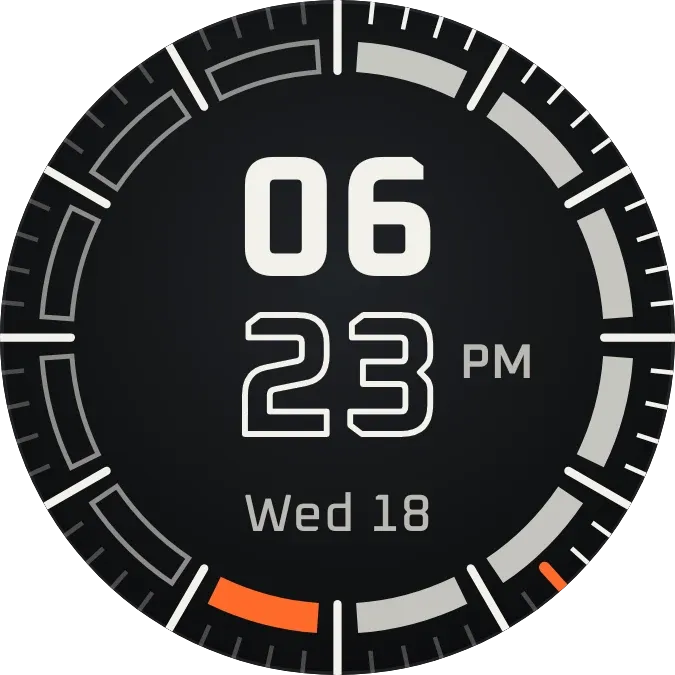 RimrunnerWatch Face · 2x2 · Free
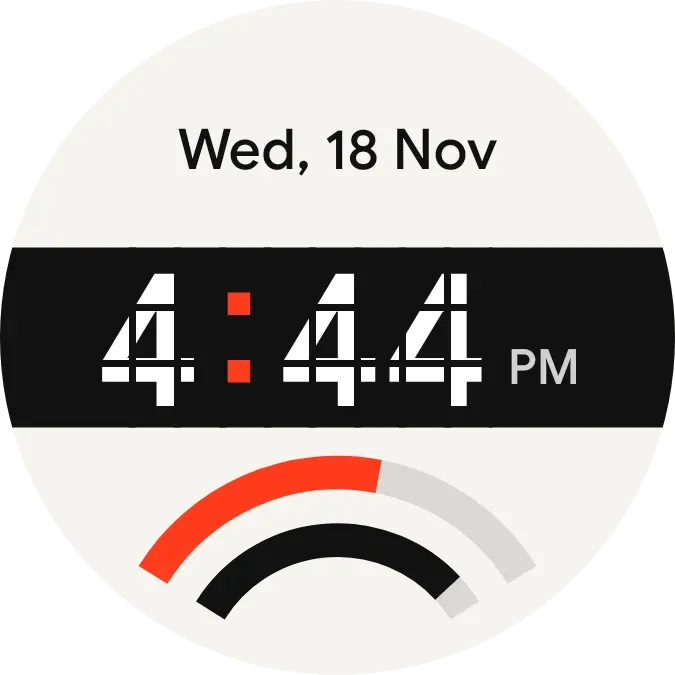 Stencil TempoWatch Face · 2x2 · Free
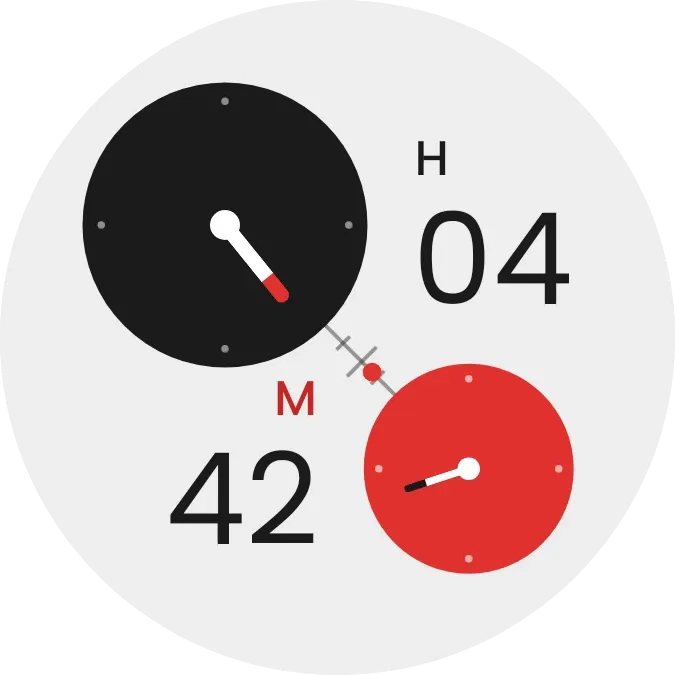 OffbeatInstruments · 2x2 · Free
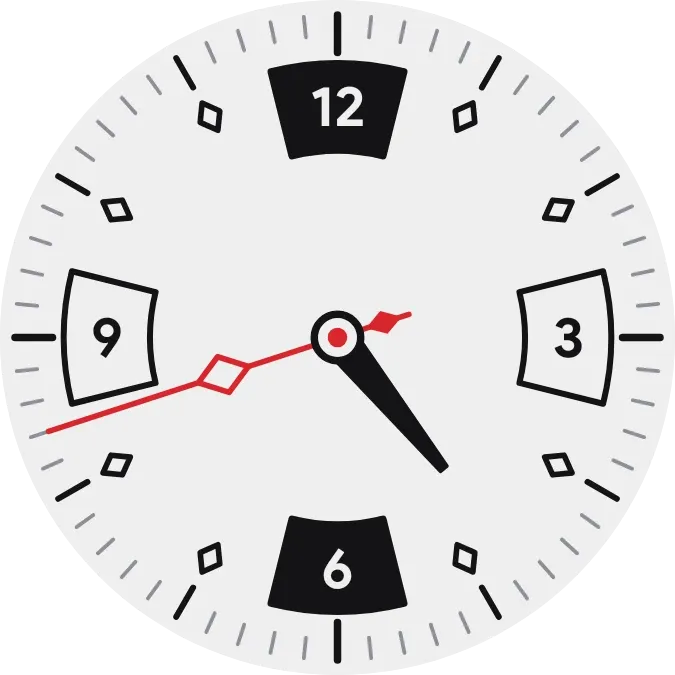 Harlequin TickWatch Face · 2x2 · Free
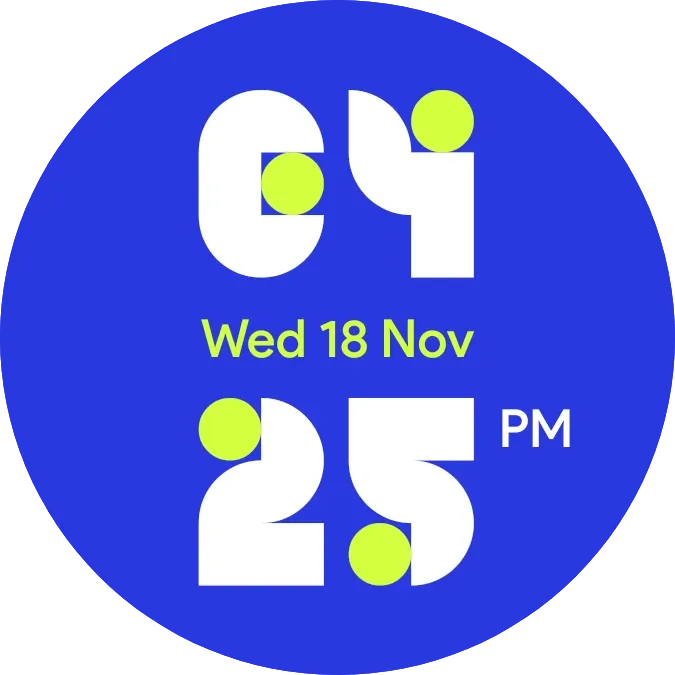 Dot AcrobatPlayful · 2x2 · Free
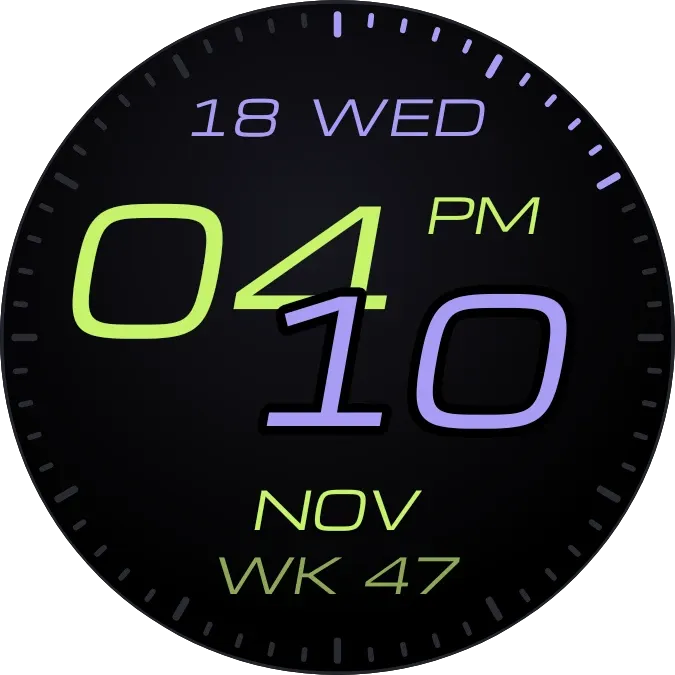 ChicaneWatch Face · 2x2 · Free
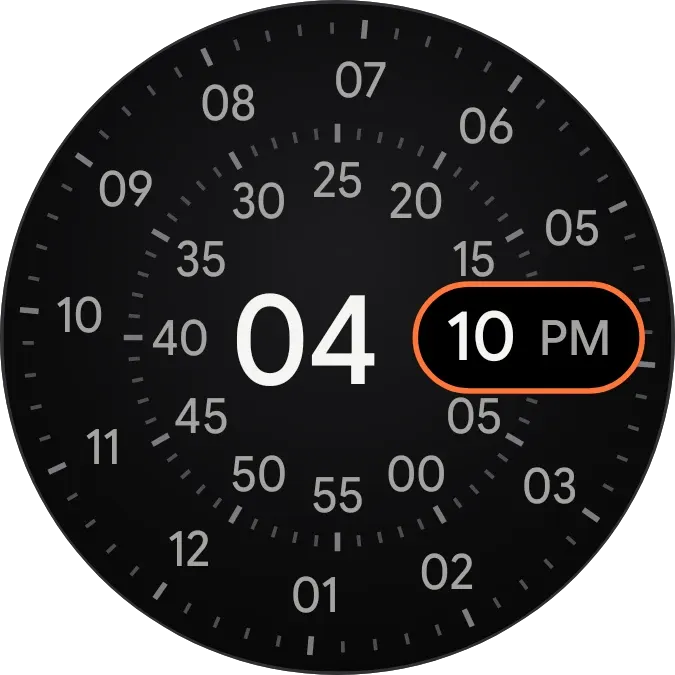 DialdriftInstruments · 2x2 · Free
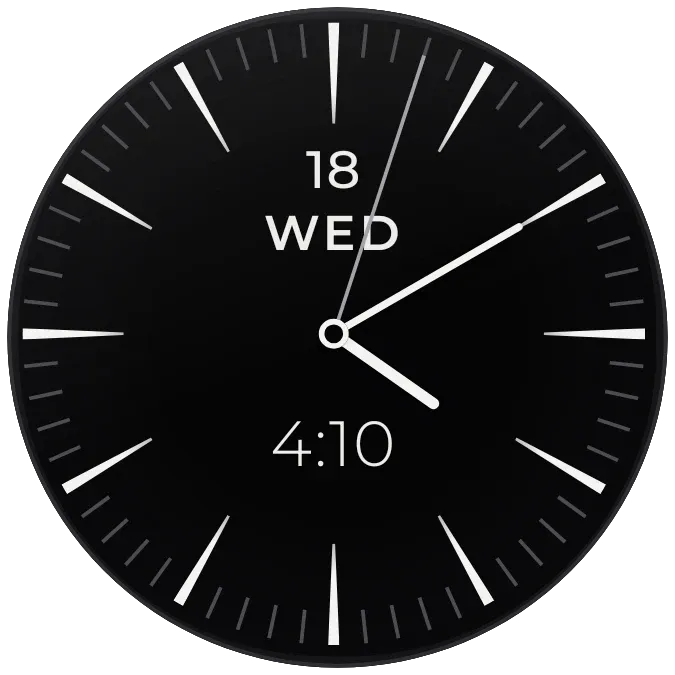 NightspokeWatch Face · 2x2 · Free
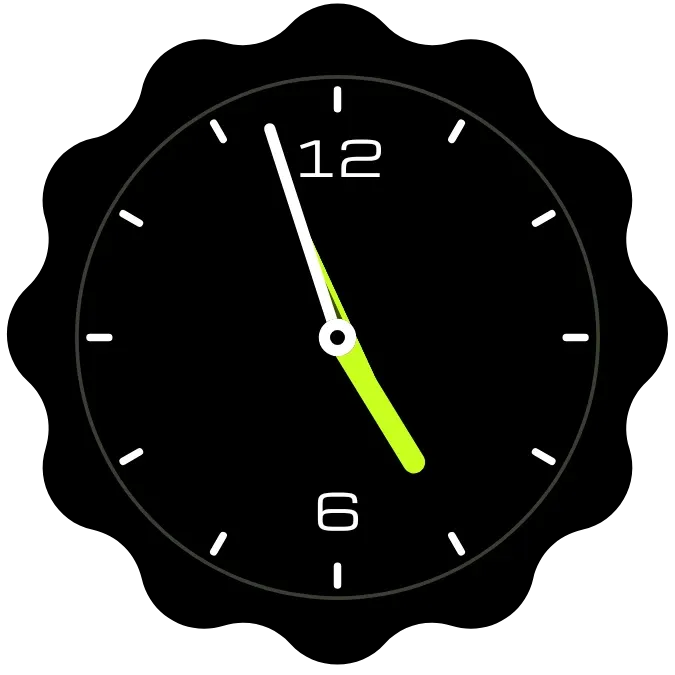 Citron SweepWatch Face · 2x2 · Free
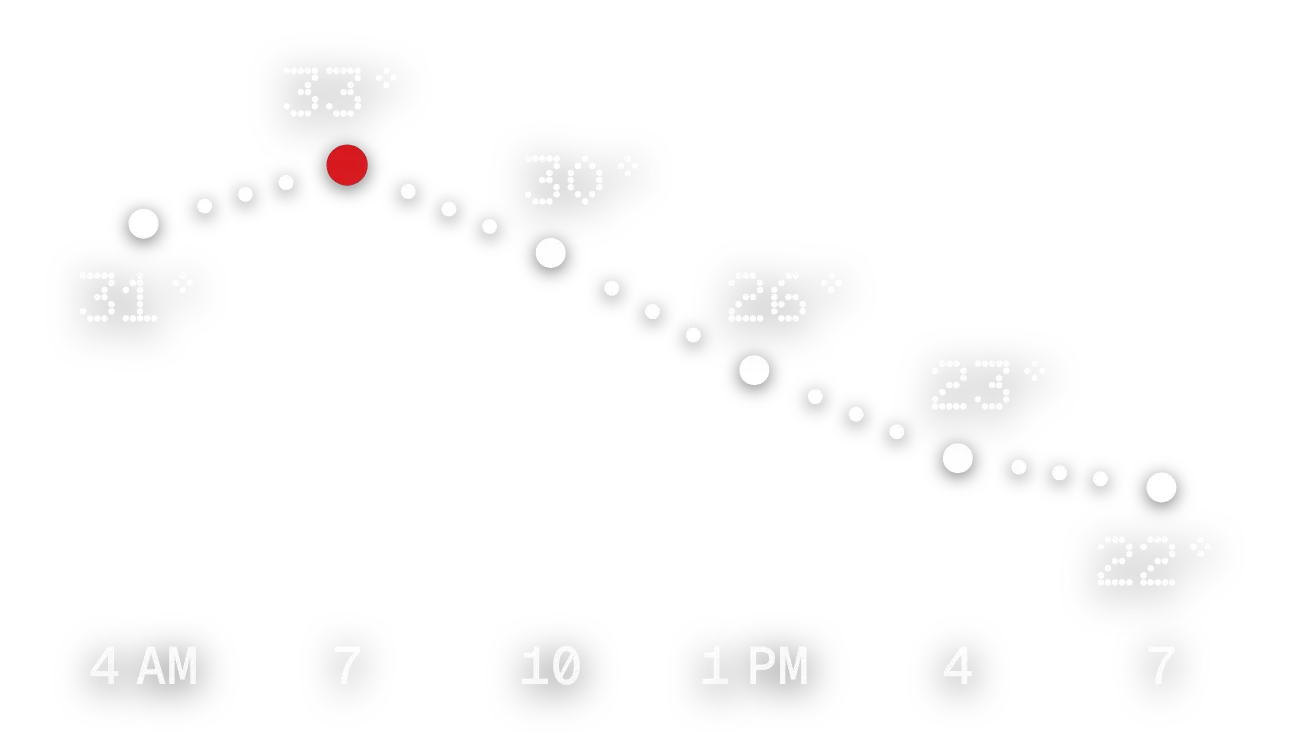 HeatbeadsNothing · 4x2 · Free
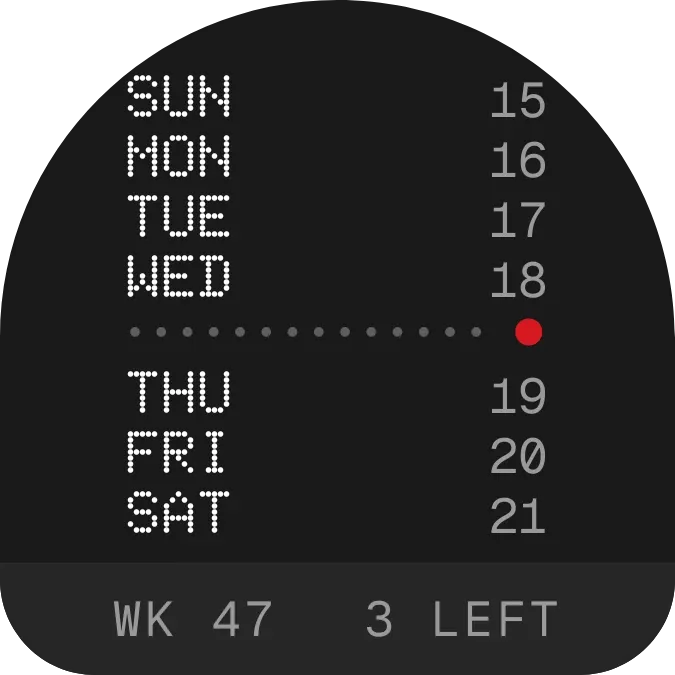 WeektraceNothing · 2x2 · Free
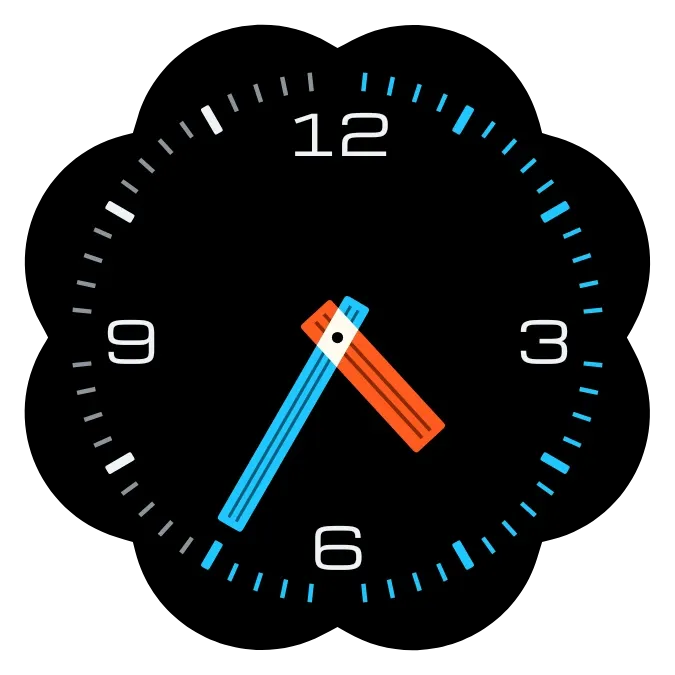 CrossgrainWatch Face · 2x2 · Free
 WeeksplicePlayful · 2x1 · Pro
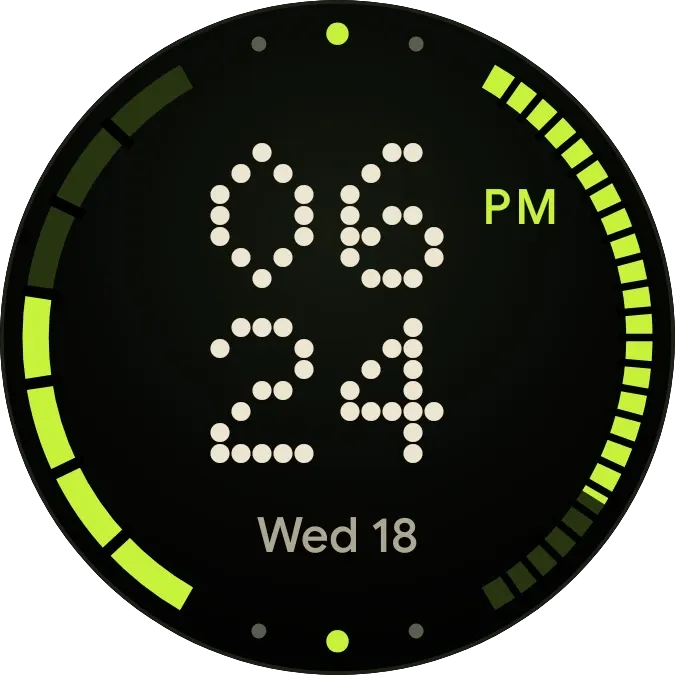 Pip CircuitWatch Face · 2x2 · Free
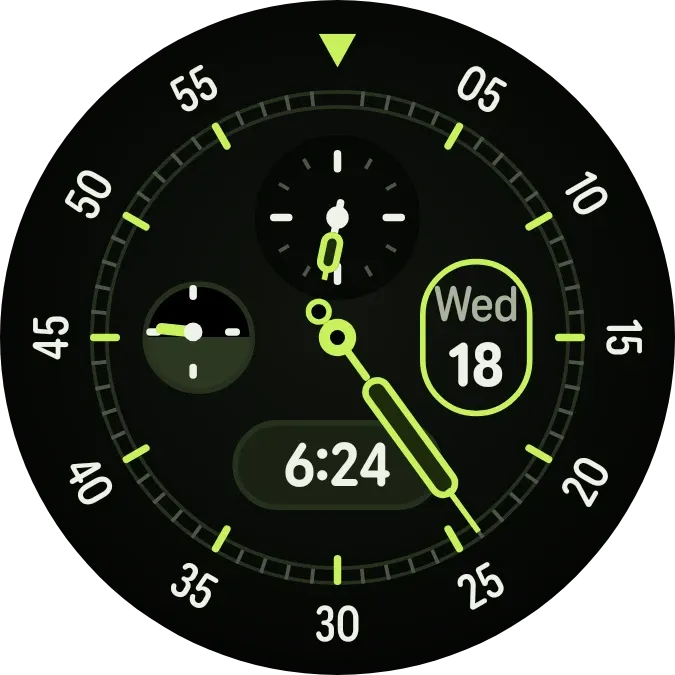 Lume ScoutWatch Face · 2x2 · Pro
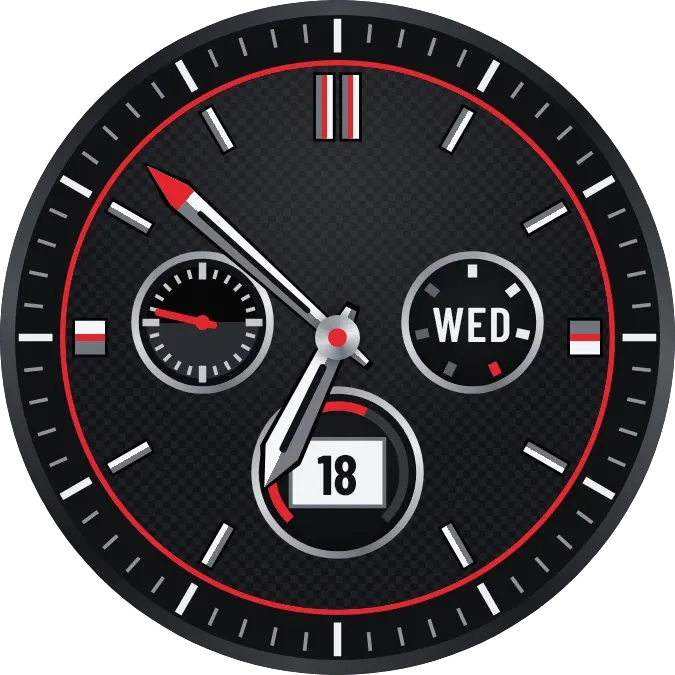 Carbon RallyWatch Face · 2x2 · Pro
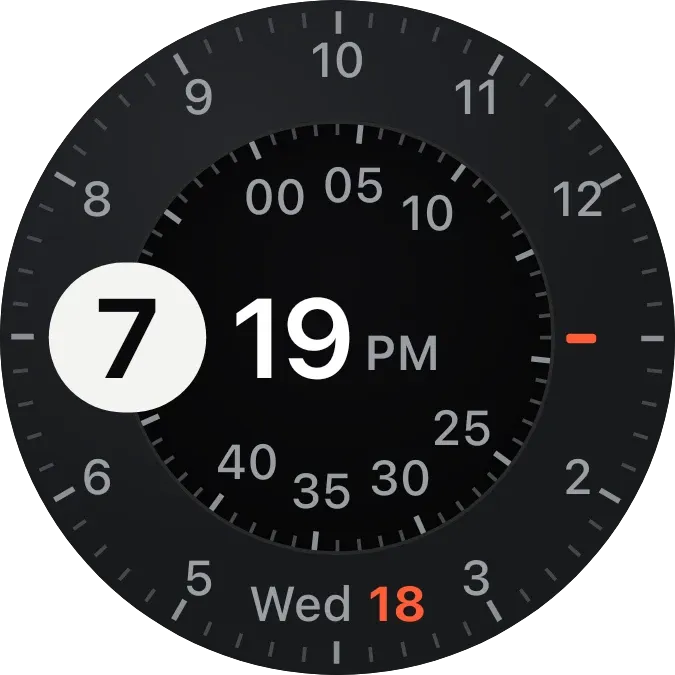 Bezel WaltzWatch Face · 2x2 · Pro
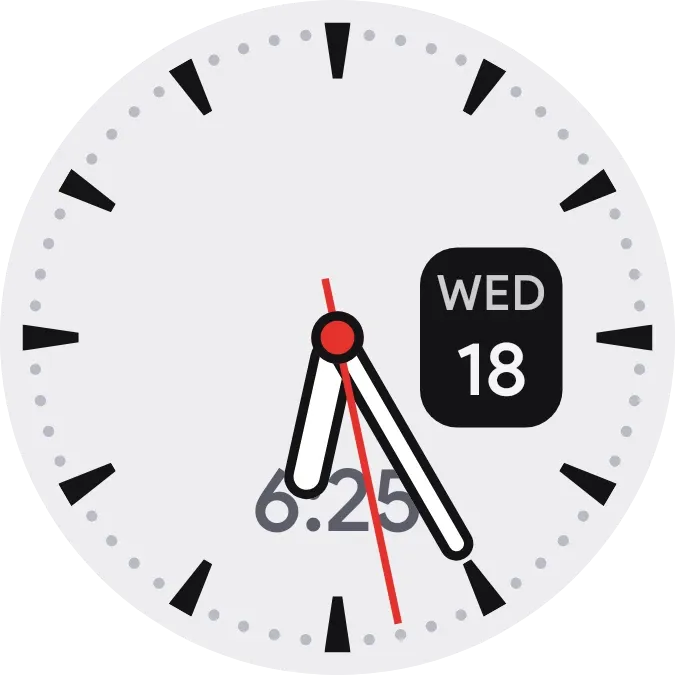 RivetWatch Face · 2x2 · Free
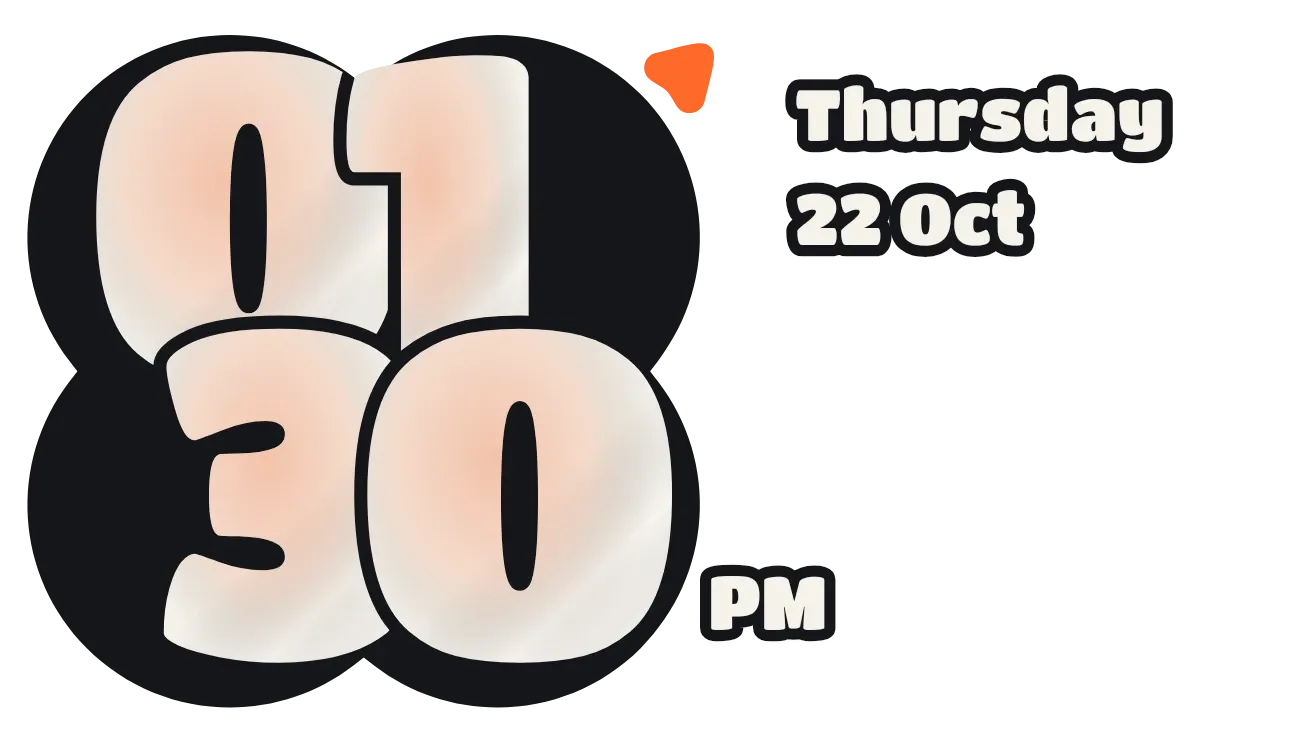 Puffy PressPlayful · 4x2 · Free
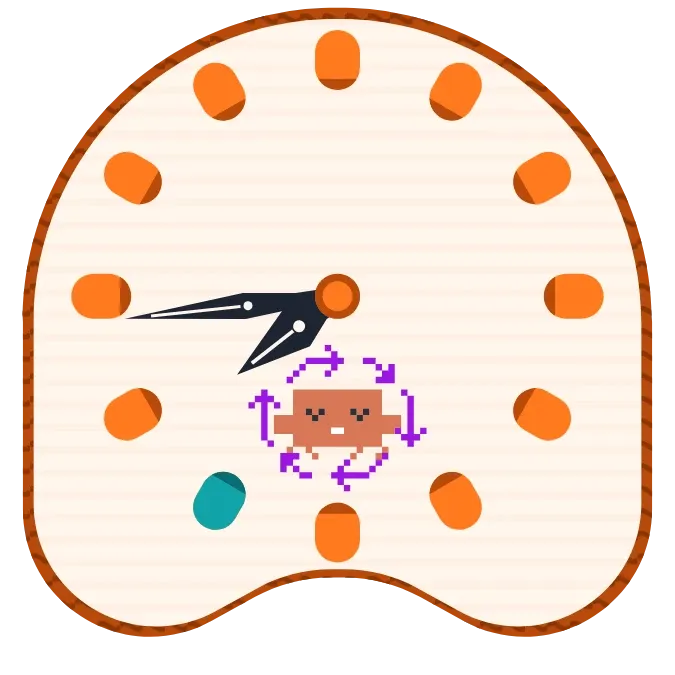 Flute SpritePlayful · 2x2 · Pro
 Ray RascalPlayful · 2x2 · Pro
 Apricot StubMaterial Expressive · 2x2 · Pro
 Midnight MarqueeClear · 4x2 · Free
 Bench BeatPlayful · 4x1 · Pro
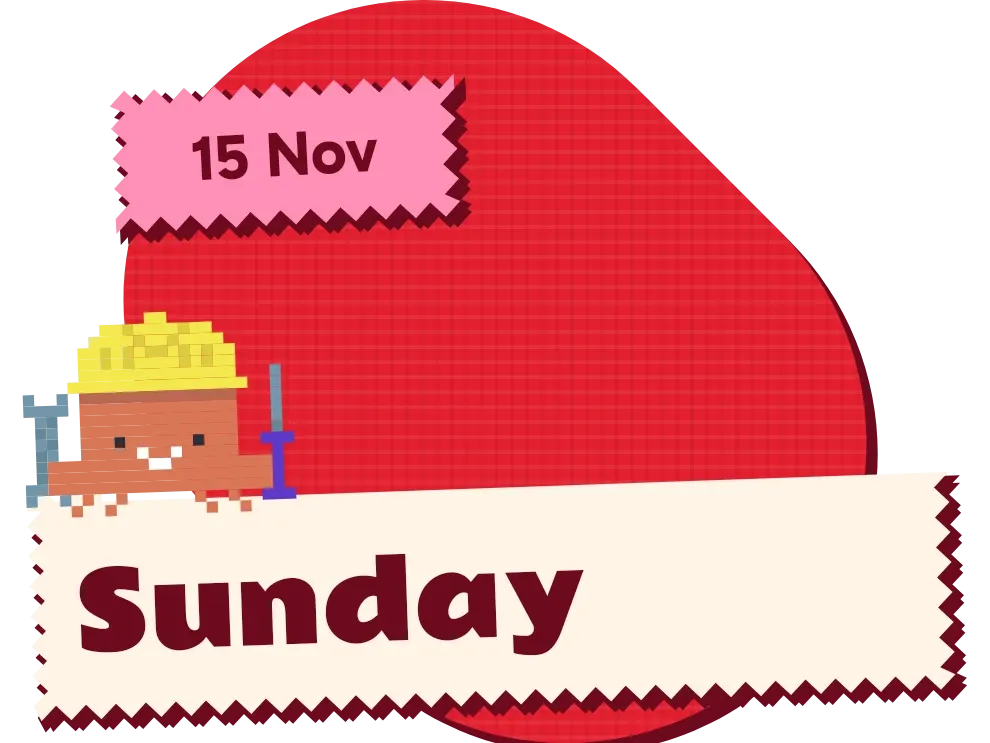 Zigzag JauntPlayful · 3x2 · Pro
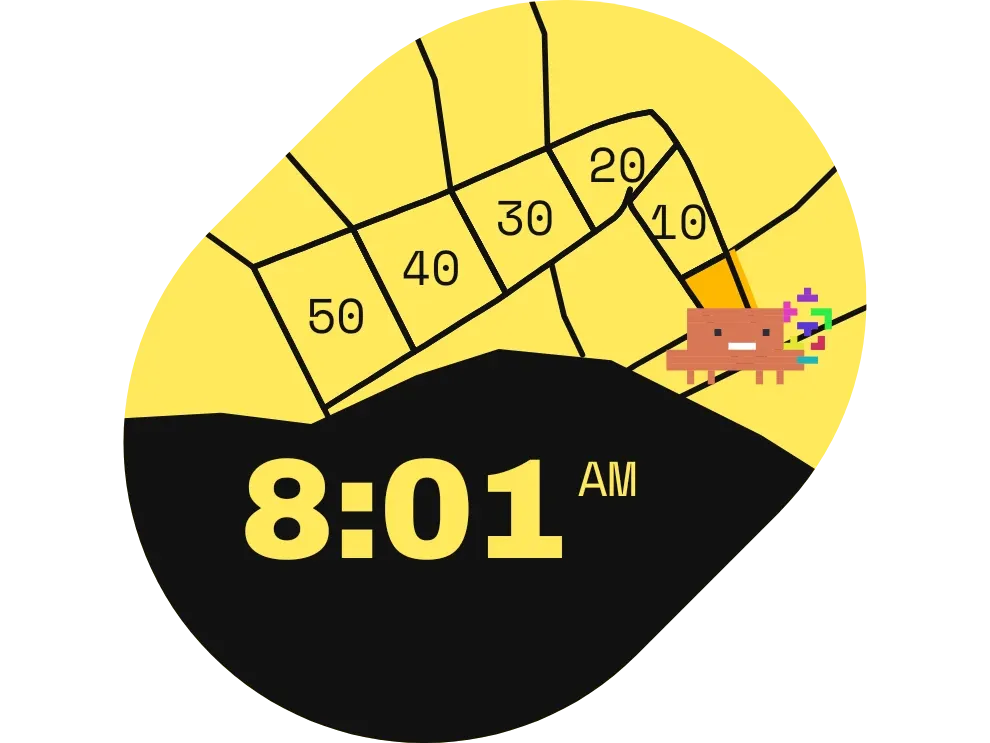 Confetti TrekPlayful · 3x2 · Free
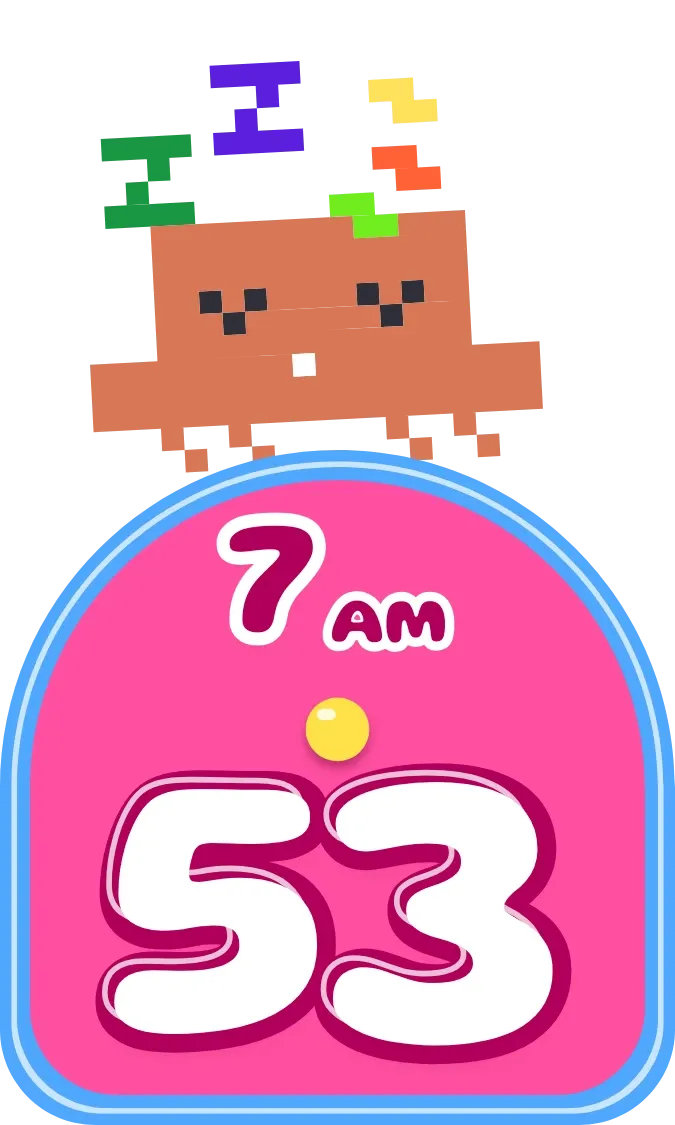 Doze DollopPlayful · 2x3 · Pro
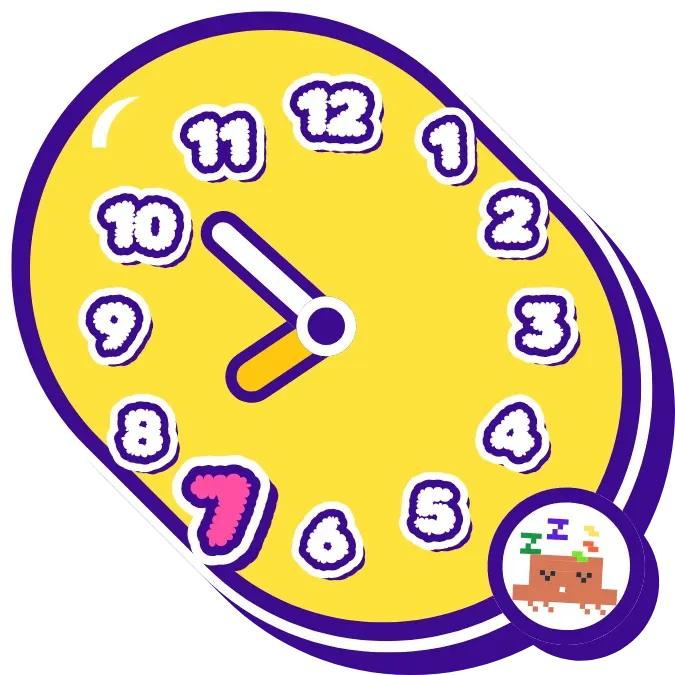 Bubble RuckusPlayful · 2x2 · Pro
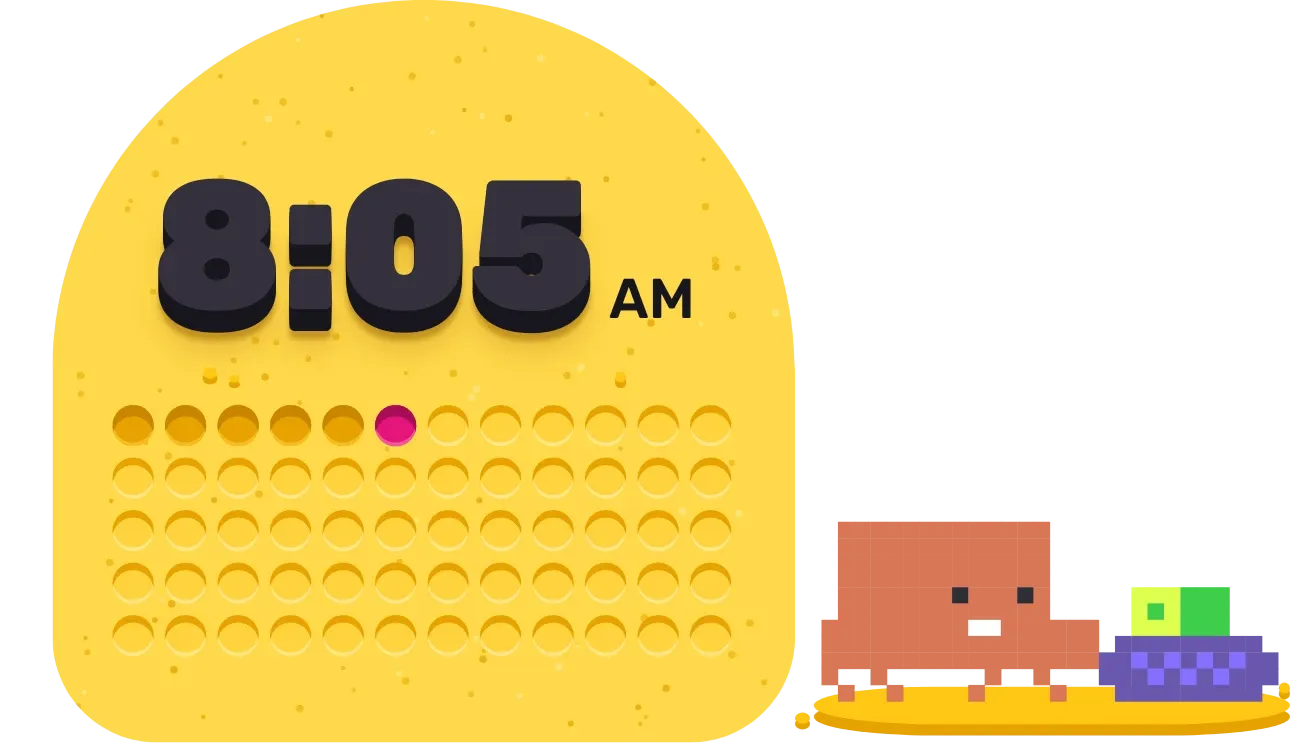 SandstompPlayful · 4x2 · Pro
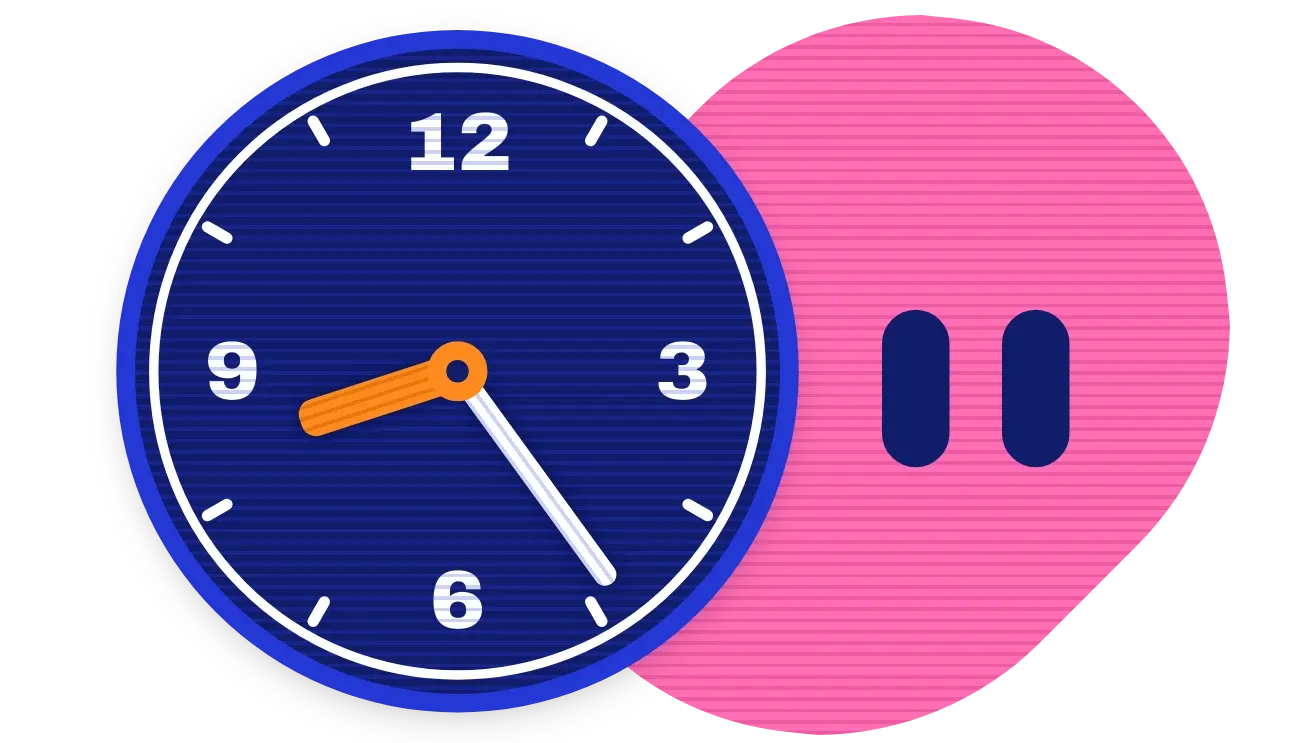 Peep WeavePlayful · 4x2 · Pro
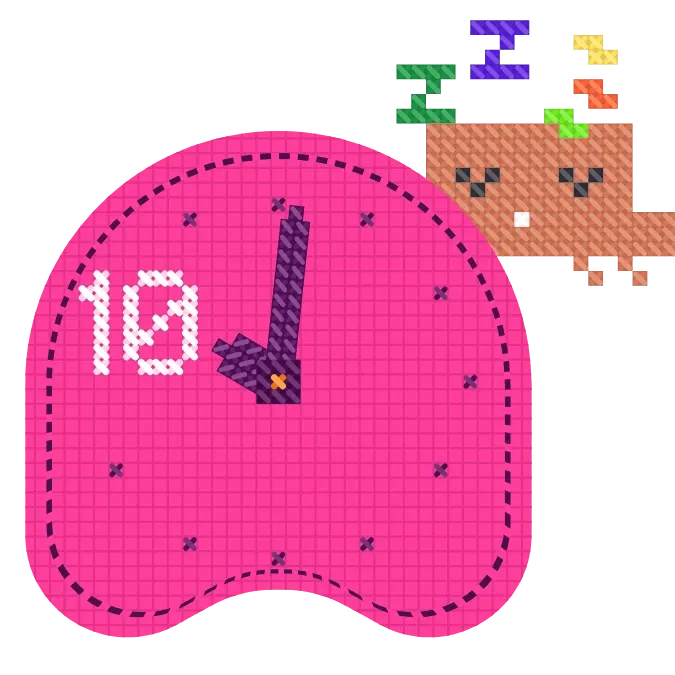 ThreadnapPlayful · 2x2 · Pro
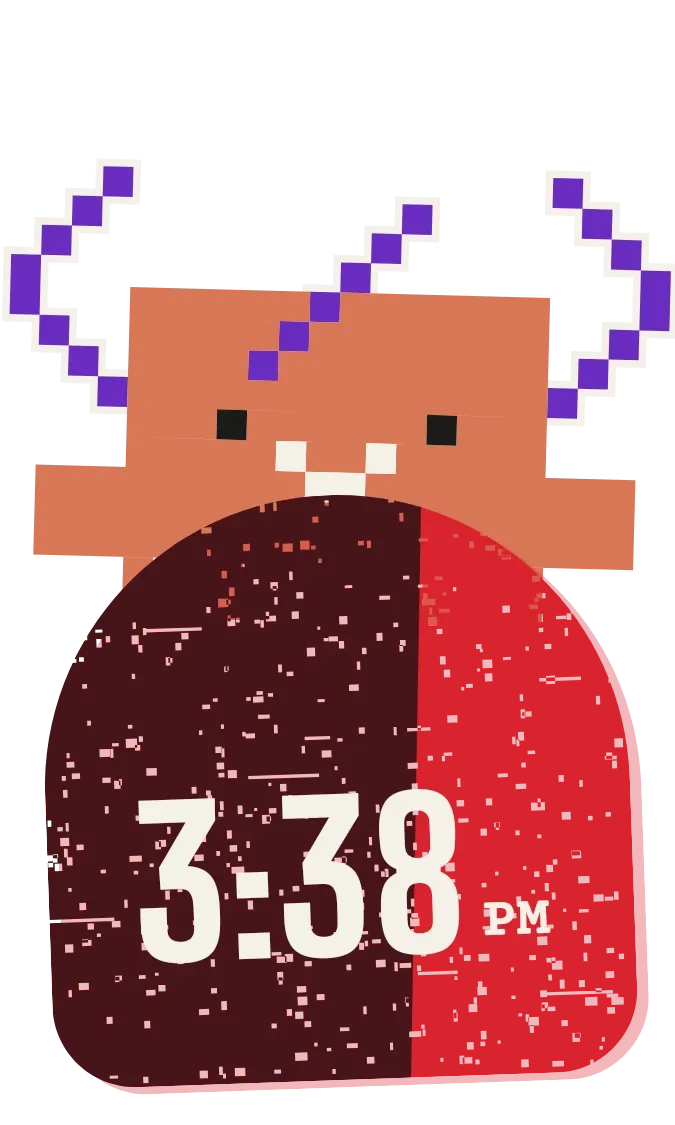 StampbotMascots · 2x3 · Pro
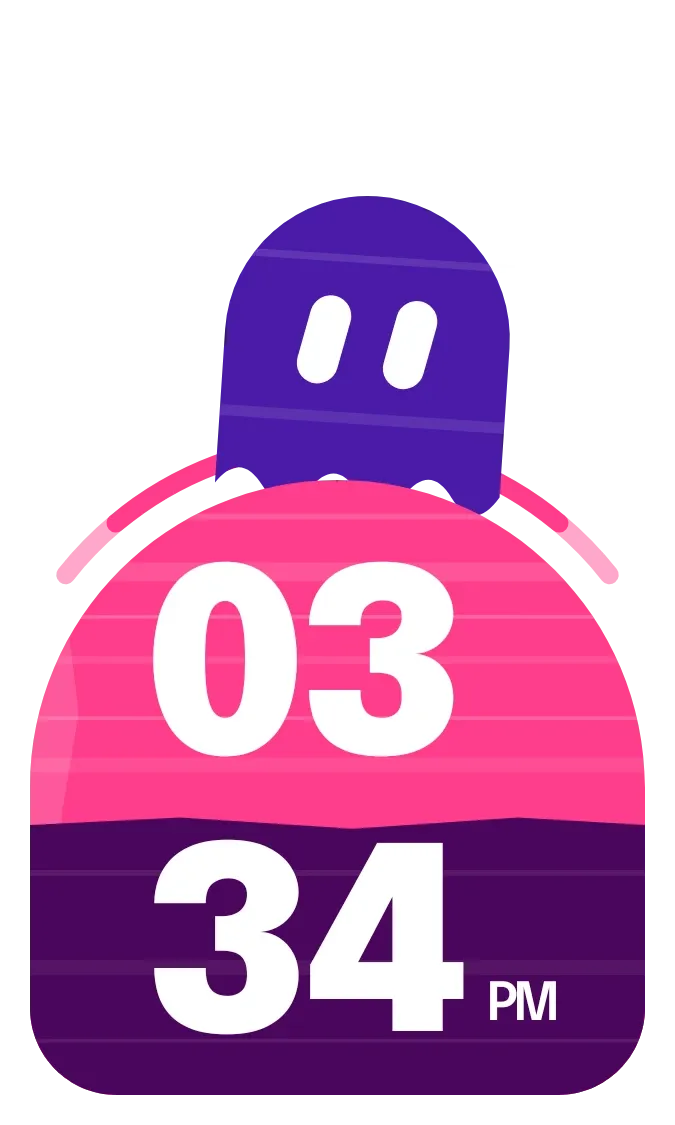 Boo ScootMascots · 2x3 · Pro
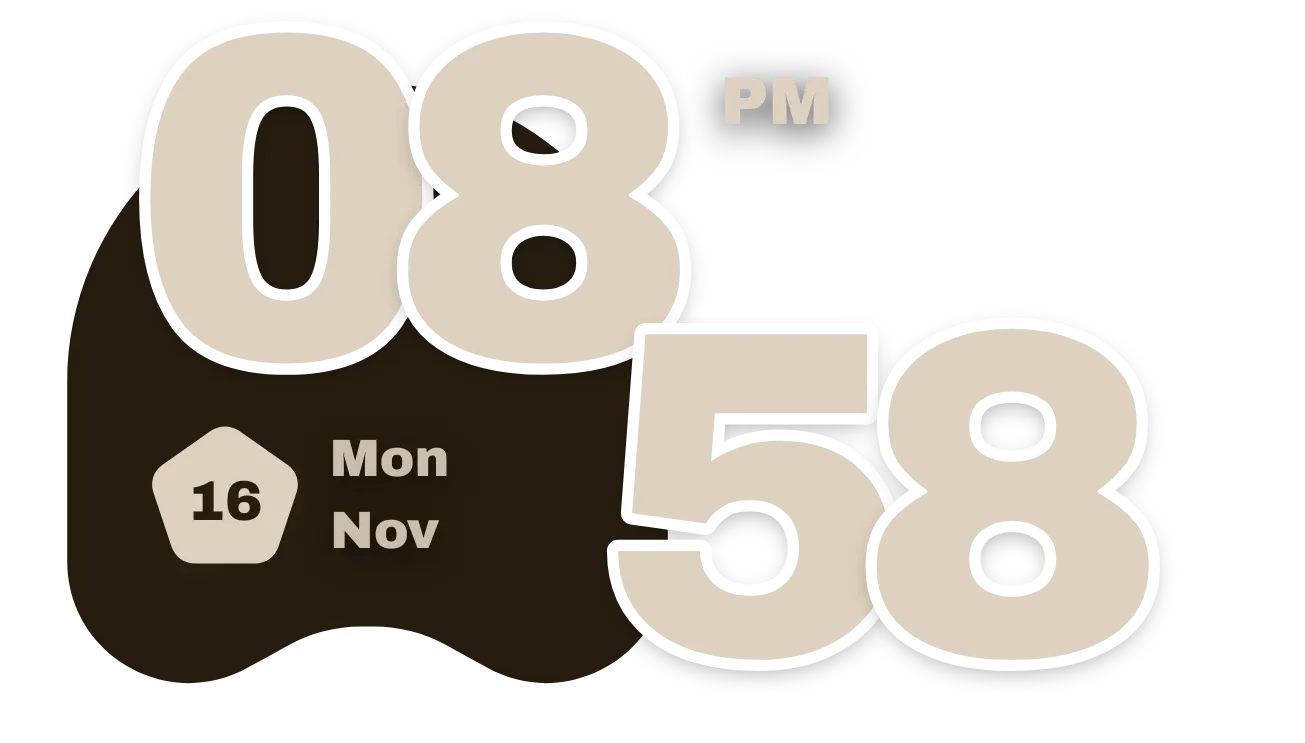 Umber HauntMaterial You · 4x2 · Pro
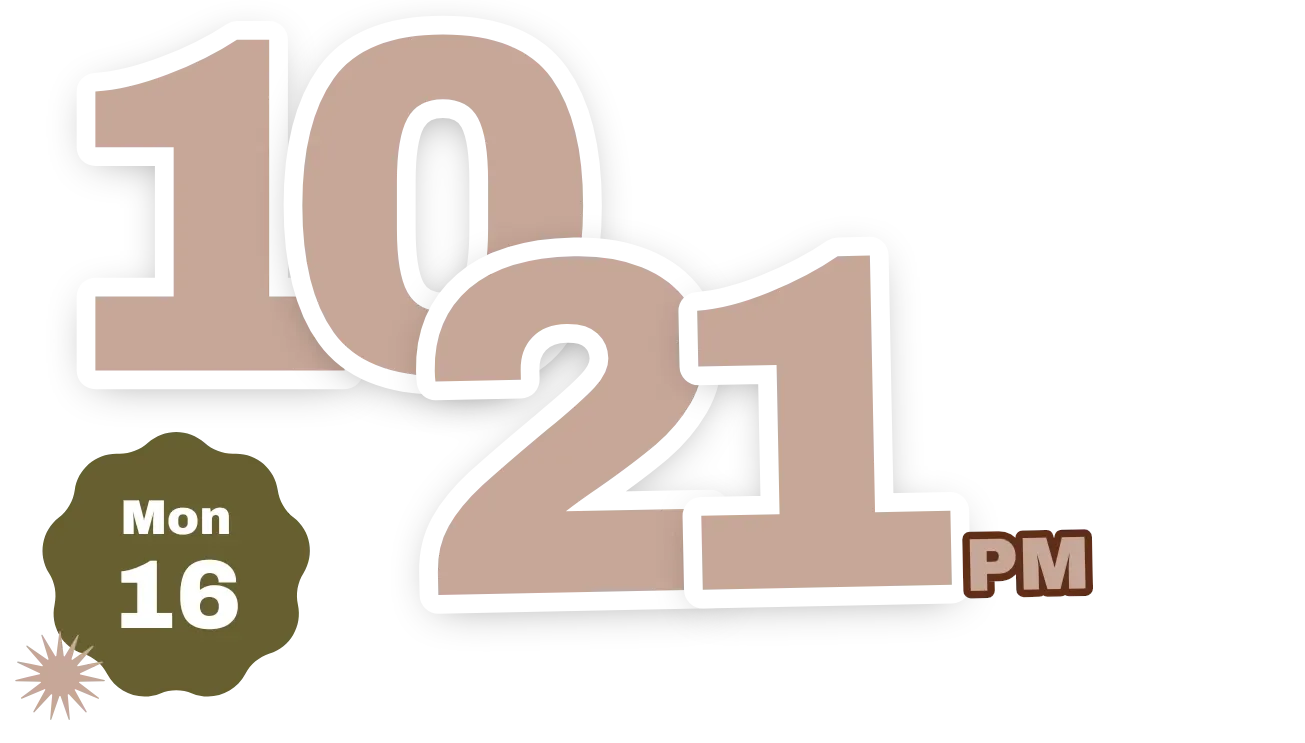 JostleMaterial You · 4x2 · Free
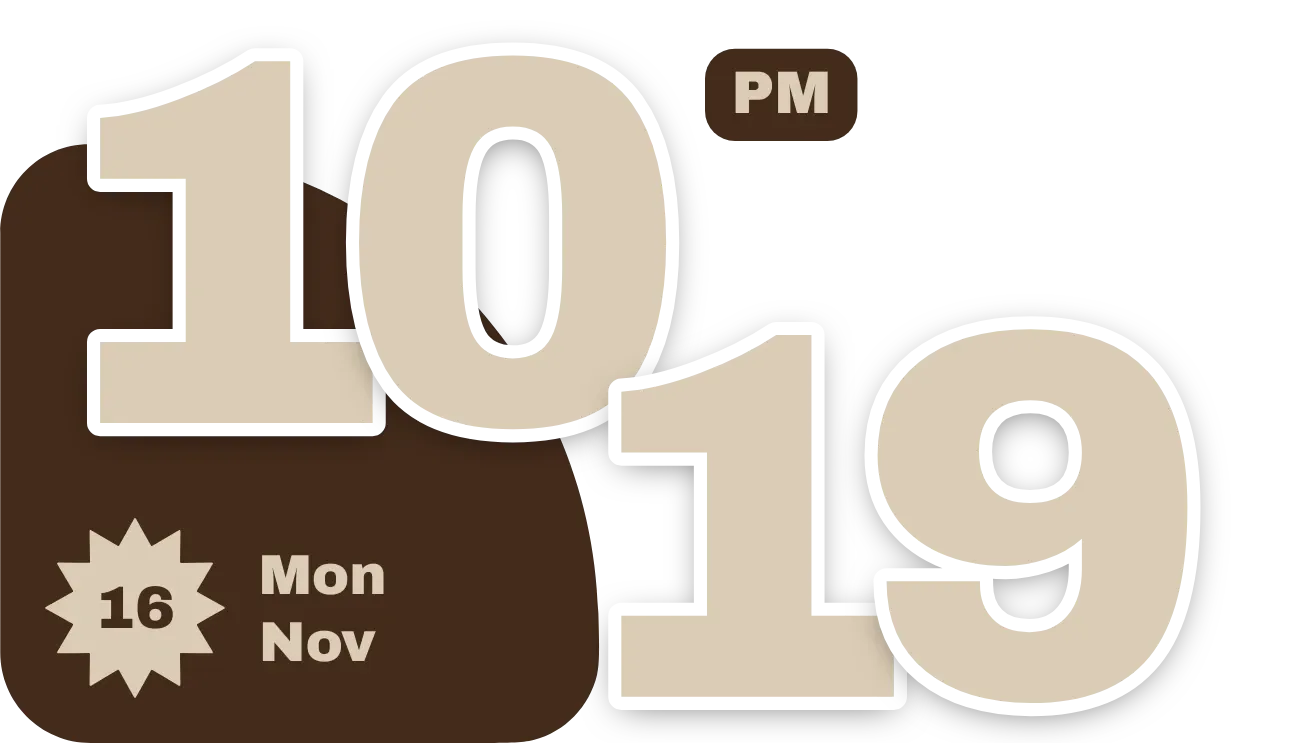 Cocoa JiveMaterial You · 4x2 · Free
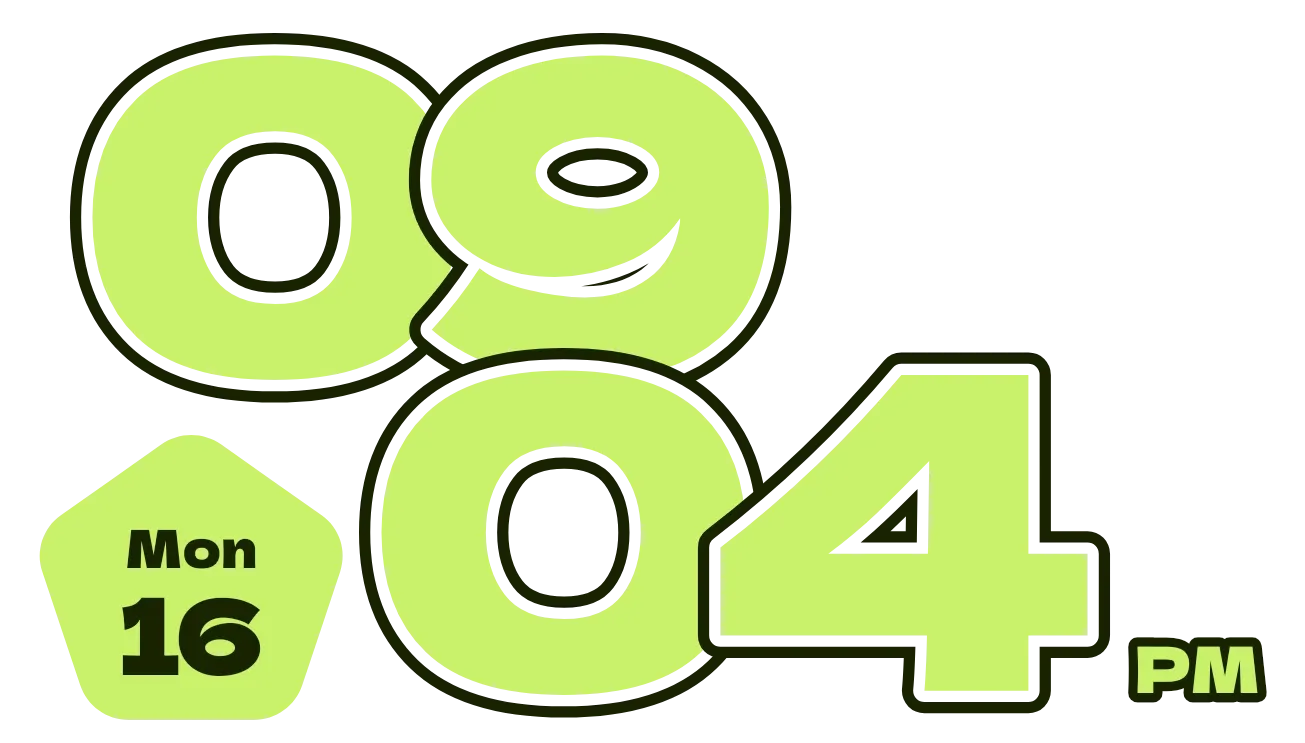 Zest JamMaterial Expressive · 4x2 · Pro
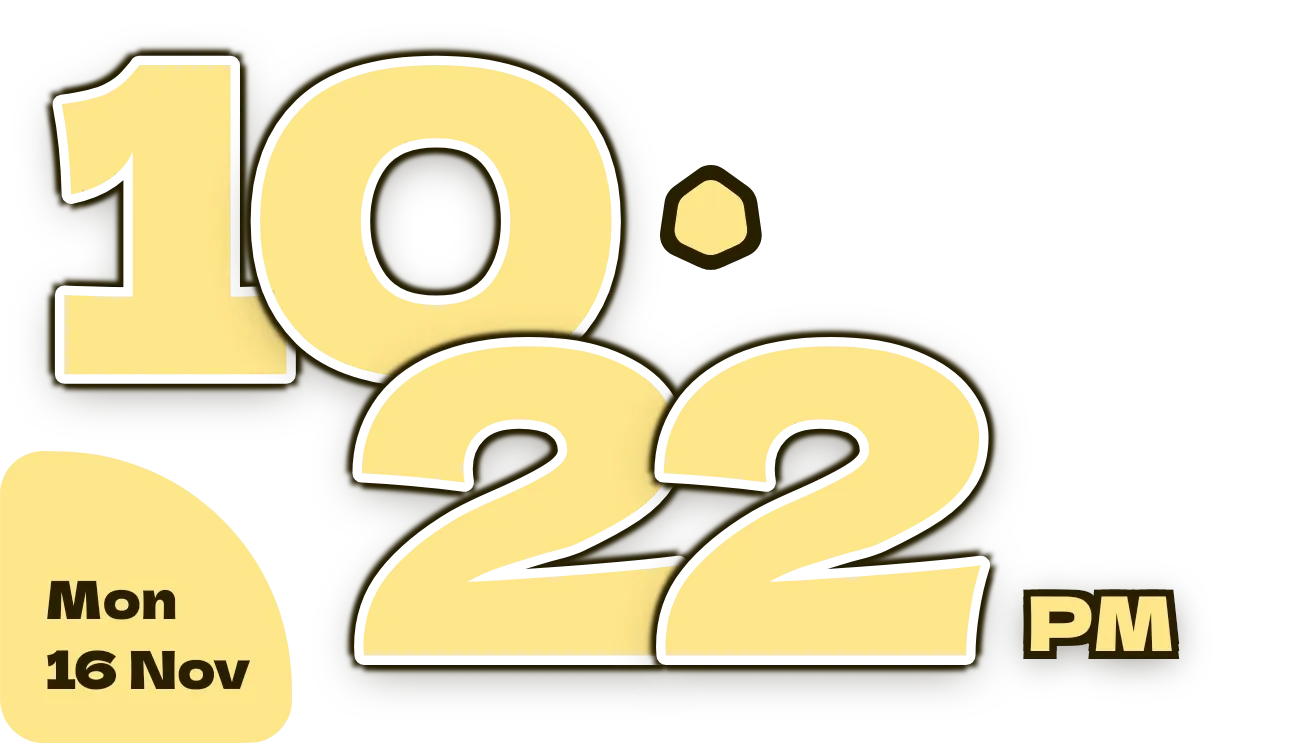 Butter ShuffleMaterial Expressive · 4x2 · Pro
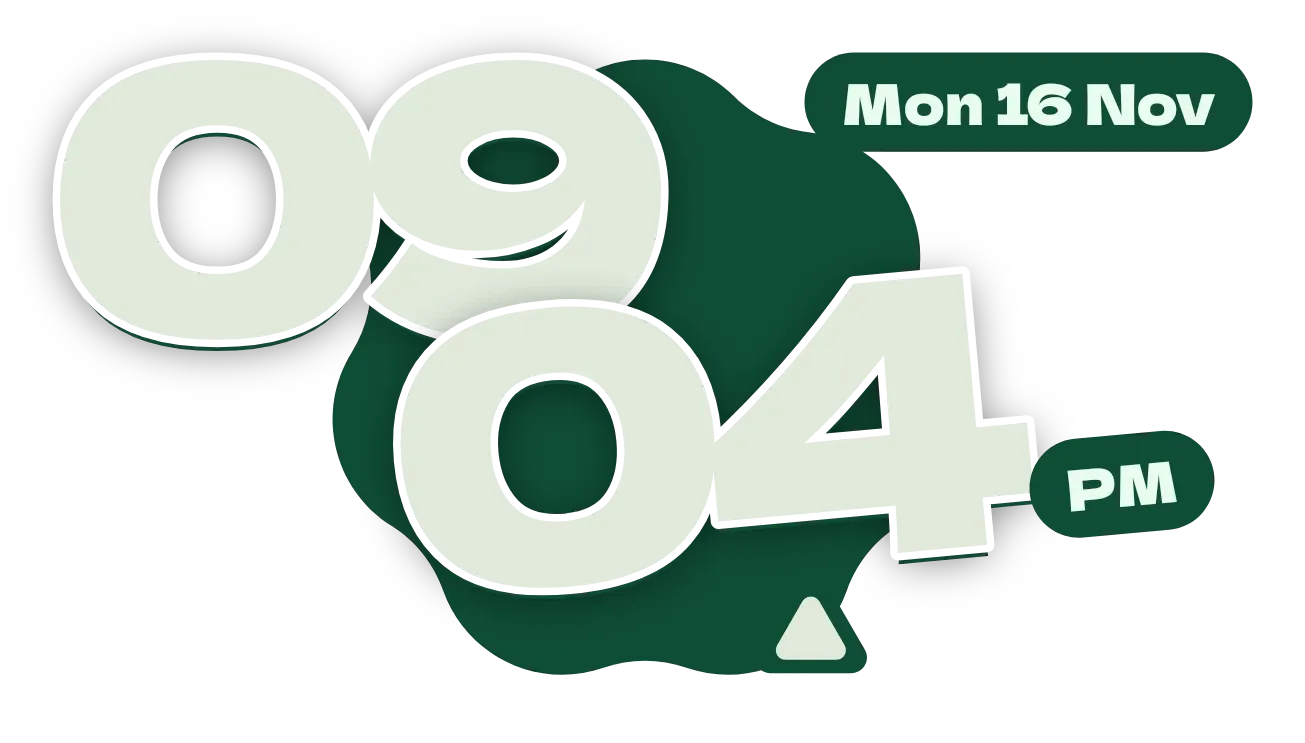 Teeter TockMaterial Expressive · 4x2 · Pro
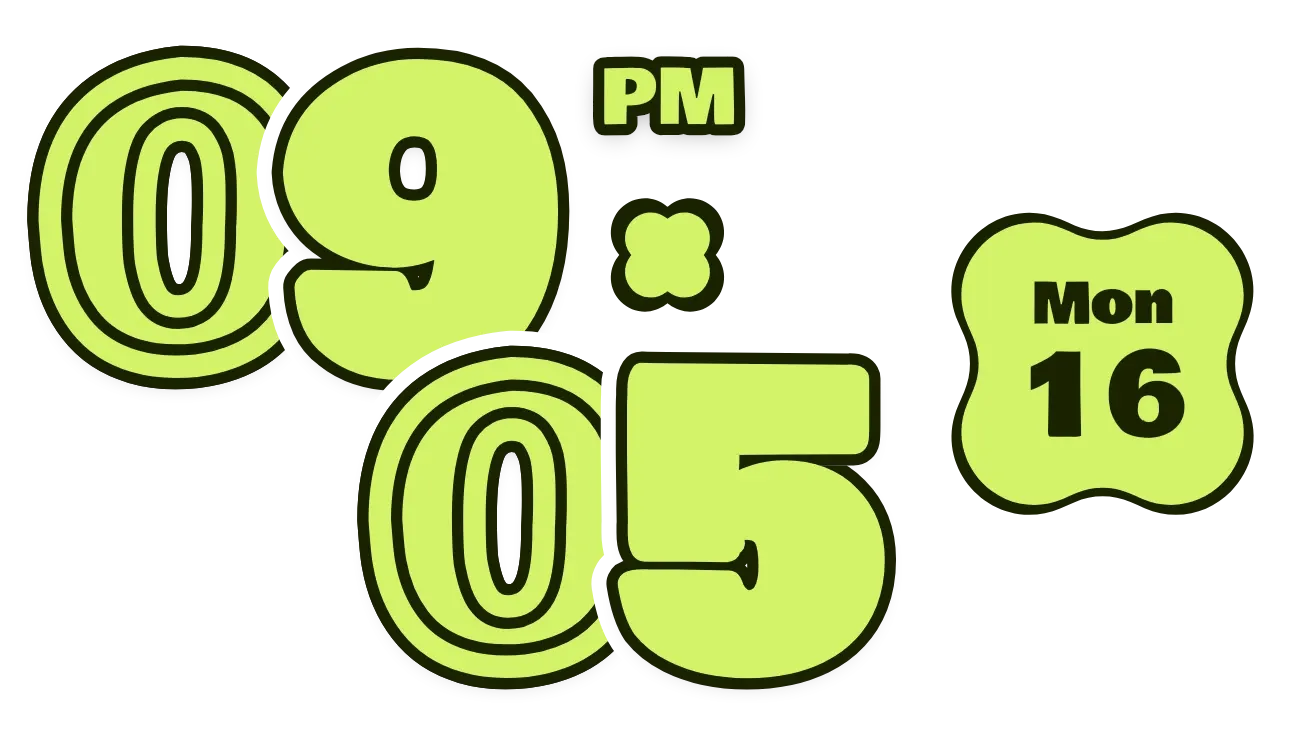 ClovercutMaterial Expressive · 4x2 · Pro
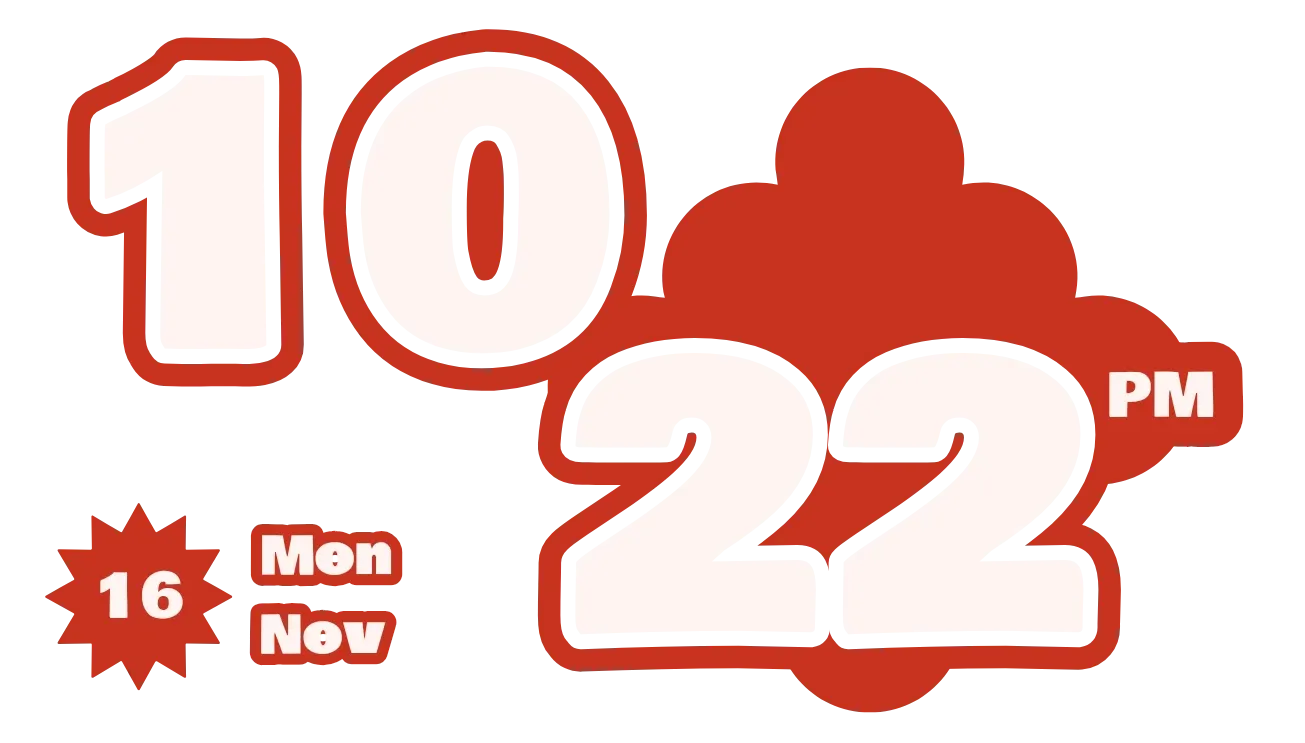 Paprika PuffMaterial Expressive · 4x2 · Free
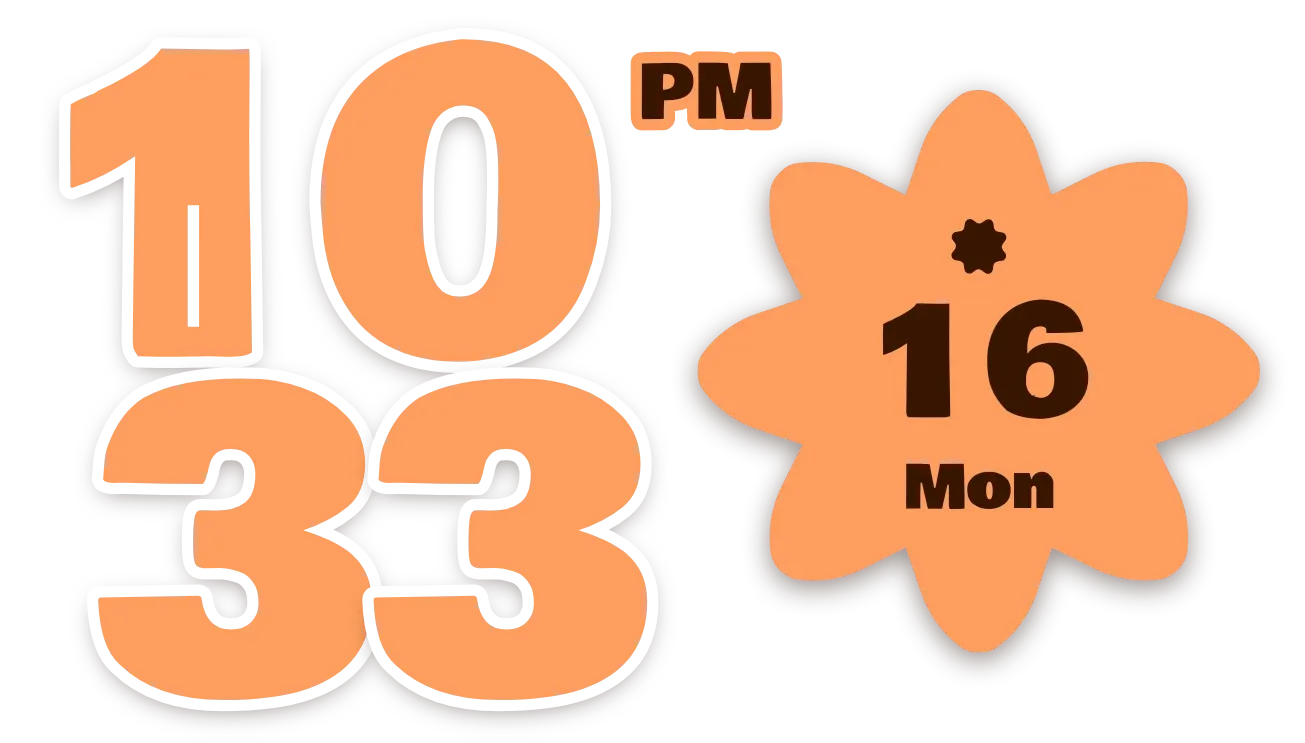 Apricot PunchMaterial Expressive · 4x2 · Free
 Hollow timeClear · 4x1 · Free
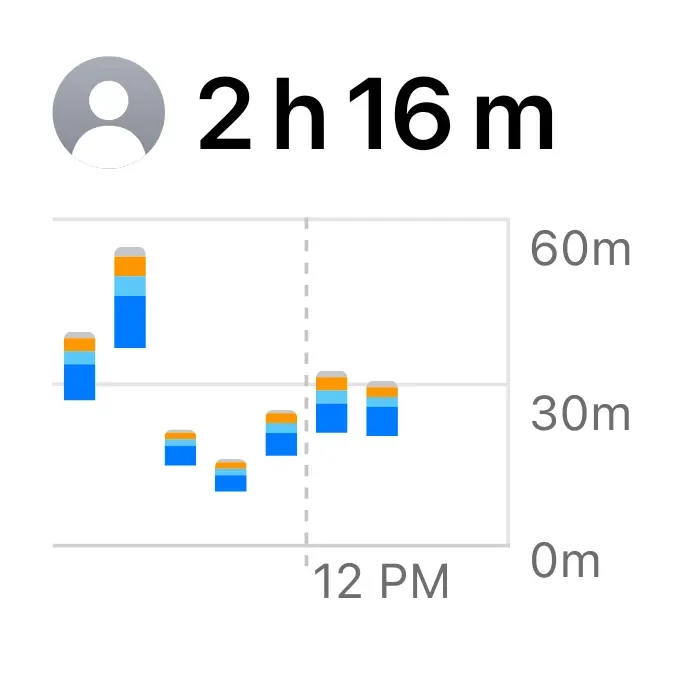 Screen Time SmalliOS & macOS · 2x2 · Free
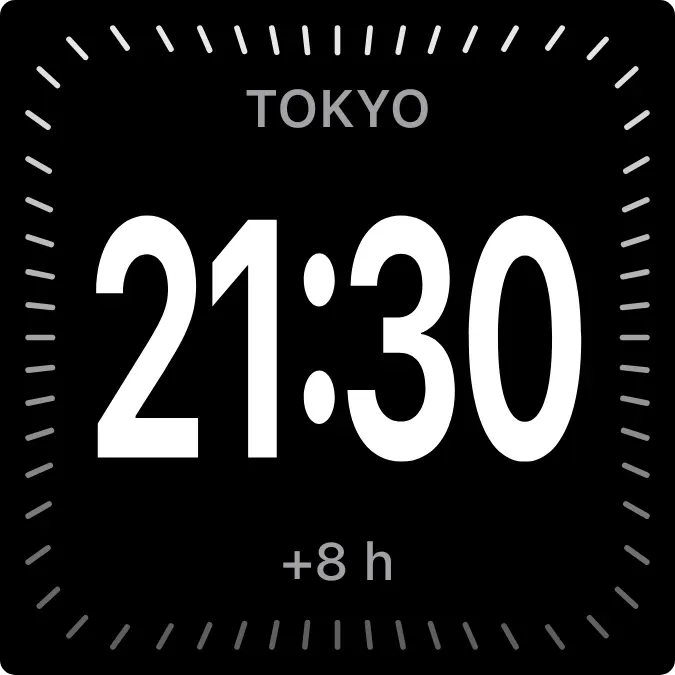 Dark City ClockiOS & macOS · 2x2 · Free
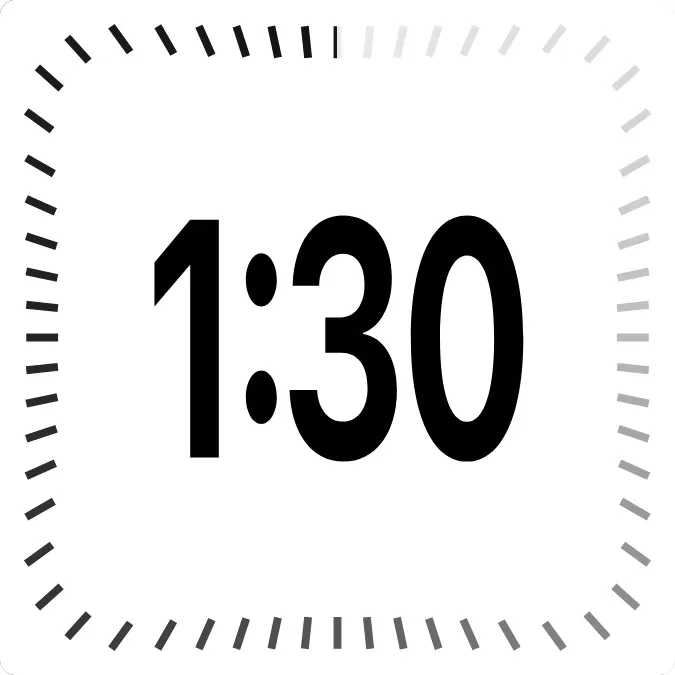 Light Digital ClockiOS & macOS · 2x2 · Free
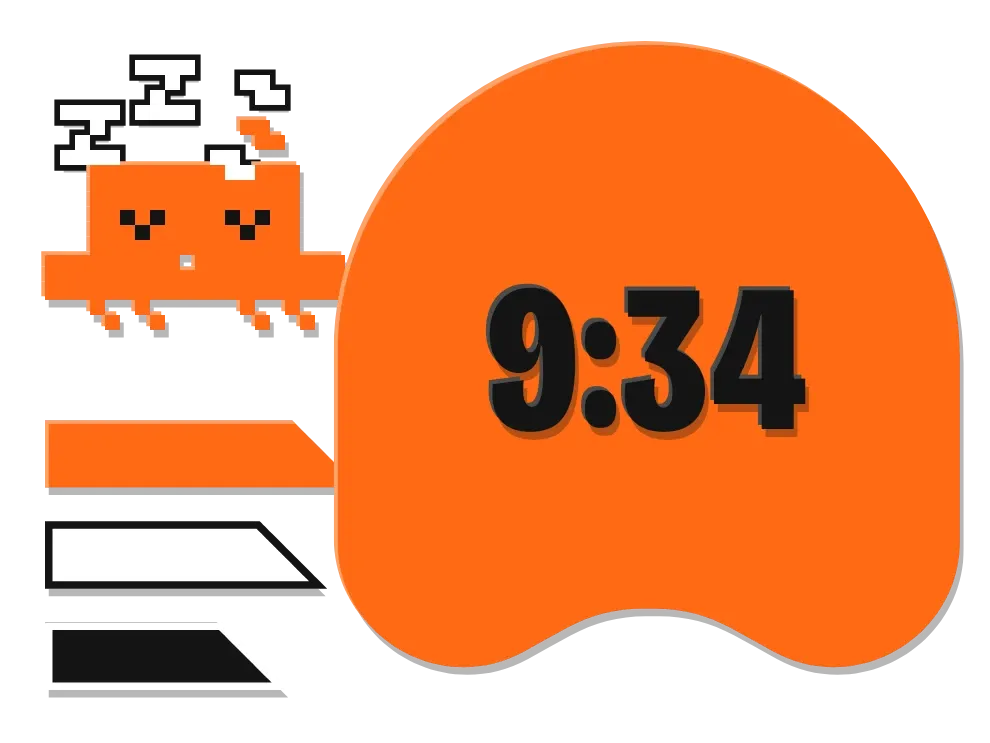 Snooze SpecterMascots · 3x2 · Pro
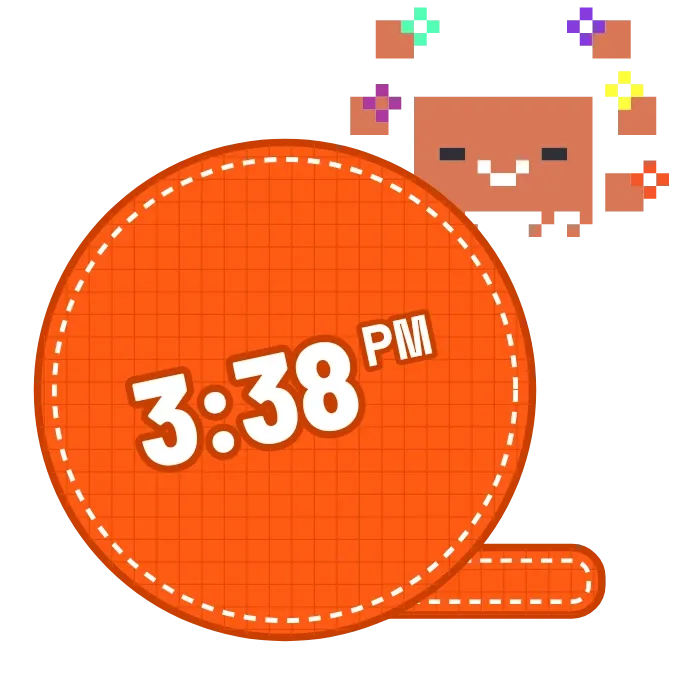 Nylon PatchMascots · 2x2 · Free
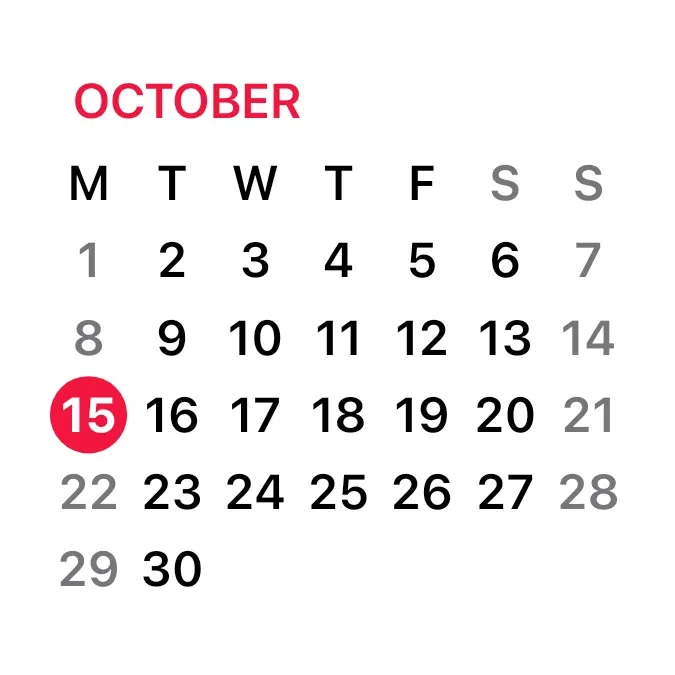 Calendar MonthiOS & macOS · 2x2 · Free
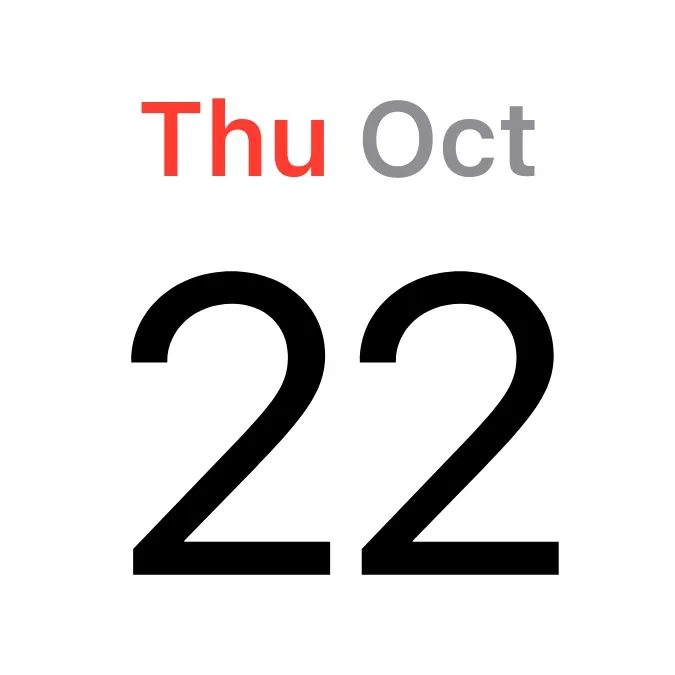 Calendar DateiOS & macOS · 2x2 · Free
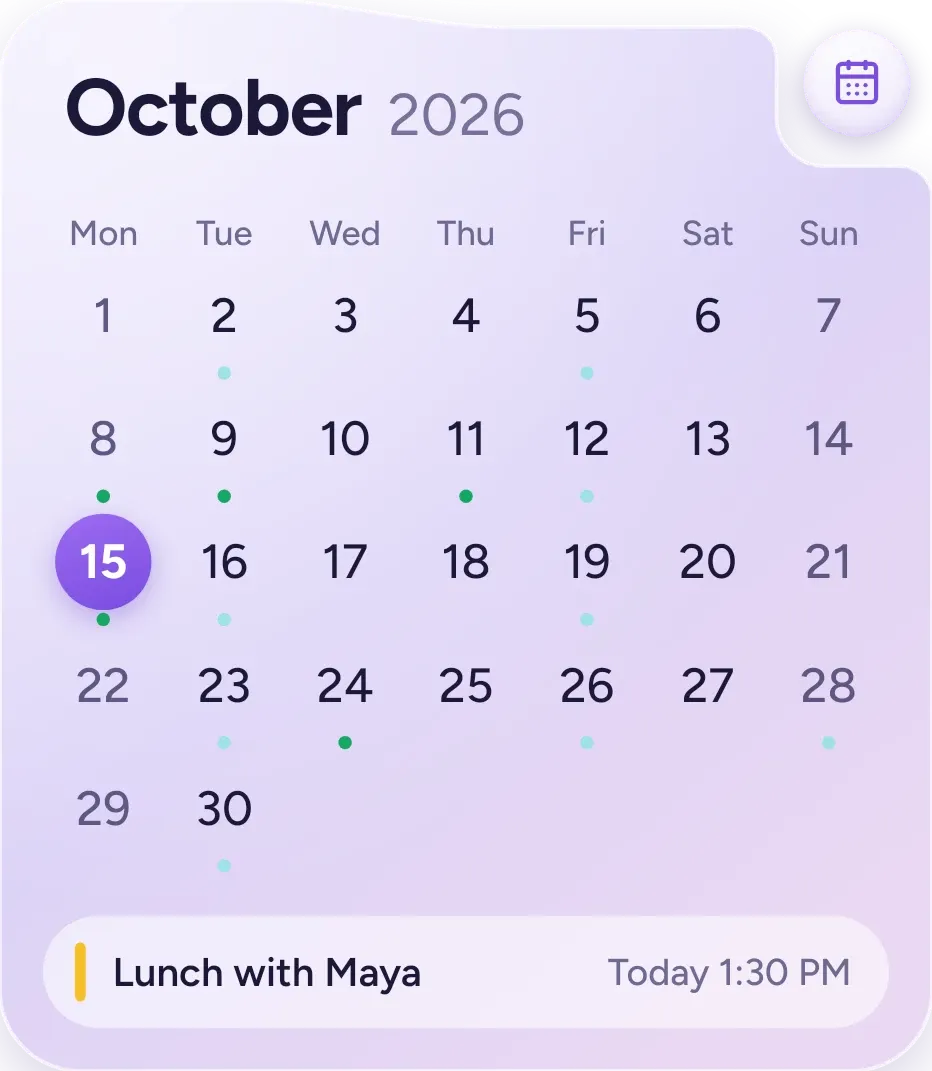 Lavender MonthOne UI · 4x4 · Free
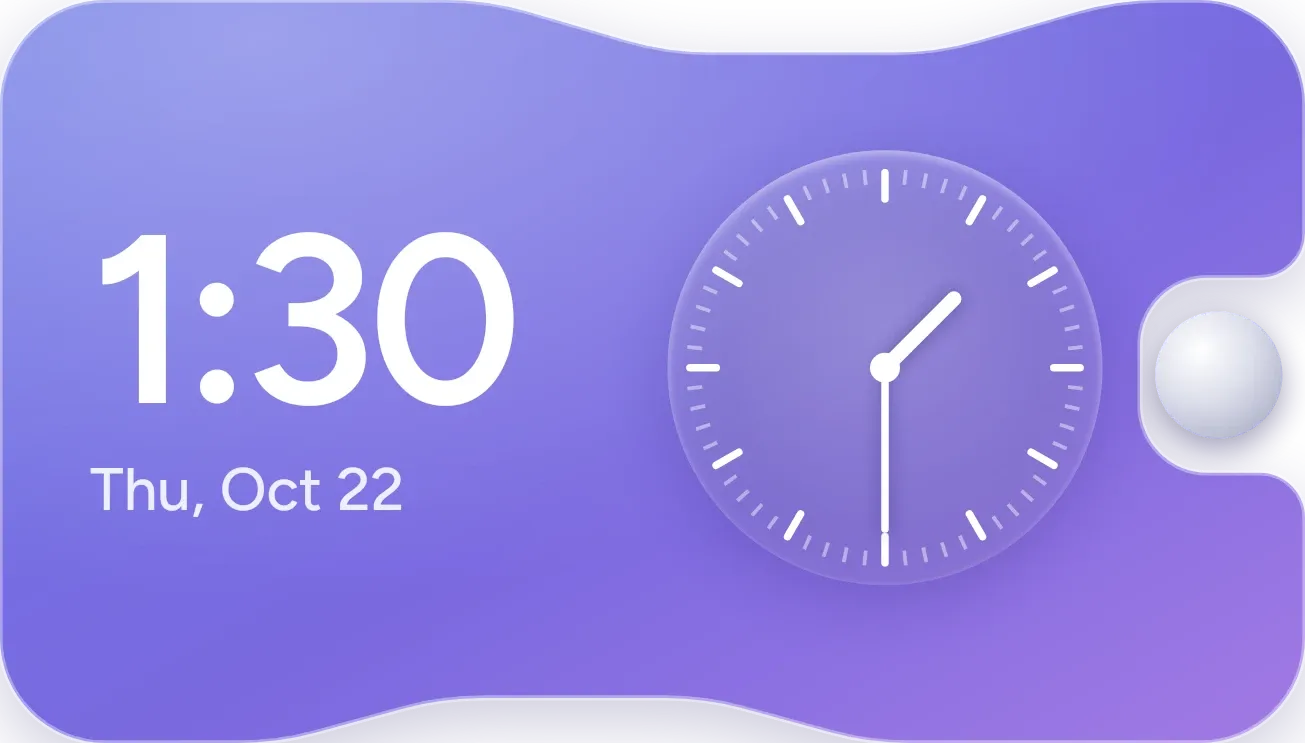 Dual Time SlabOne UI · 4x2 · Free
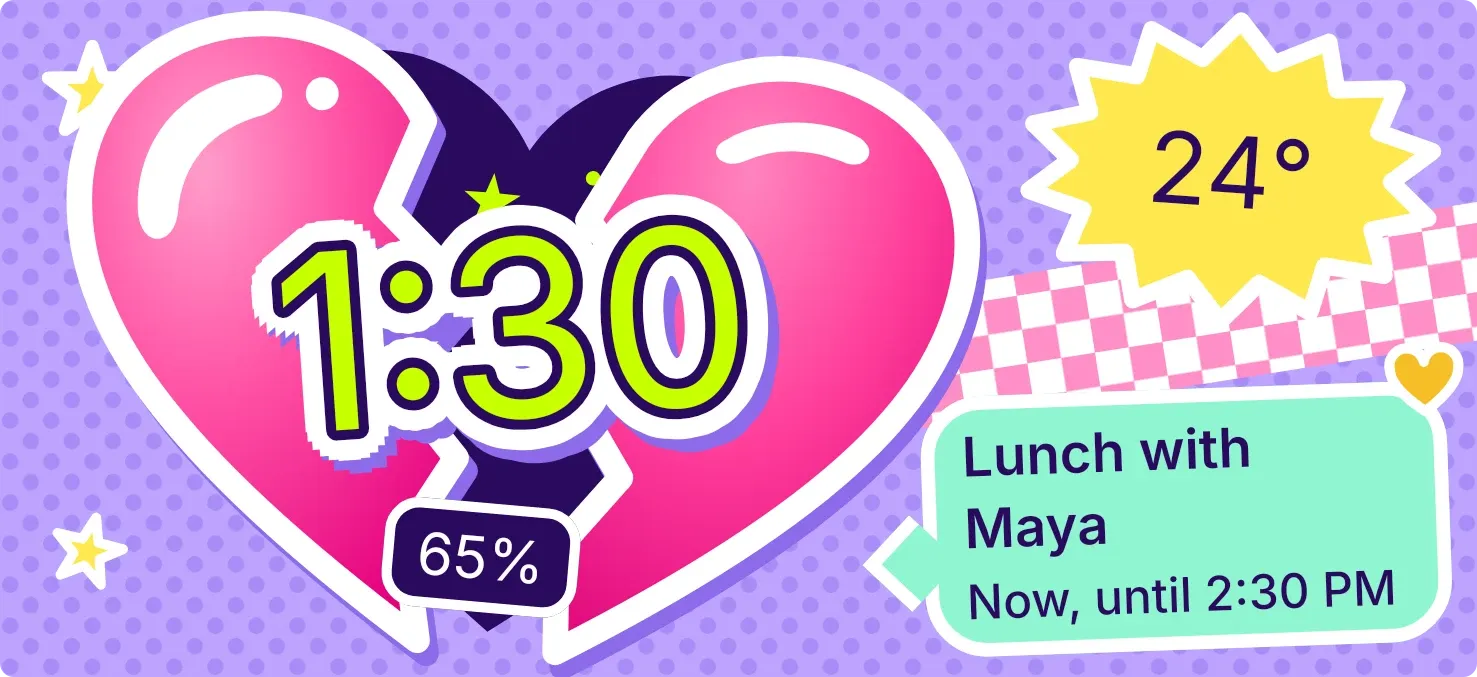 Cleft CandyPlayful · 5x2 · Pro
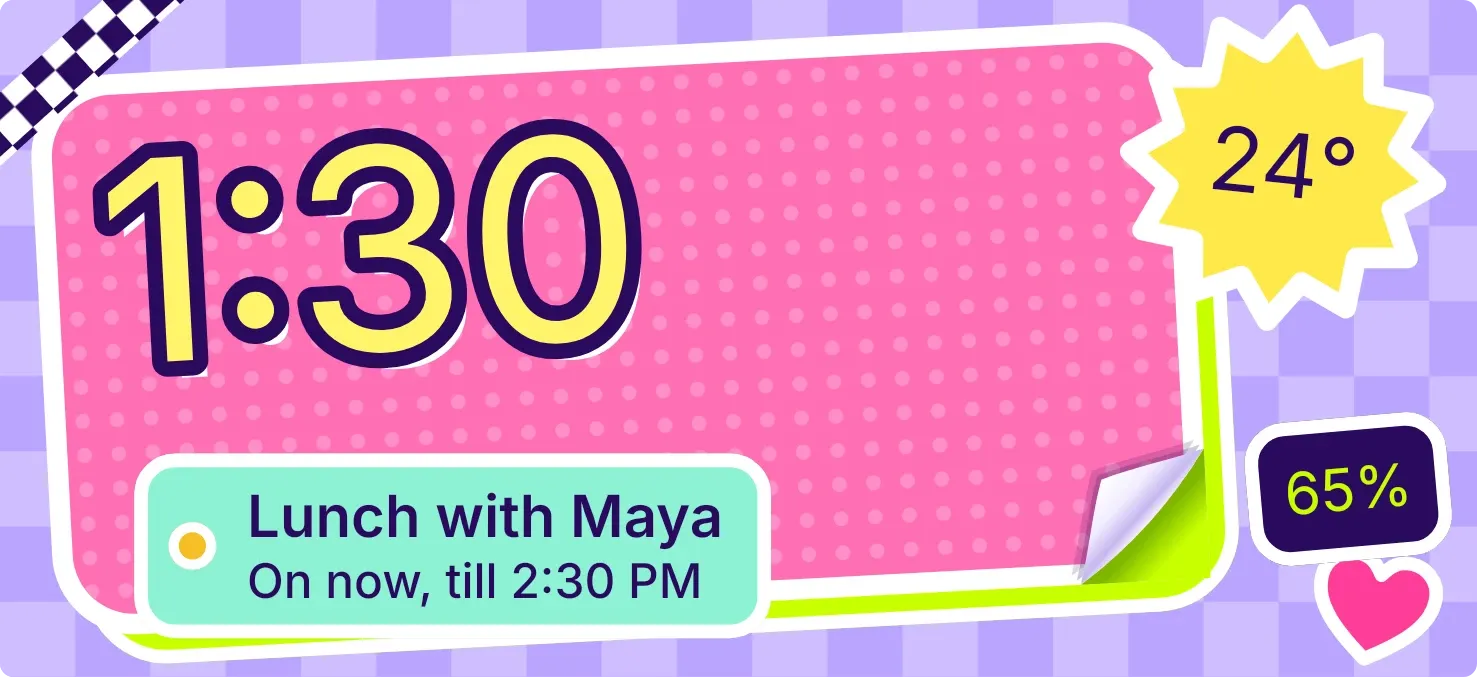 CurlstickPlayful · 5x2 · Pro
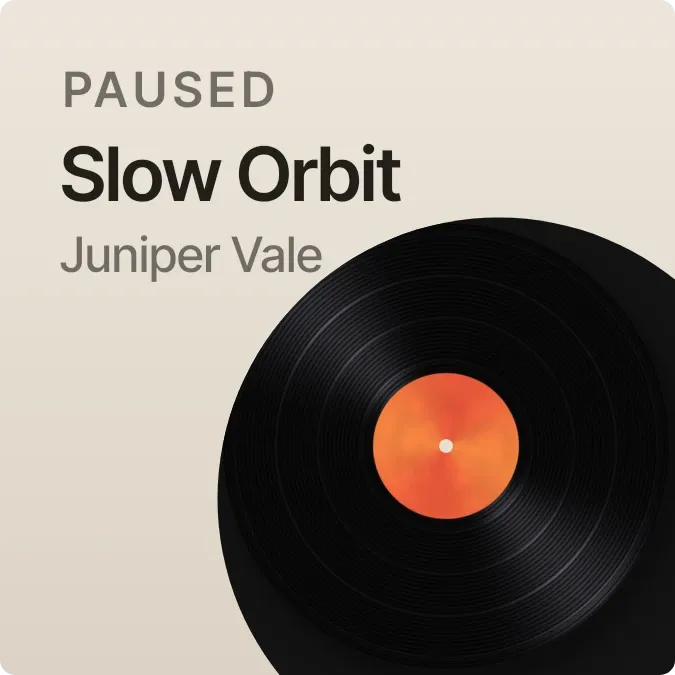 Ember GrooveInstruments · 2x2 · Pro
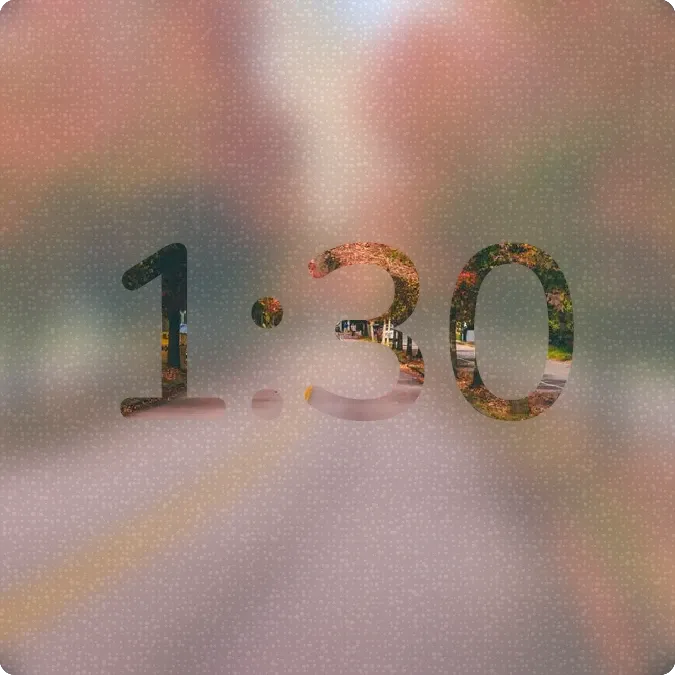 Lamplit BlurScenes · 2x2 · Pro
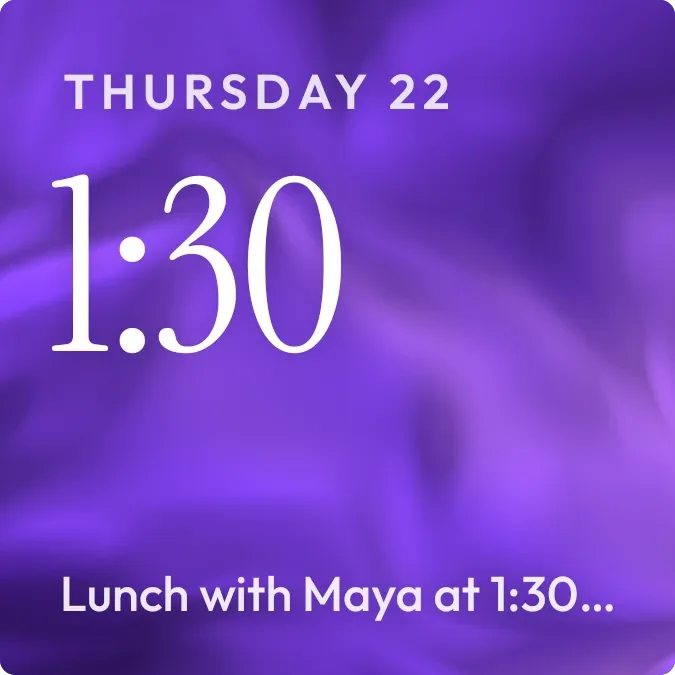 Plum SilkScenes · 2x2 · Pro
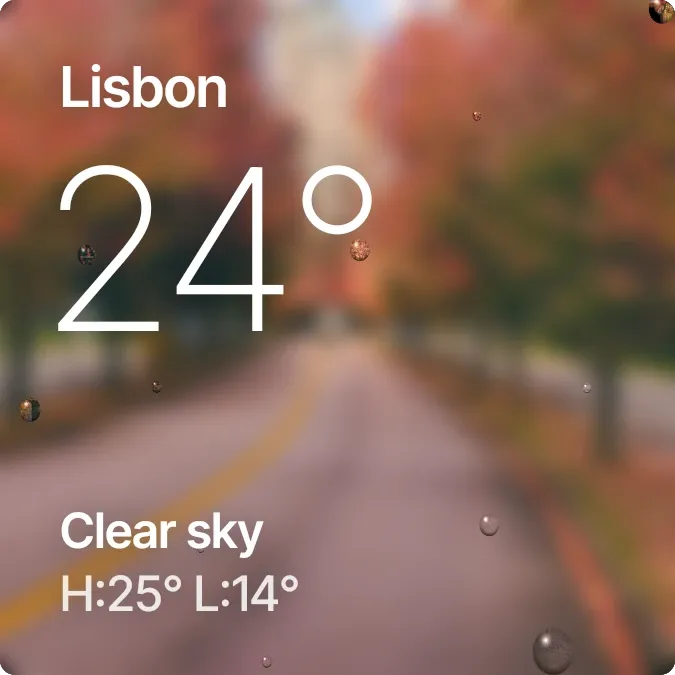 Drizzle LensScenes · 2x2 · Pro
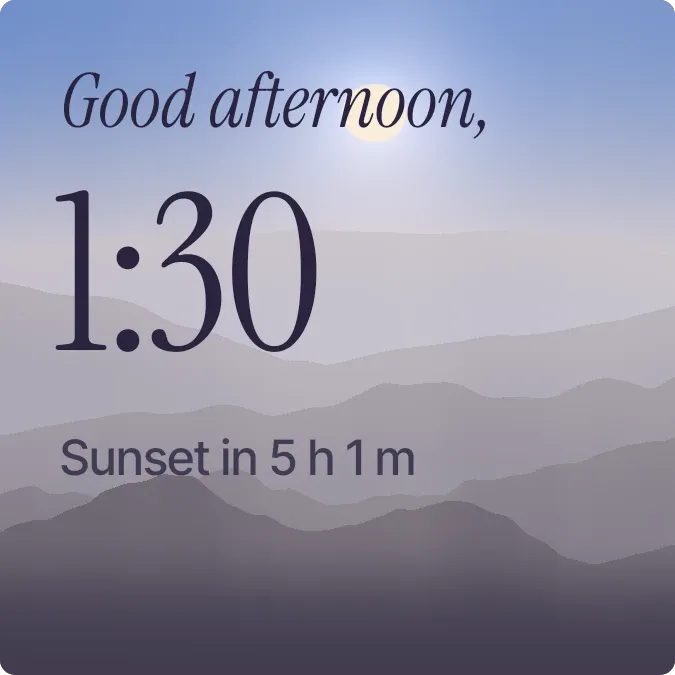 DawnlineScenes · 2x2 · Pro
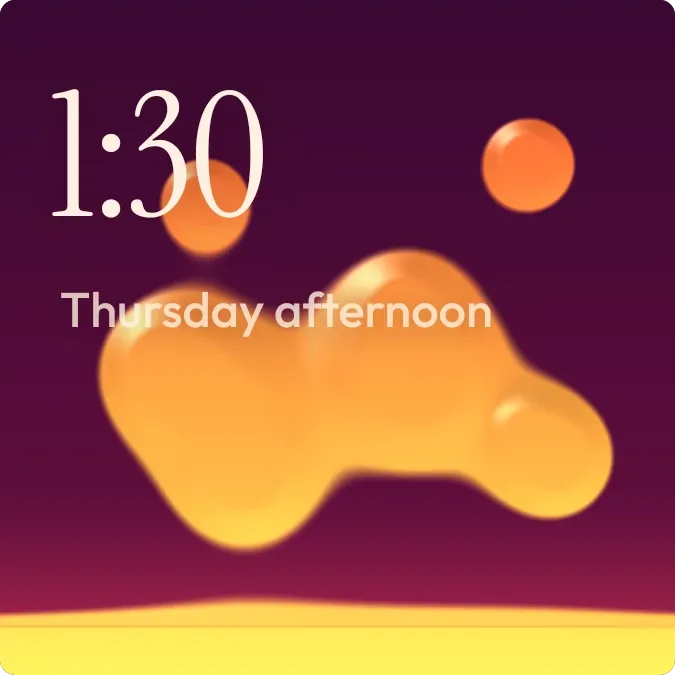 Molten HourScenes · 2x2 · Pro
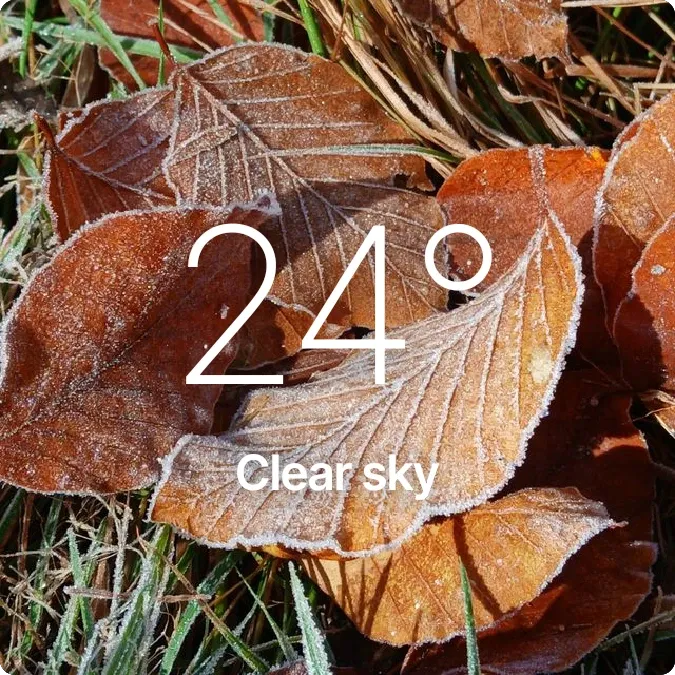 Hoarfrost WoodsScenes · 2x2 · Pro
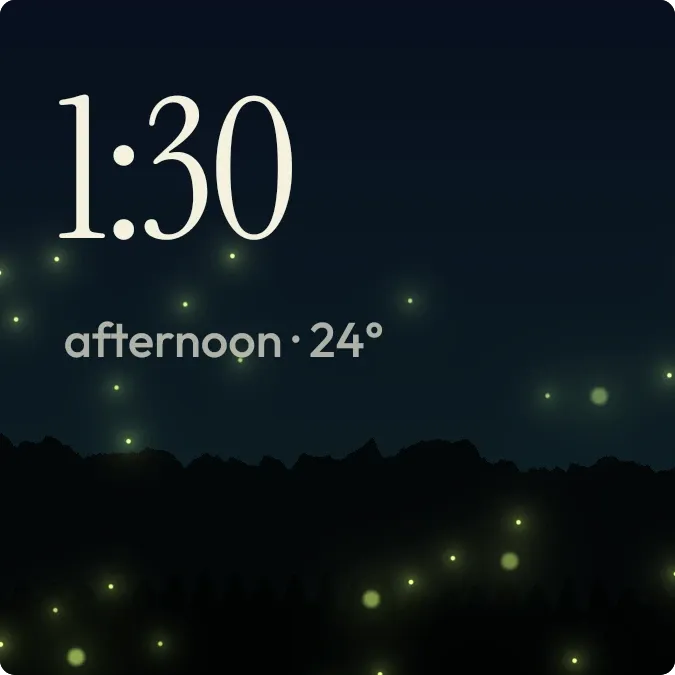 GlowmeadowScenes · 2x2 · Pro
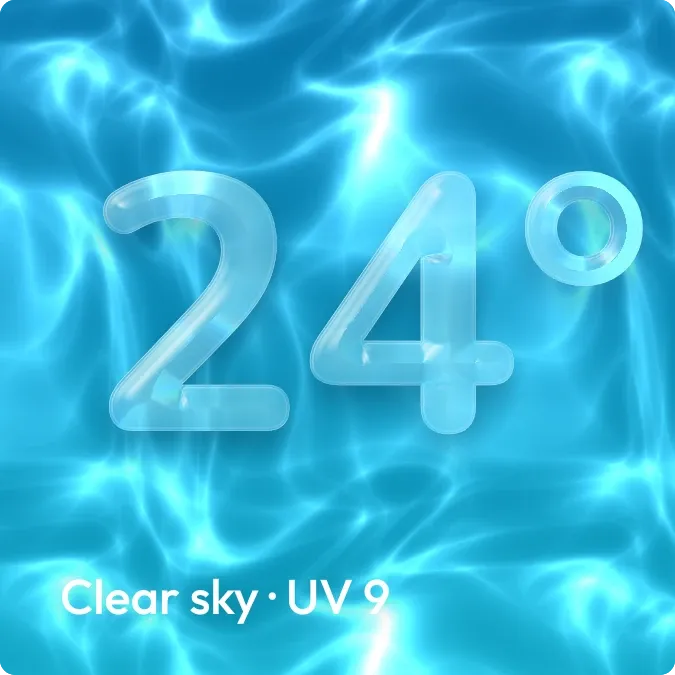 Deep EndScenes · 2x2 · Pro
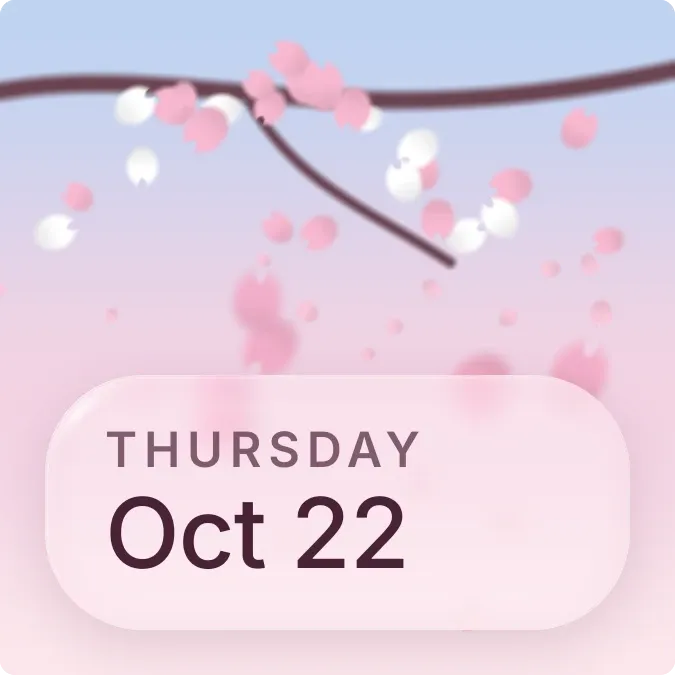 Petal DriftScenes · 2x2 · Pro
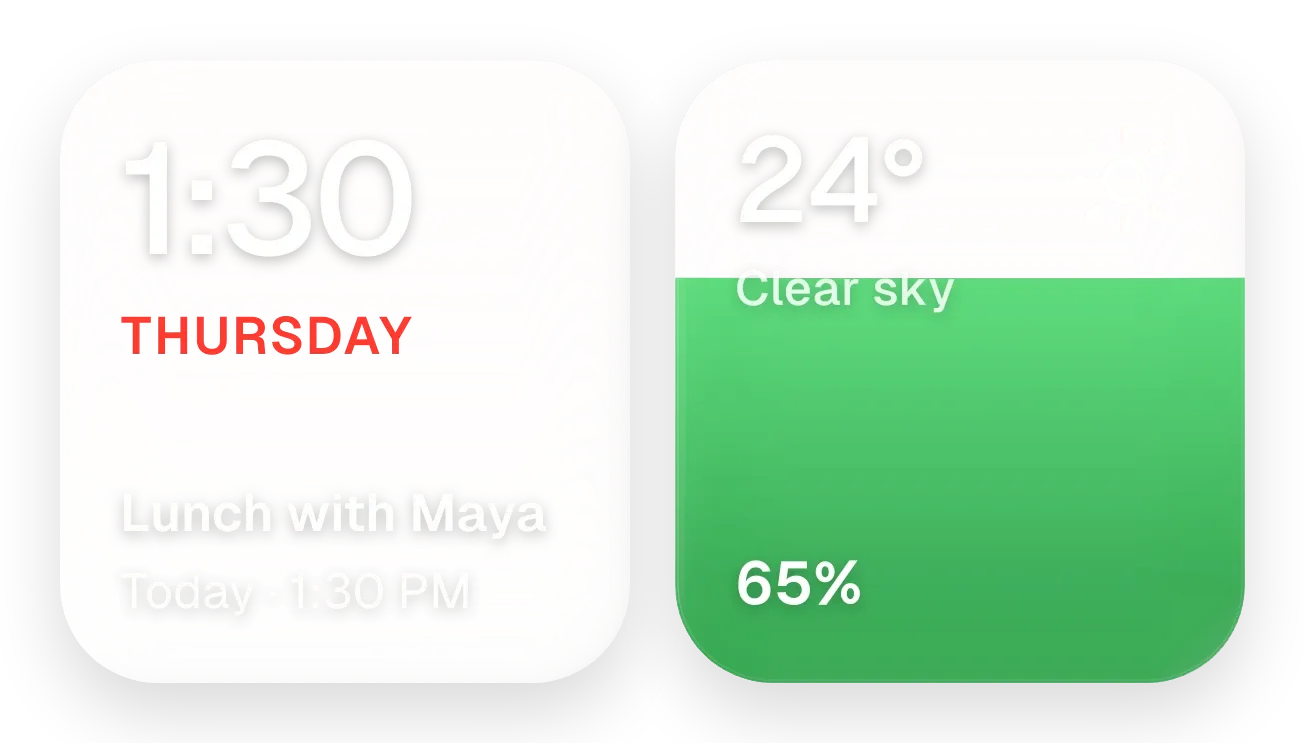 Yolk and PearlGlass · 4x2 · Pro
 Drip OrbitGlass · 2x2 · Pro
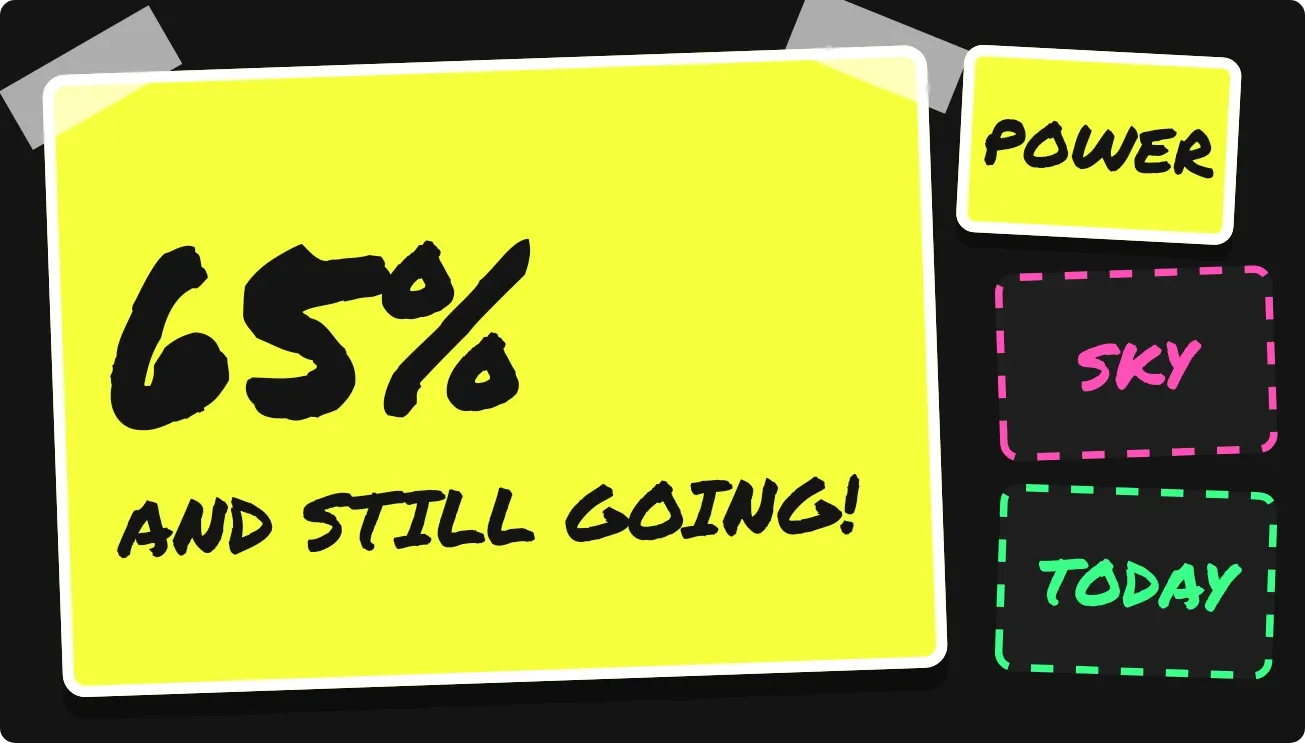 Sign RiotPlayful · 4x2 · Free
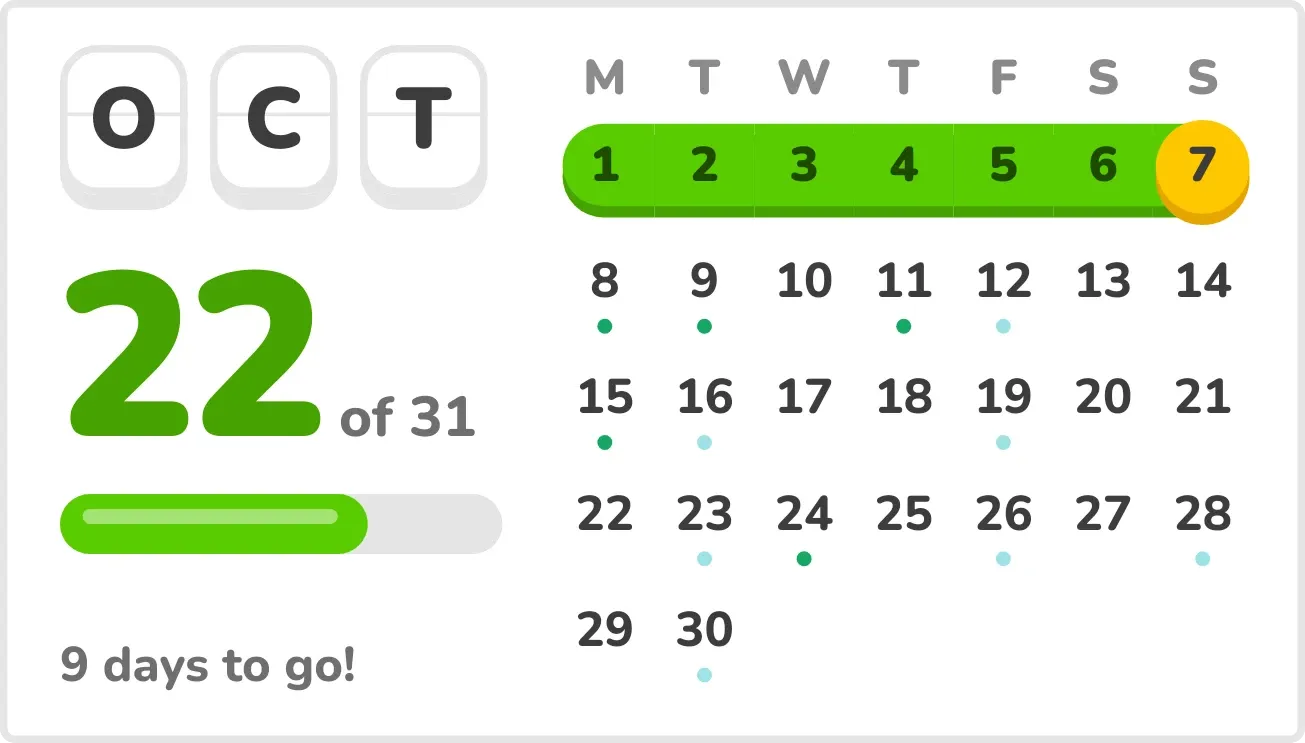 StreaklinePlayful · 4x2 · Free
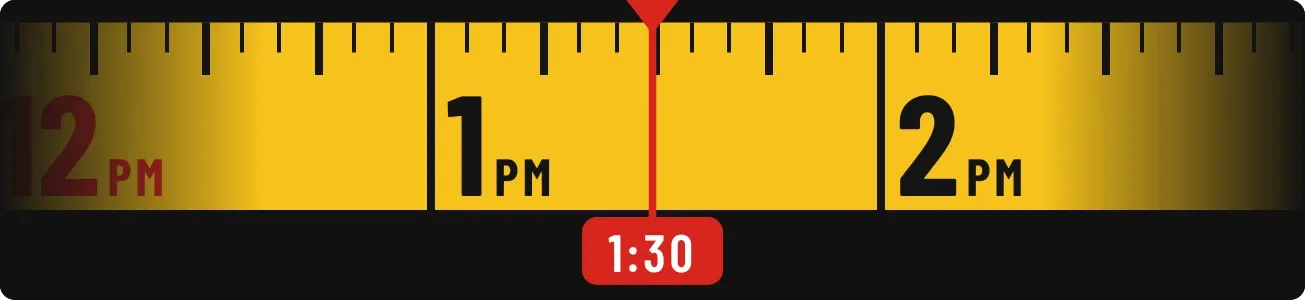 Tapeline DayInstruments · 4x1 · Free
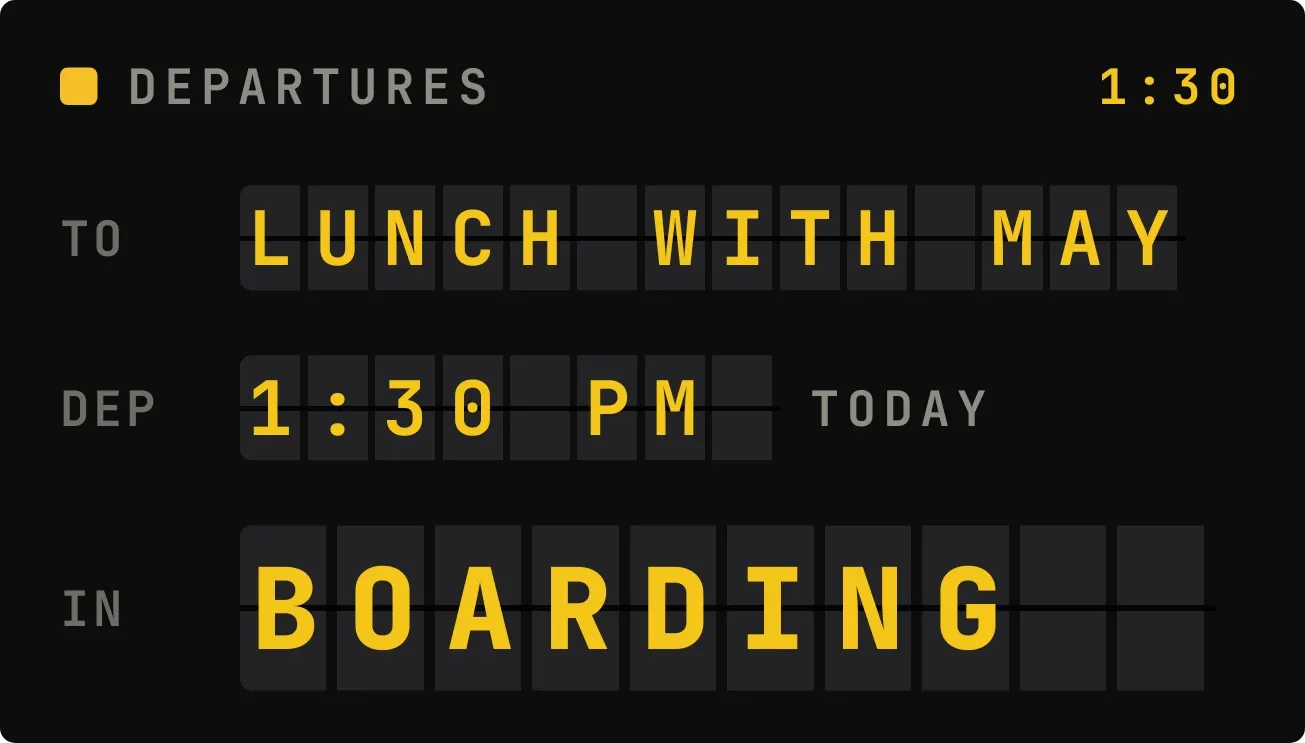 FlapgateInstruments · 4x2 · Free
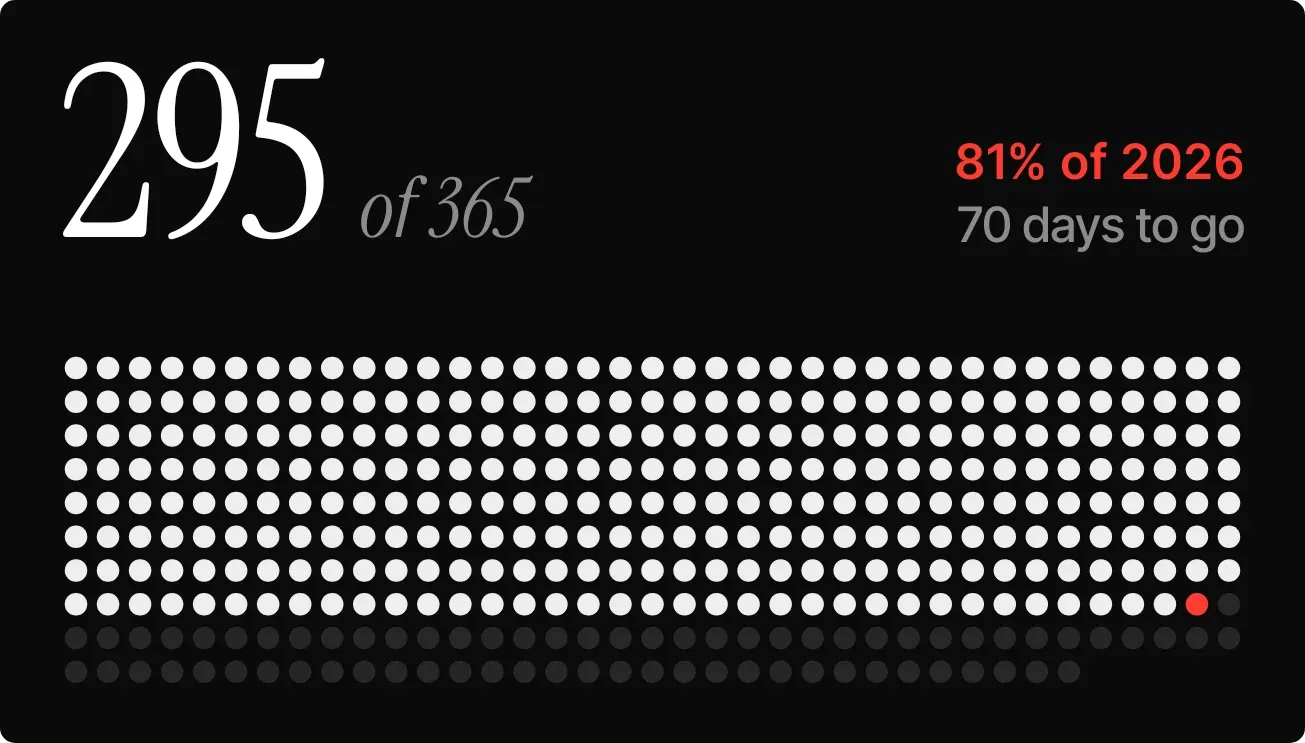 Pearl RunwayInstruments · 4x2 · Free
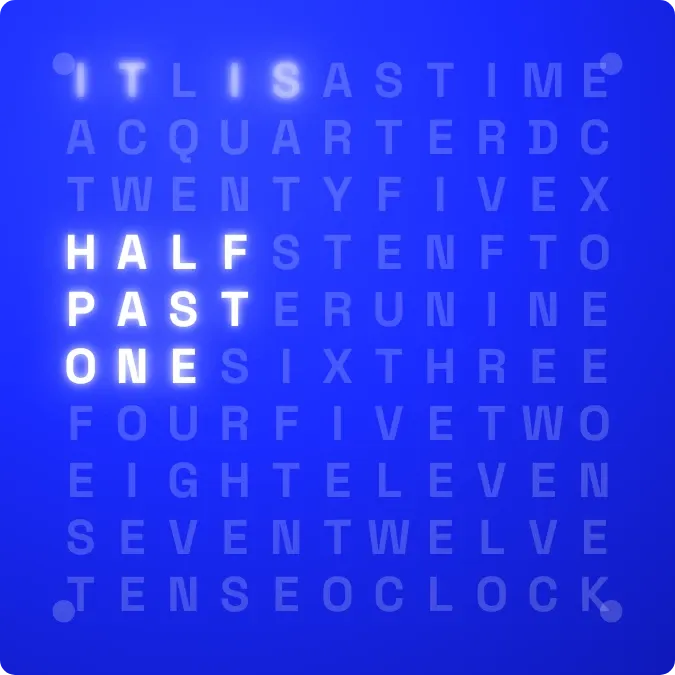 LightwordInstruments · 2x2 · Free
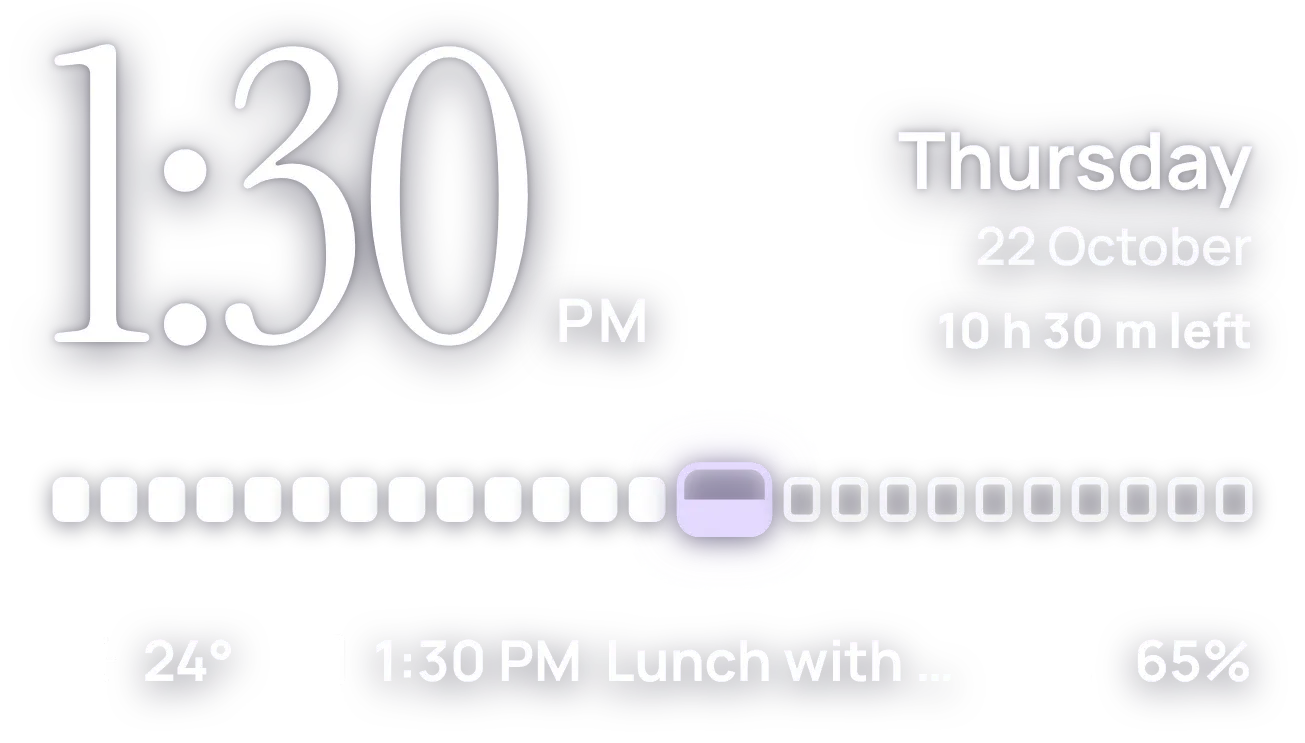 HourlaceClear · 4x2 · Free
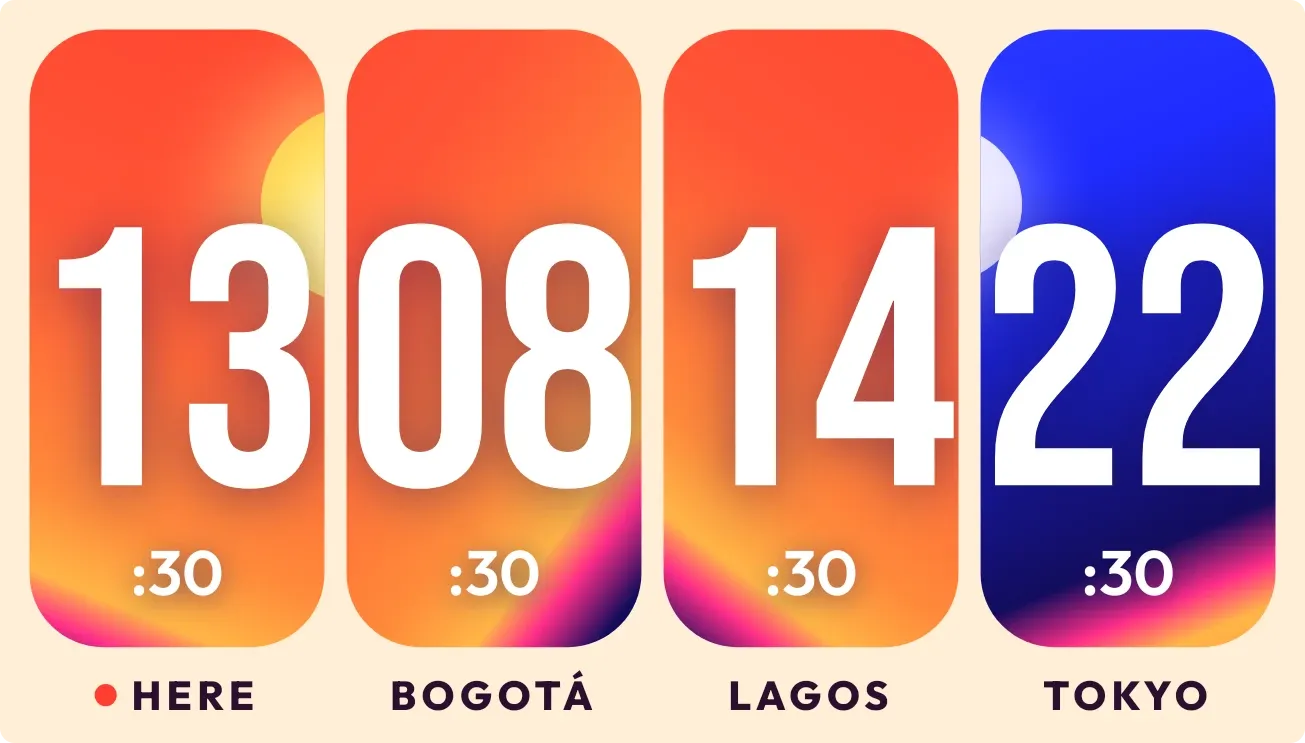 SunrelayBento · 4x2 · Free
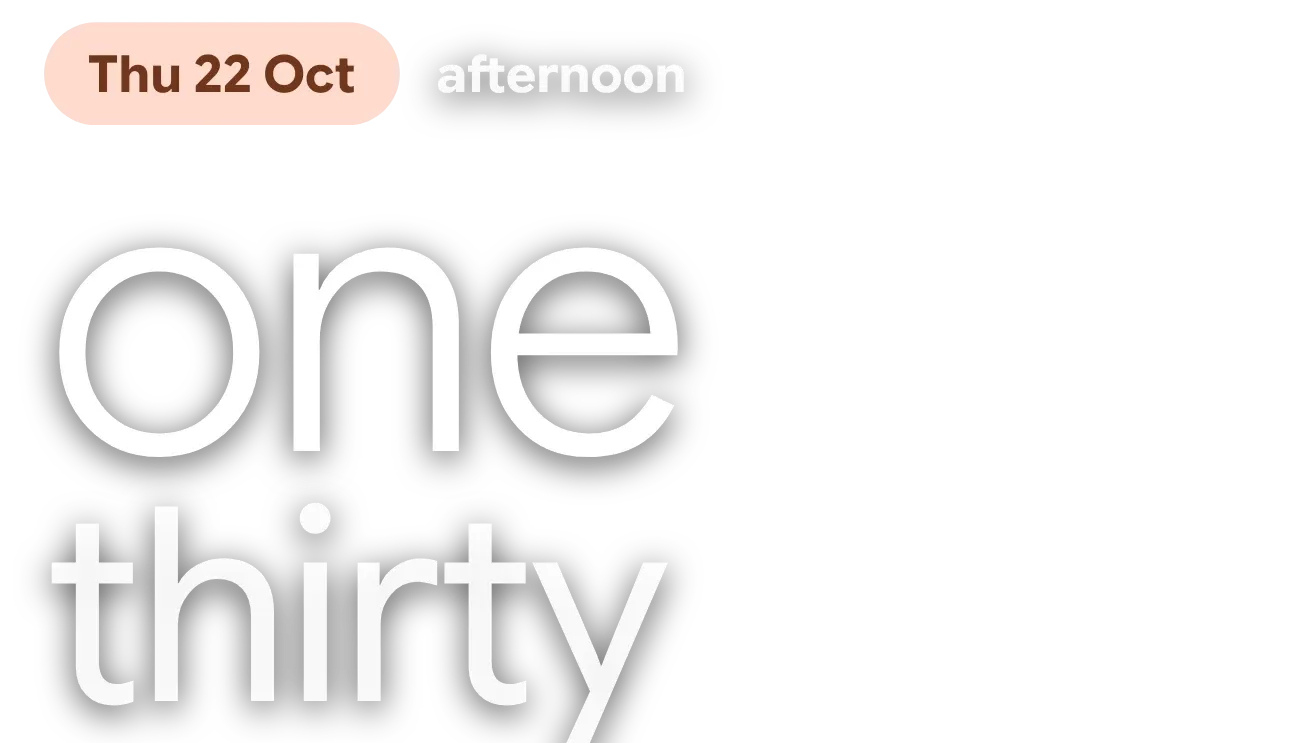 Granite TenMaterial You · 4x2 · Free
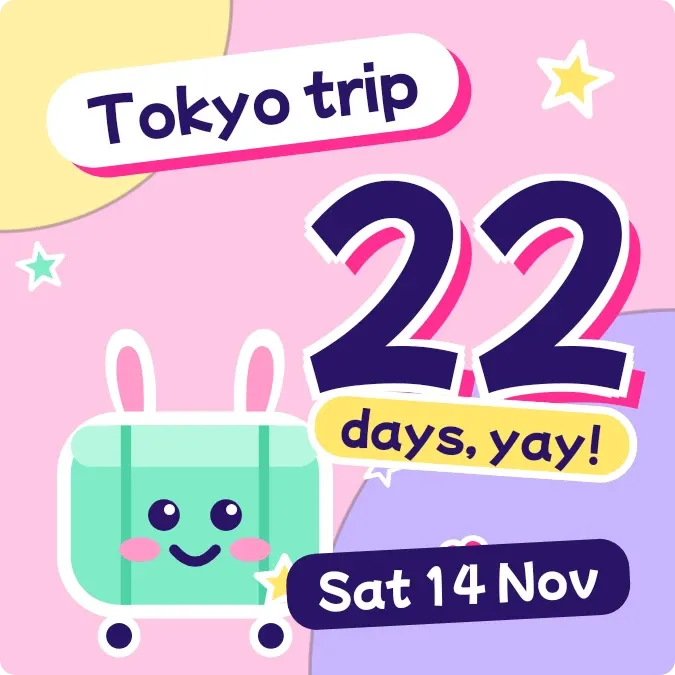 Wheelie CountPlayful · 2x2 · Free
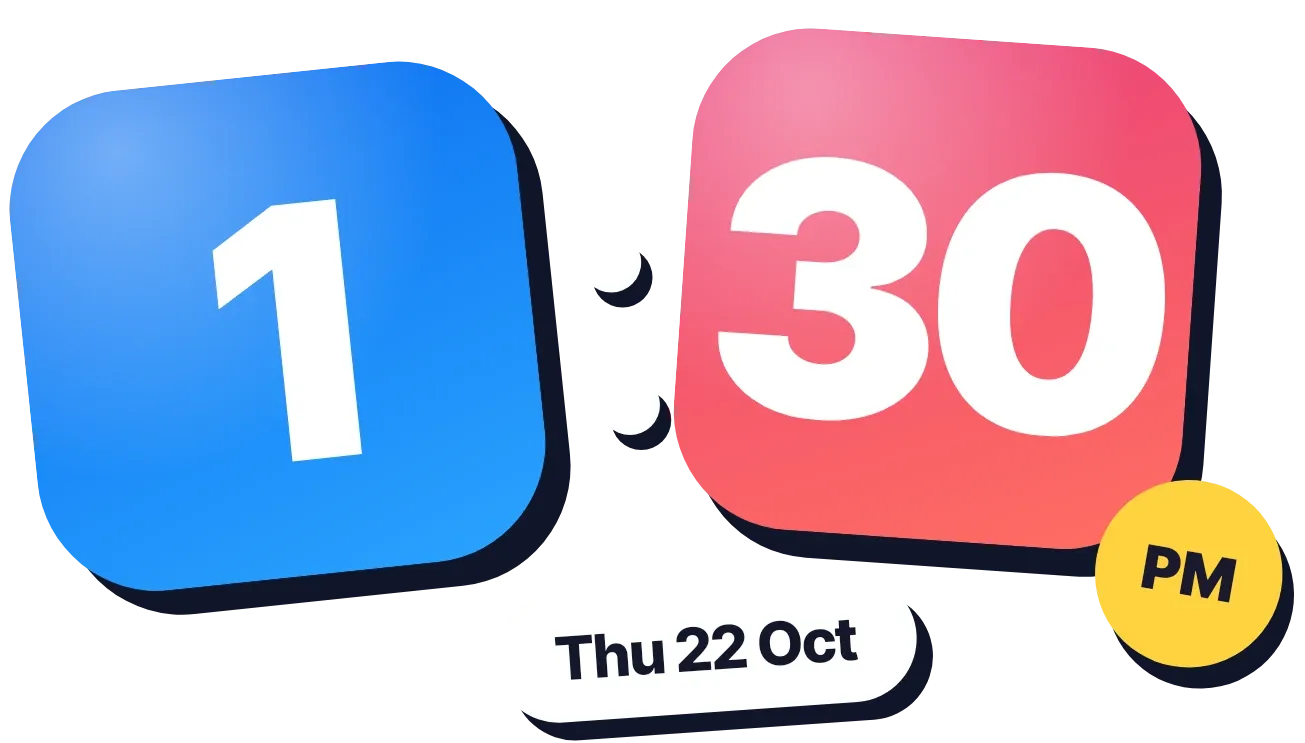 Sapphire JadeOne UI · 4x2 · Free
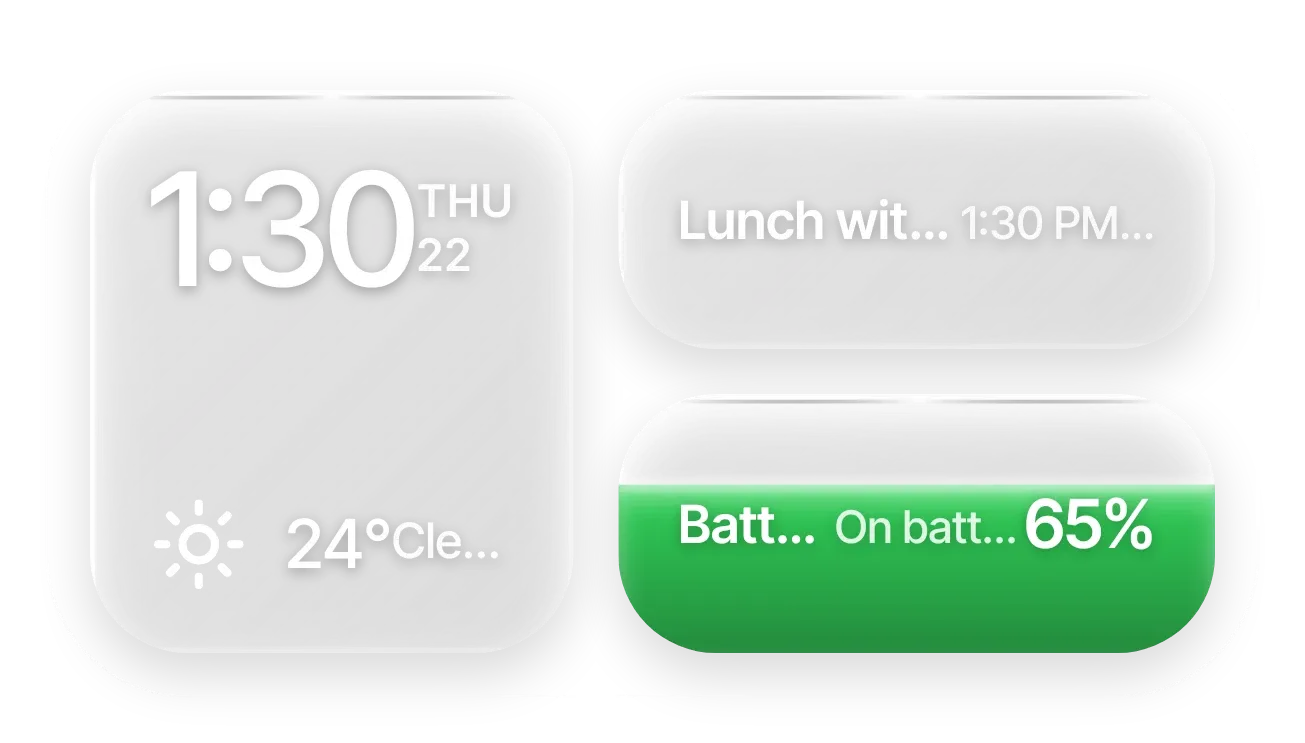 Frost StackGlass · 4x2 · Pro
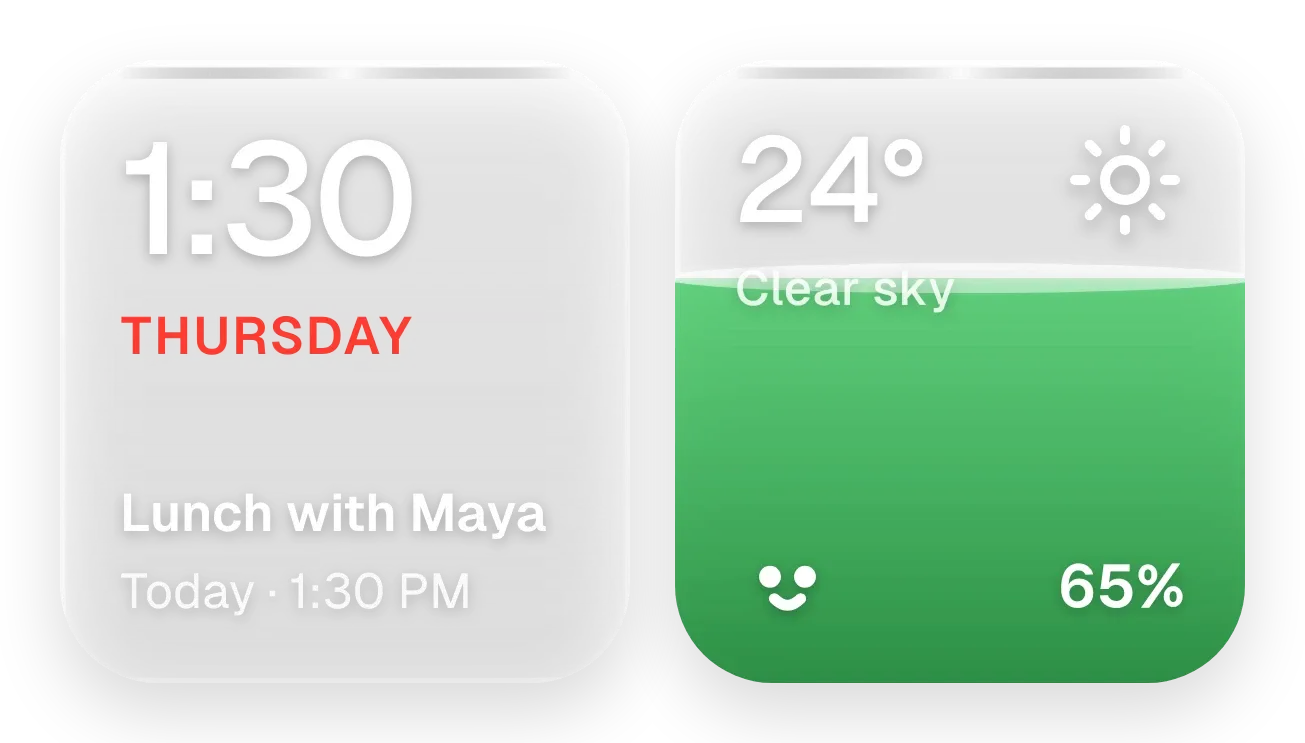 Sunpane DuoGlass · 4x2 · Pro
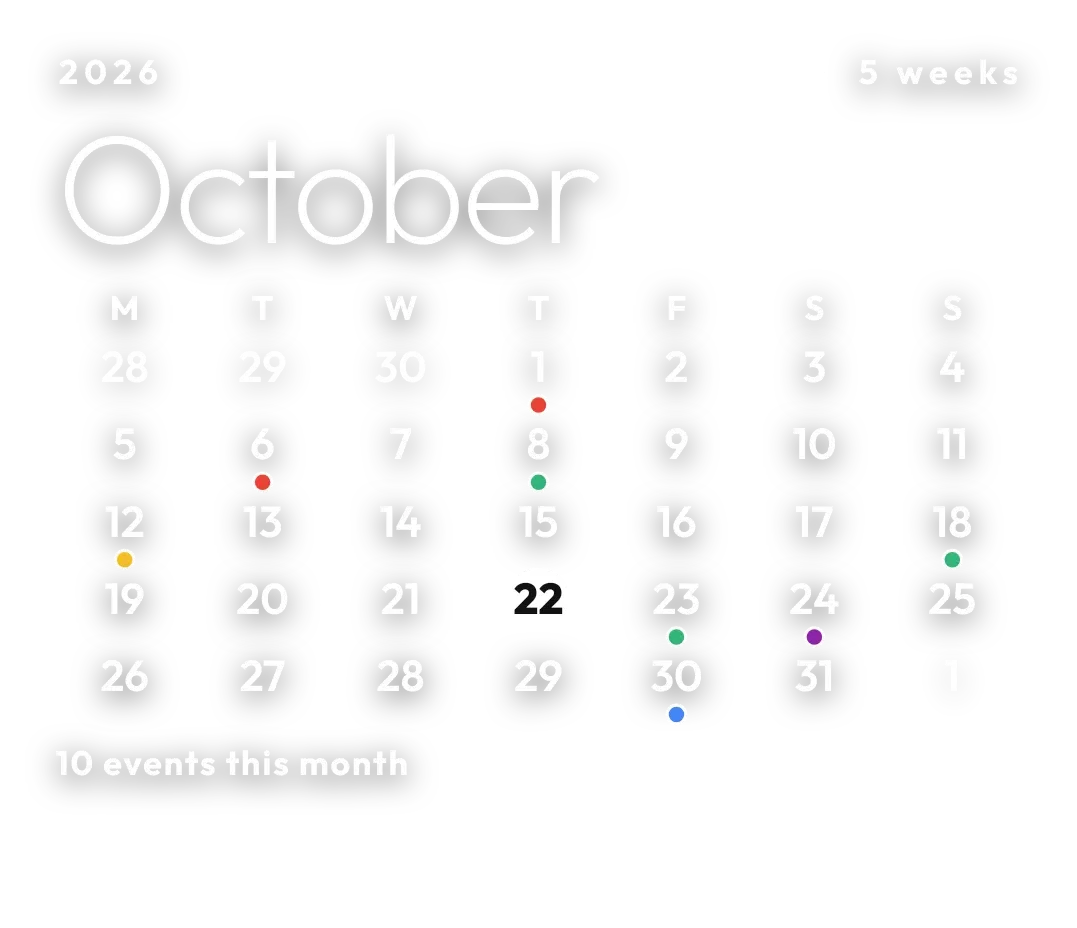 Pale AlmanacClear · 4x3 · Free
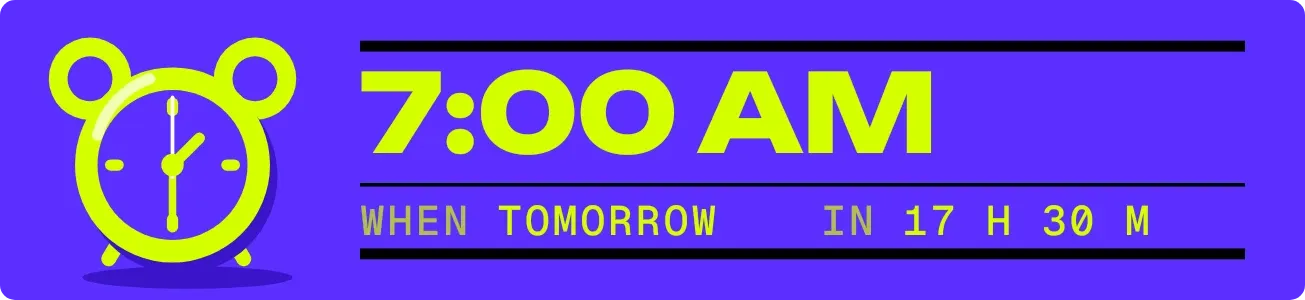 Wake TicketMaterial Expressive · 4x1 · Free
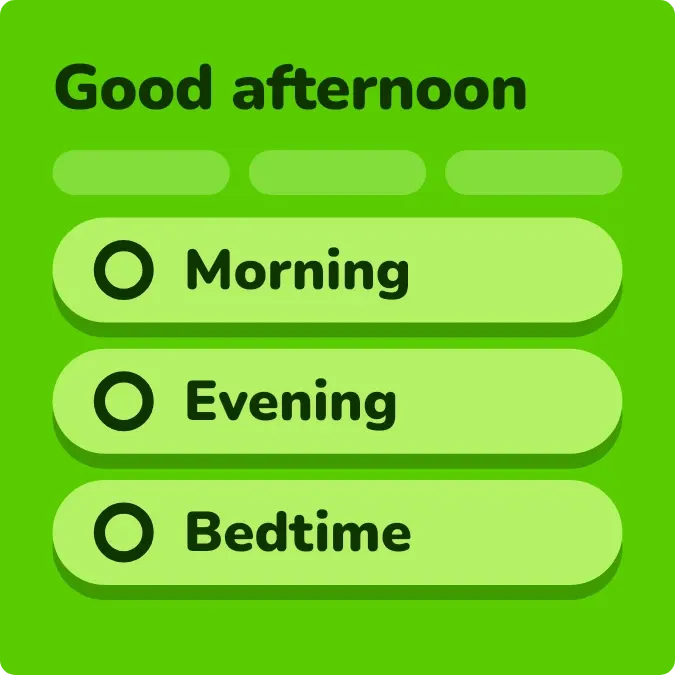 Pill ParadePlayful · 2x2 · Free
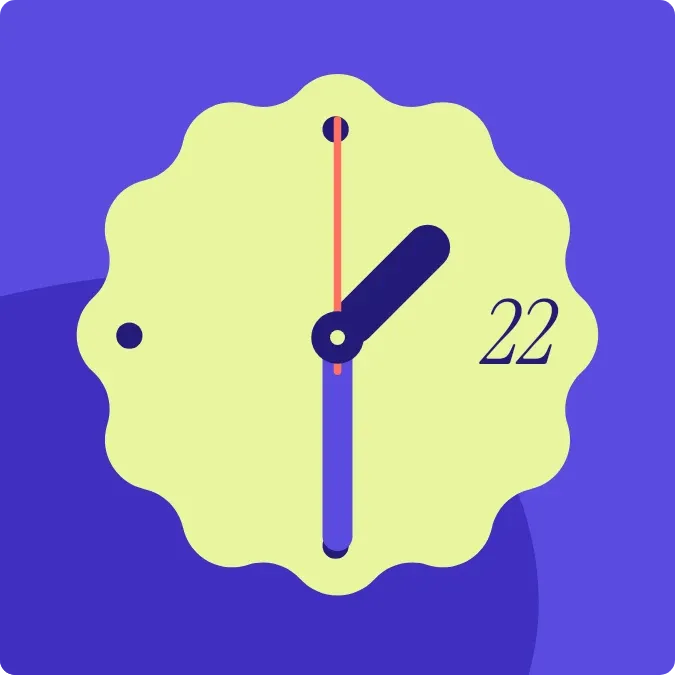 Lemon RosetteMaterial Expressive · 2x2 · Free
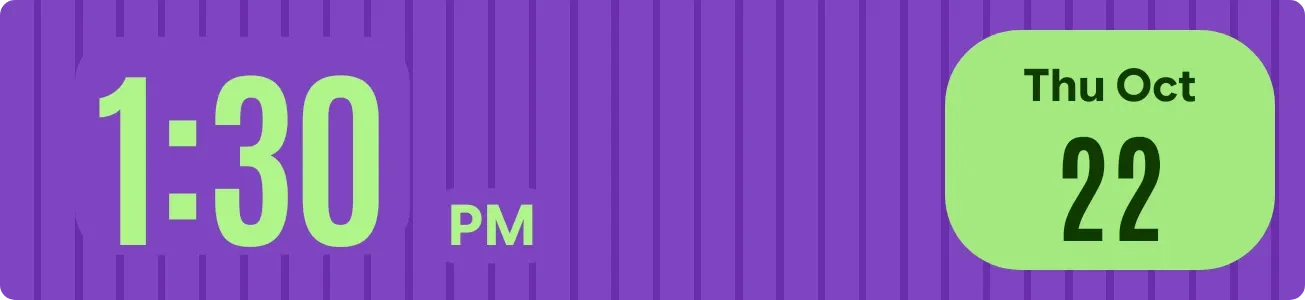 Lime PinstripeMaterial Expressive · 4x1 · Free
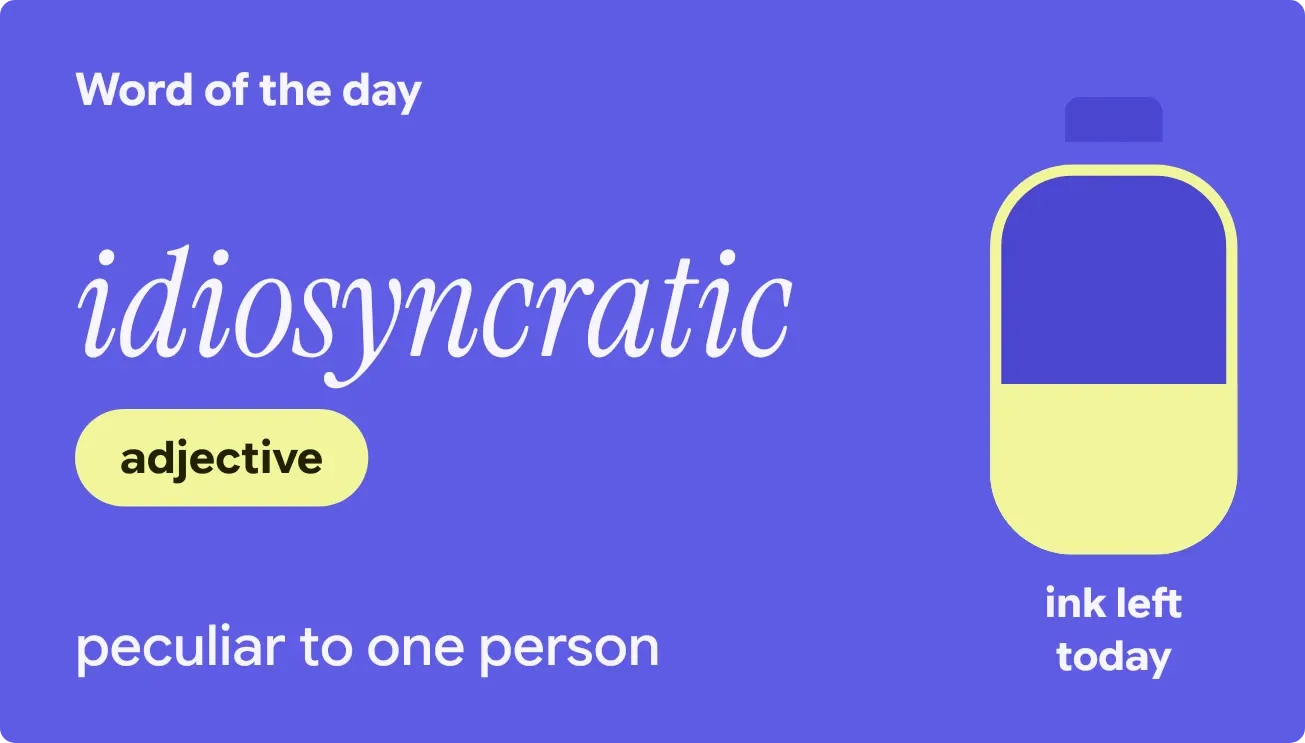 InkdayMaterial Expressive · 4x2 · Free
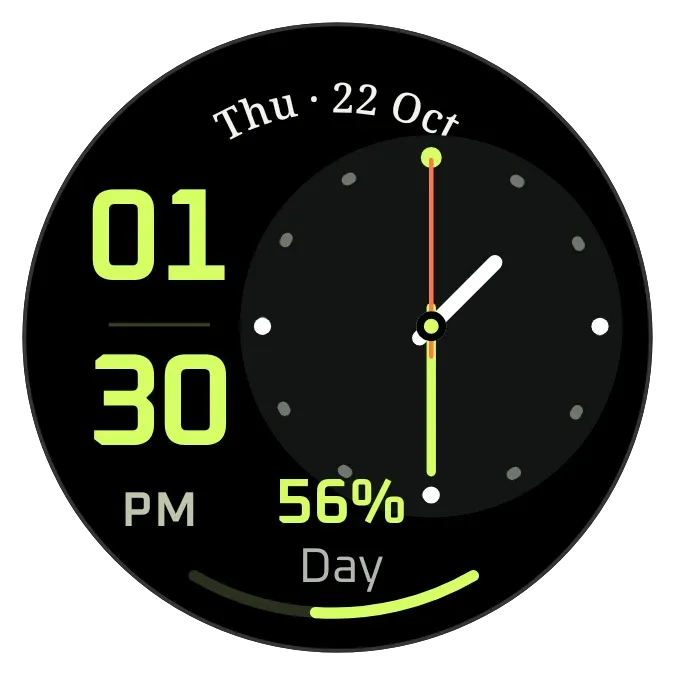 Lime WatchWatch Face · 2x2 · Free
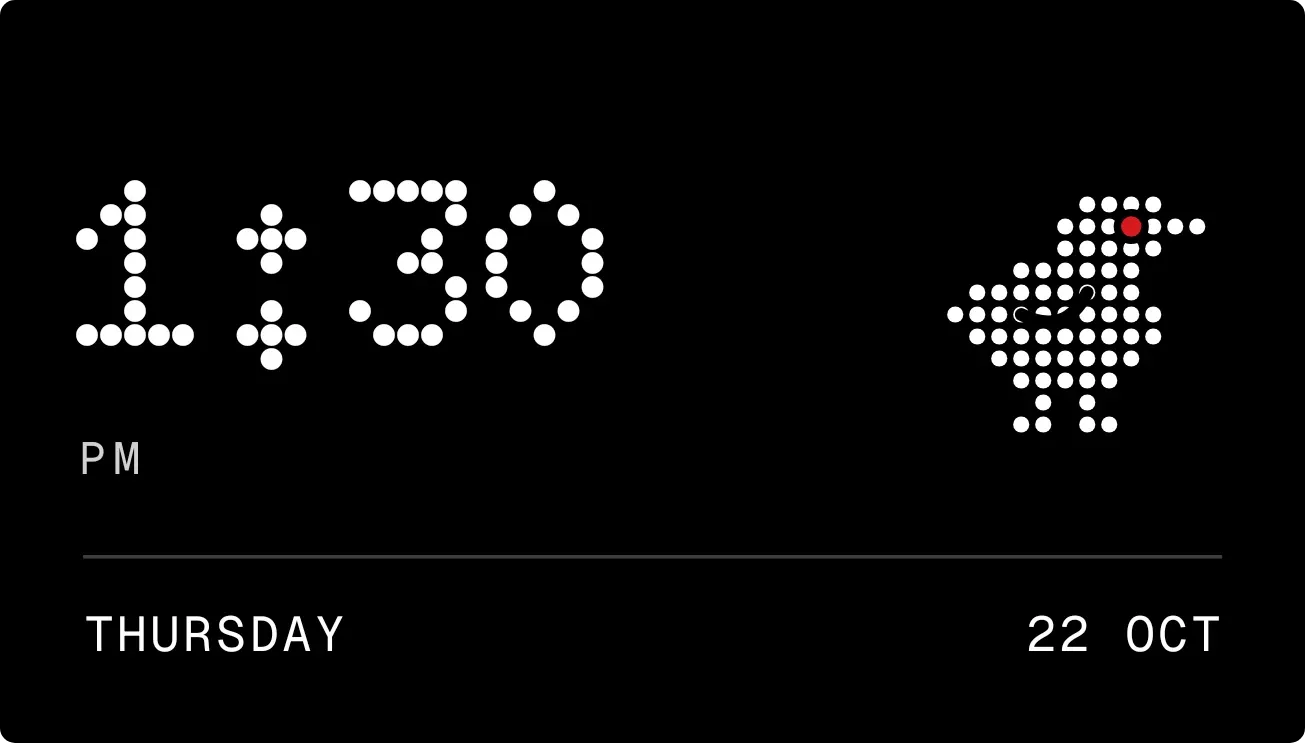 Redeye RoostNothing · 4x2 · Free
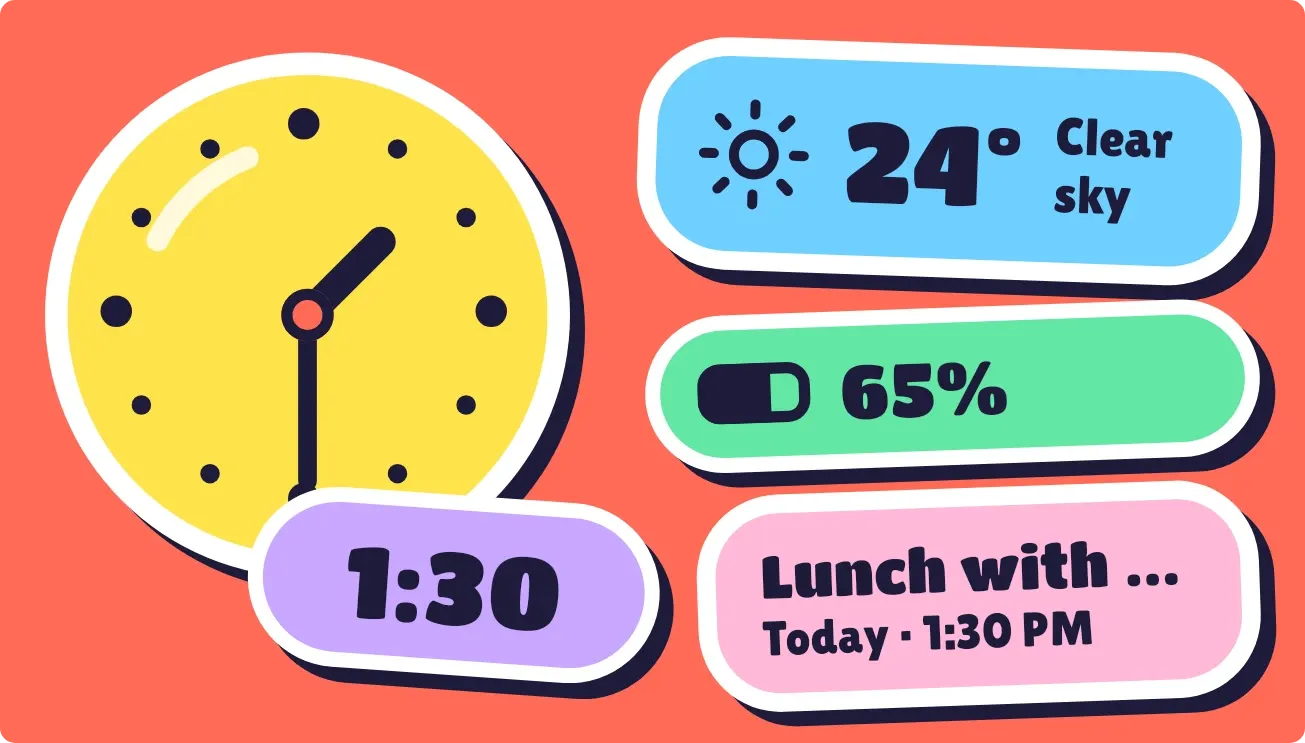 Peel PopPlayful · 4x2 · Free
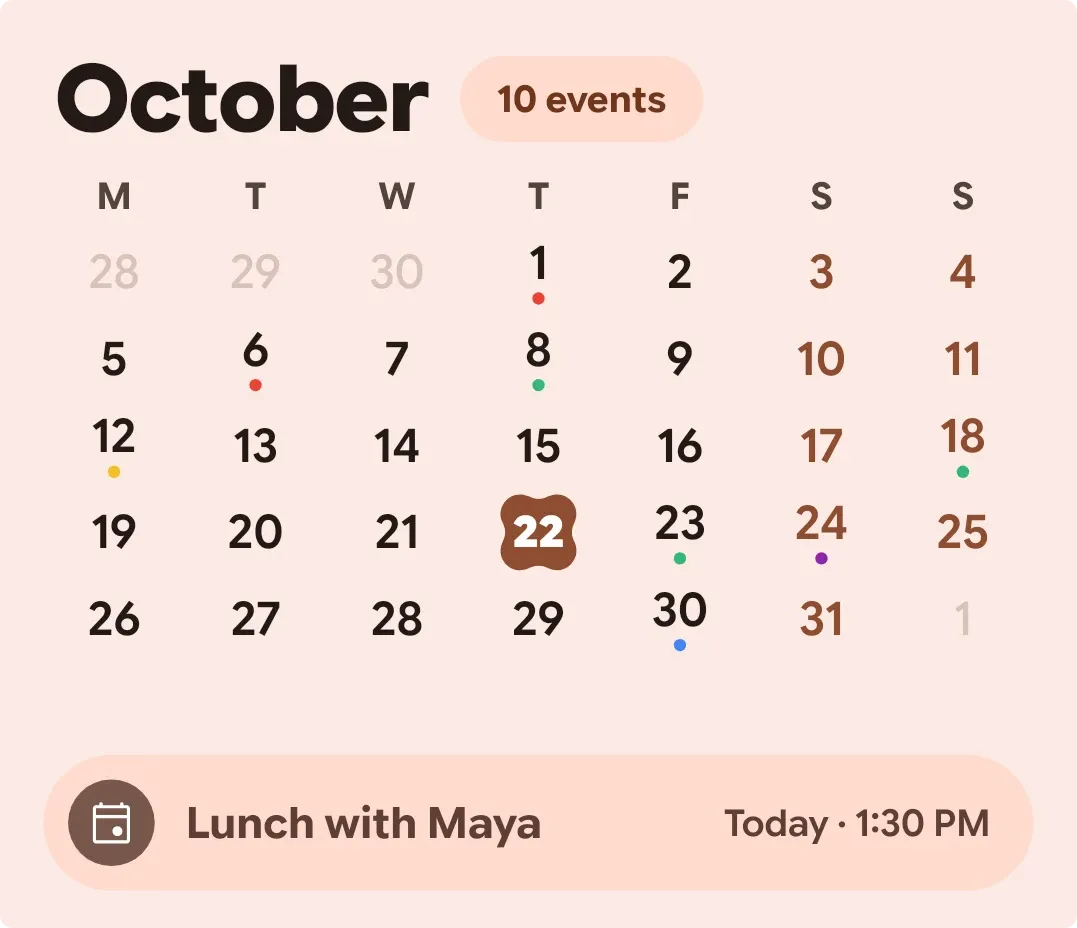 BloomgridMaterial You · 4x3 · Free
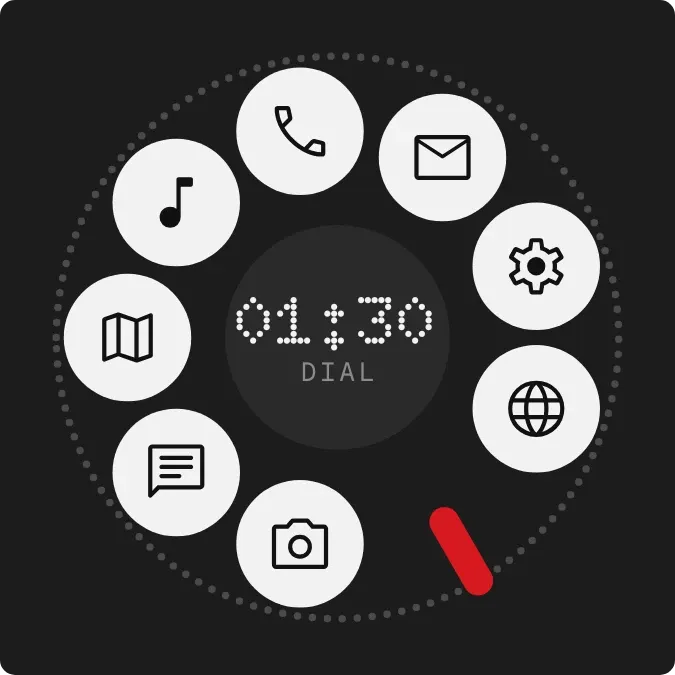 Red Stop RingNothing · 2x2 · Free
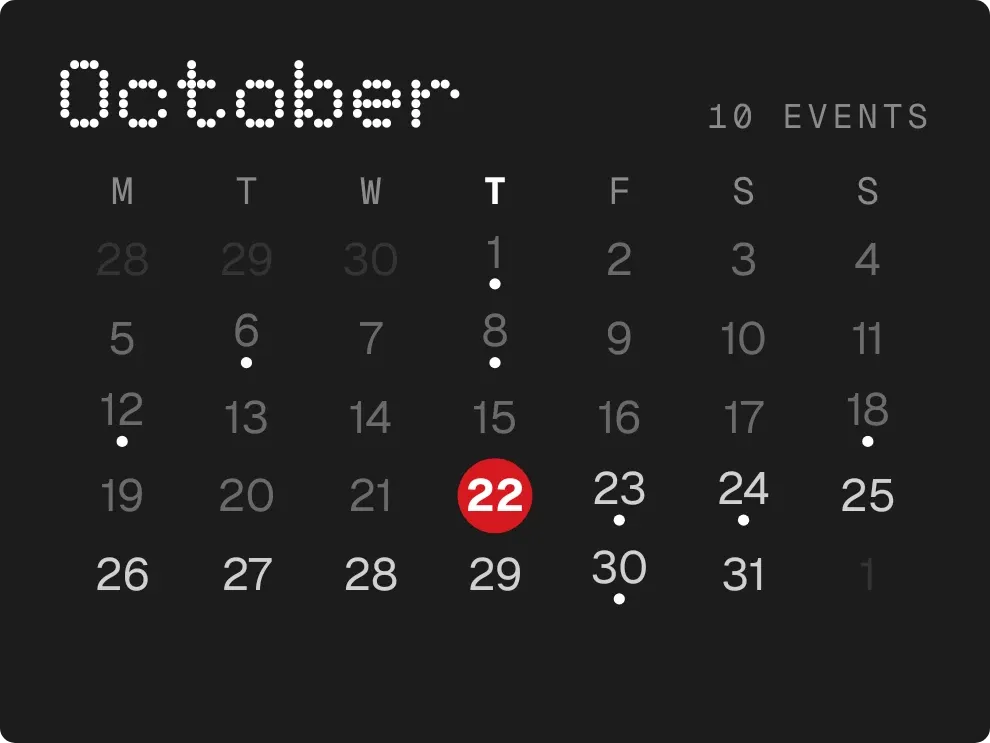 DotfallNothing · 3x2 · Free
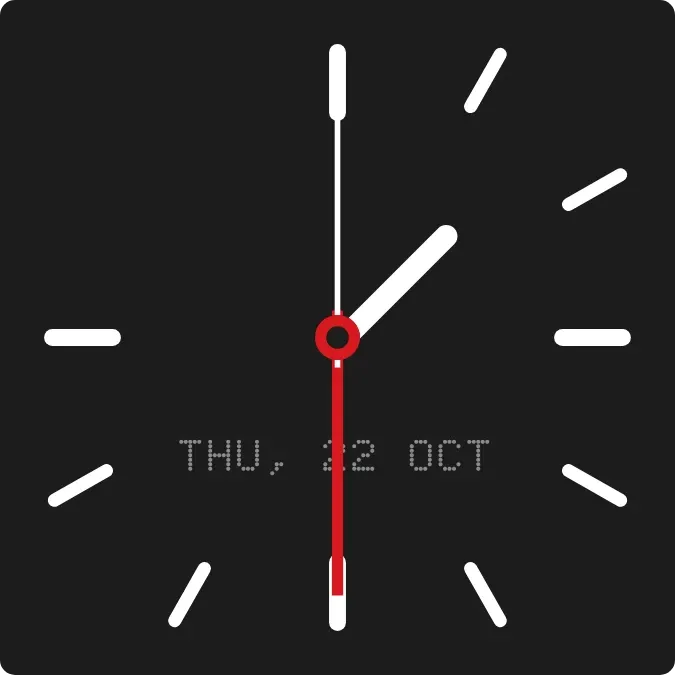 TickfireNothing · 2x2 · Free
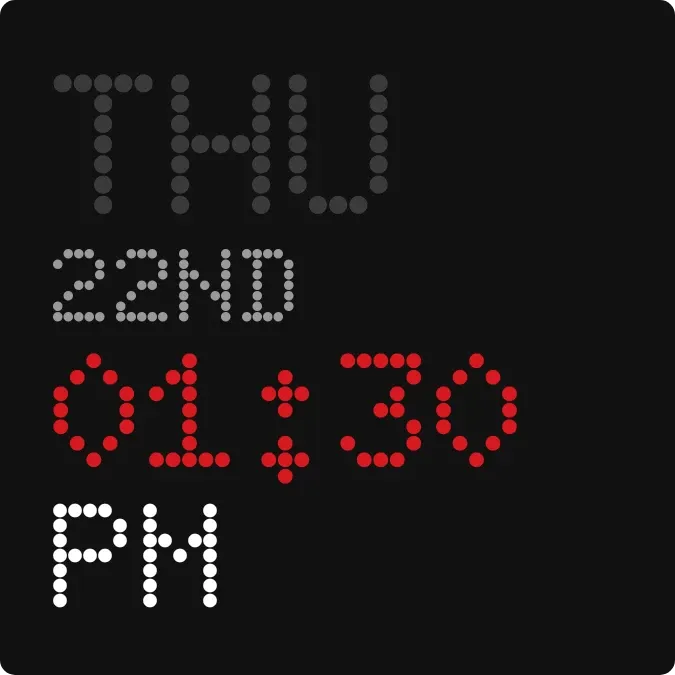 Ember LadderNothing · 2x2 · Free
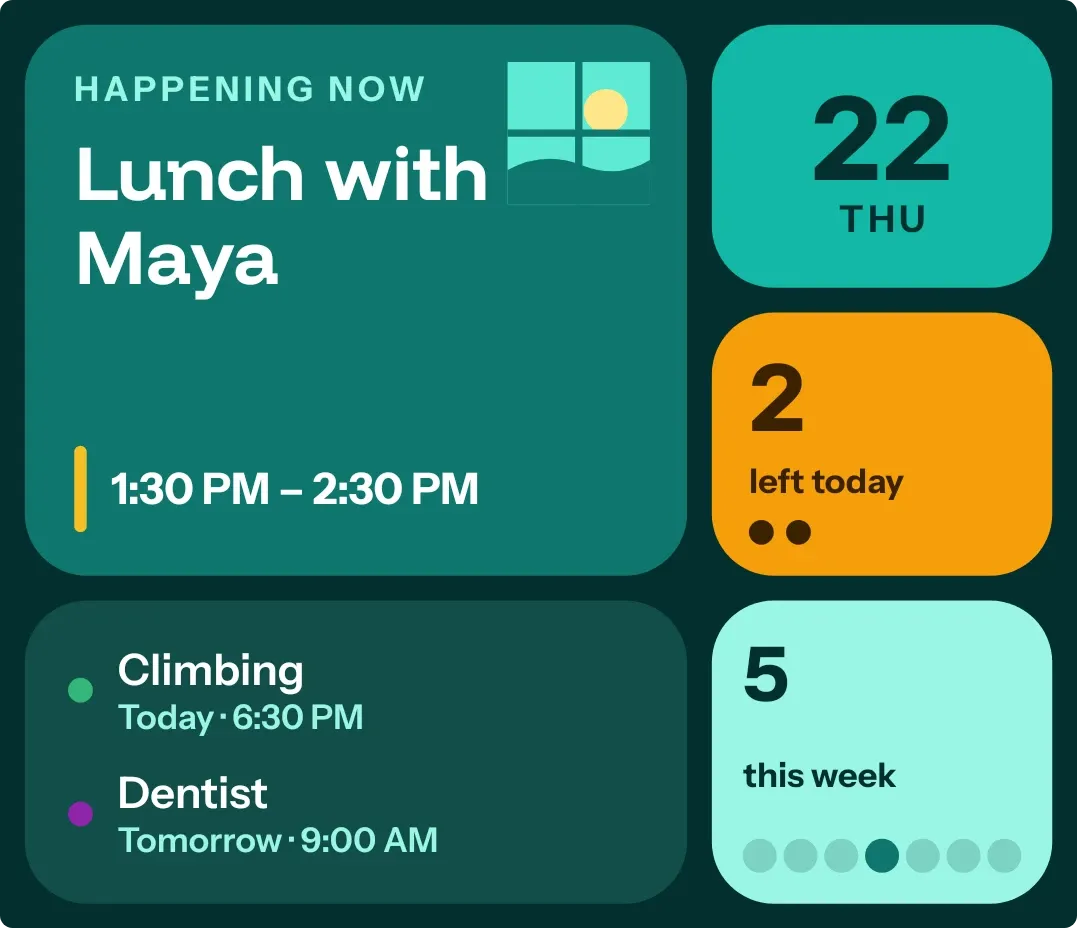 Window SeatBento · 4x3 · Free
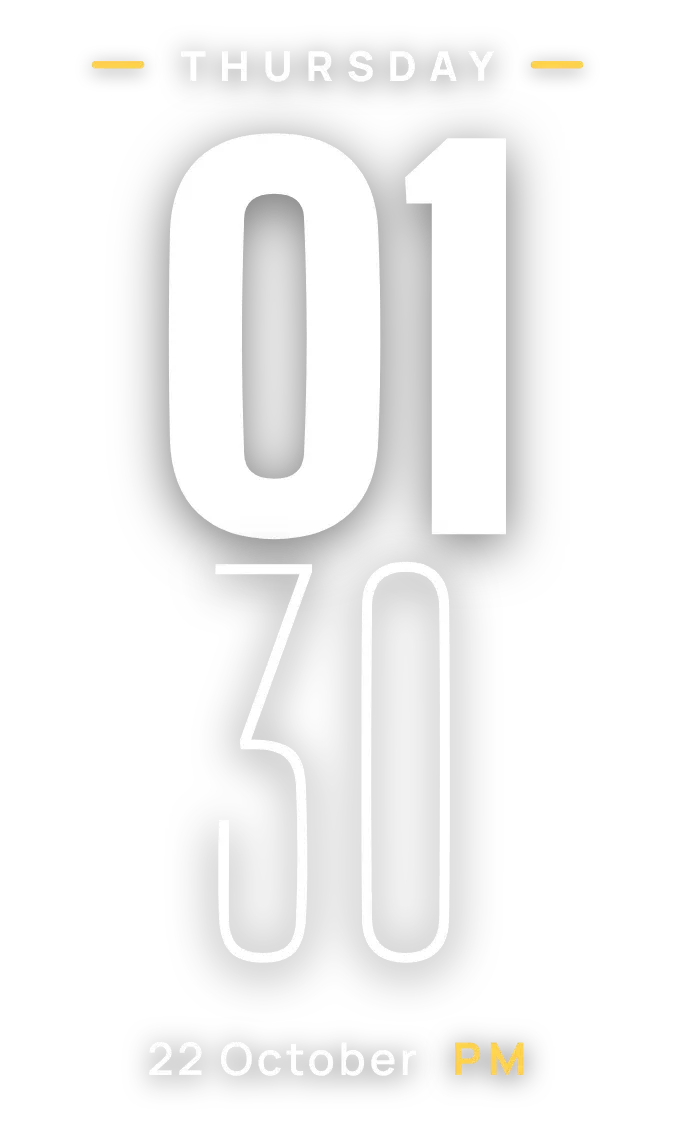 SheerfaceClear · 2x3 · Free
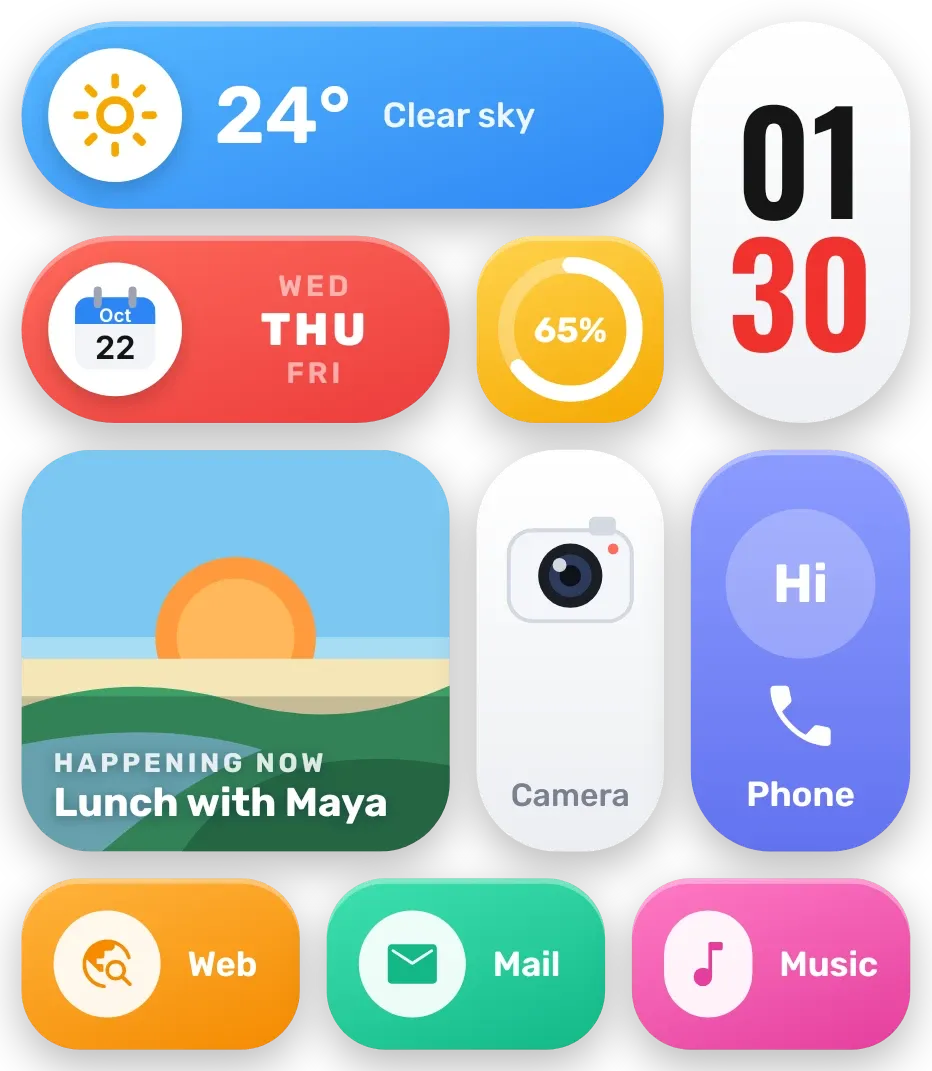 Sherbet GridBento · 4x4 · Free
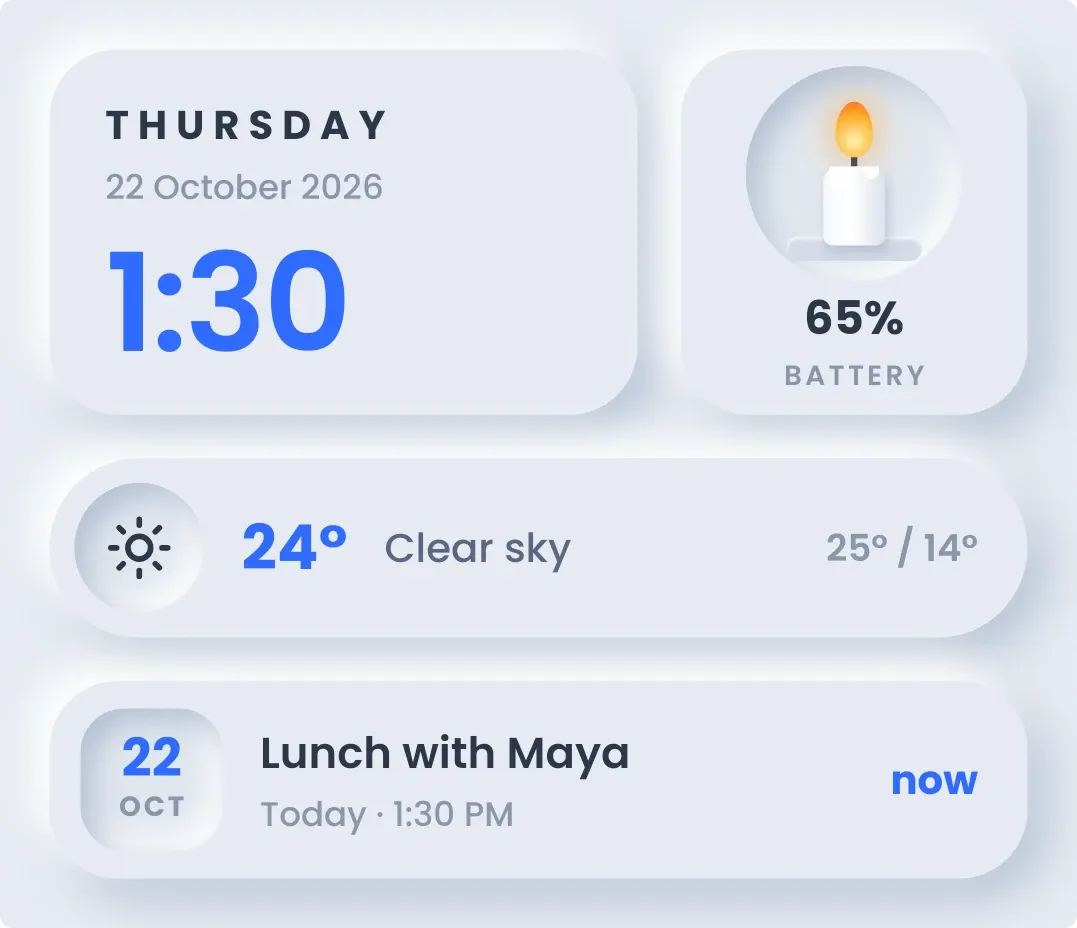 CandlewickSoft UI · 4x3 · Free
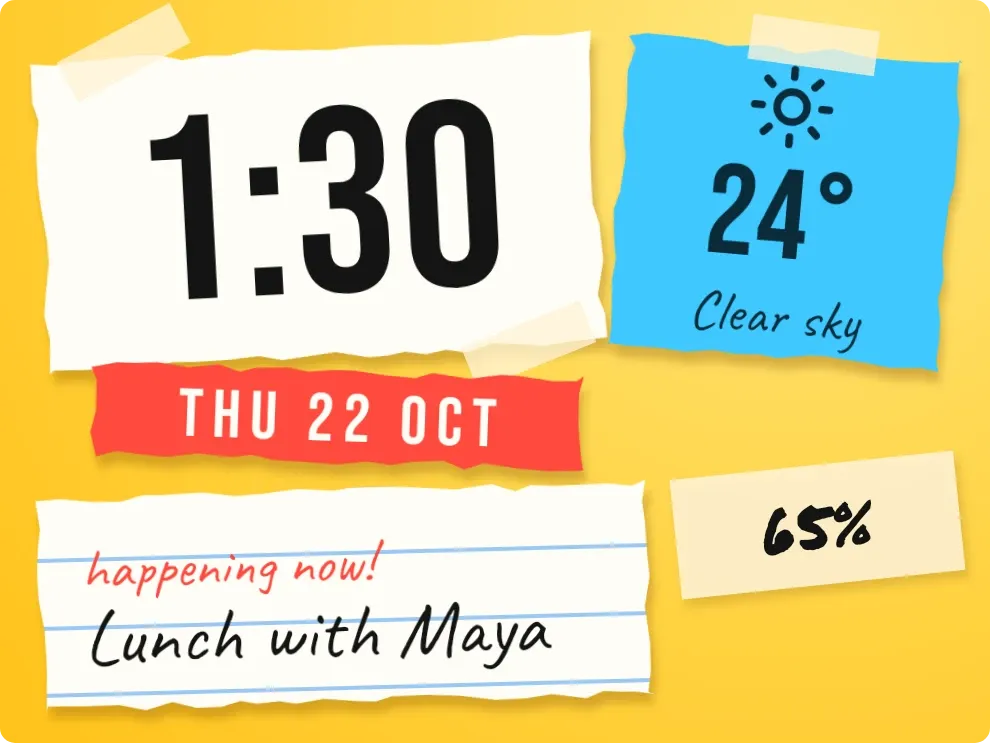 Scrap SundayPlayful · 3x2 · Free
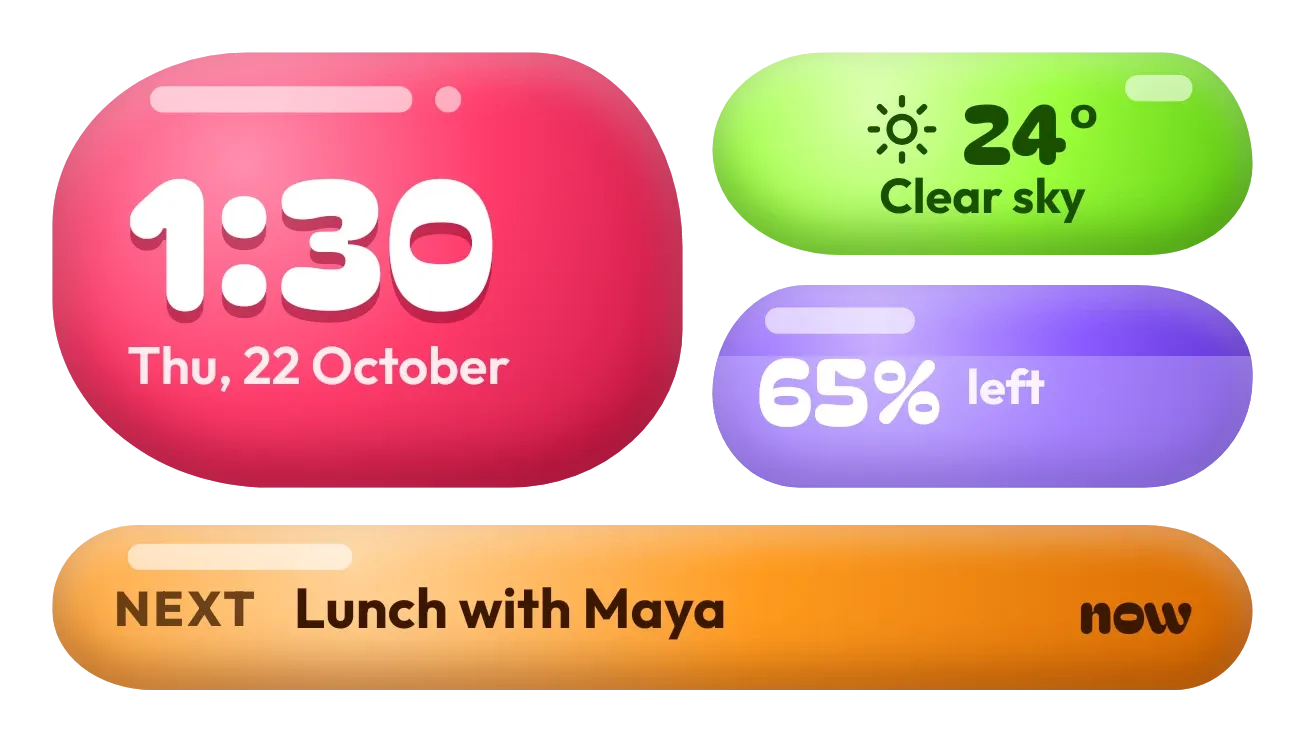 Jelly GlanceGlass · 4x2 · Pro
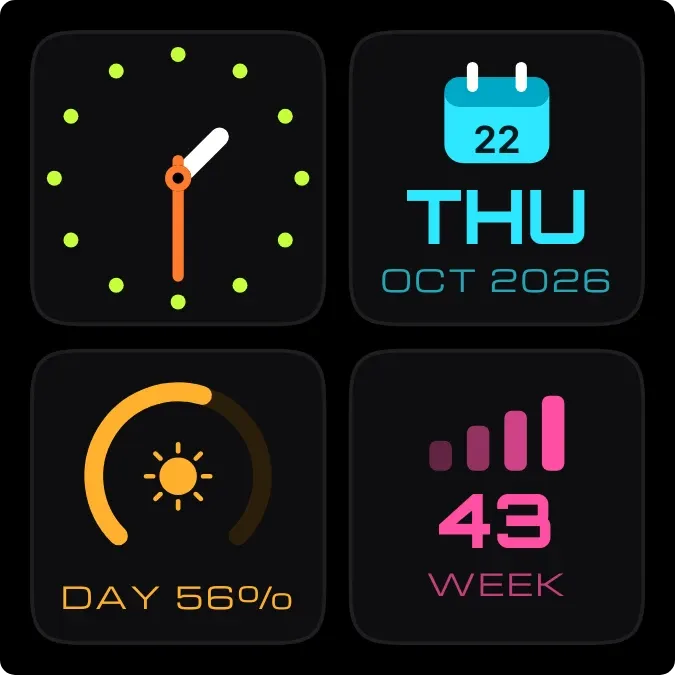 Lime QuartetWatch Face · 2x2 · Free
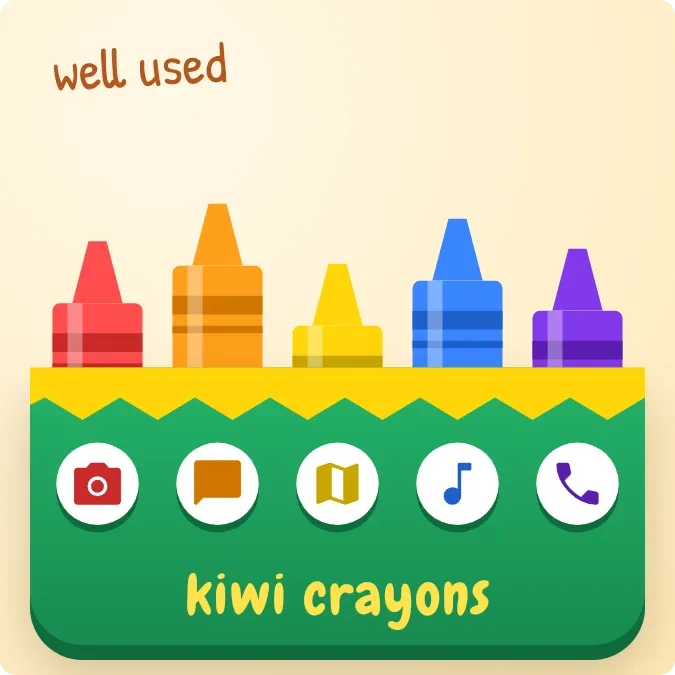 WaxlinePlayful · 2x2 · Free
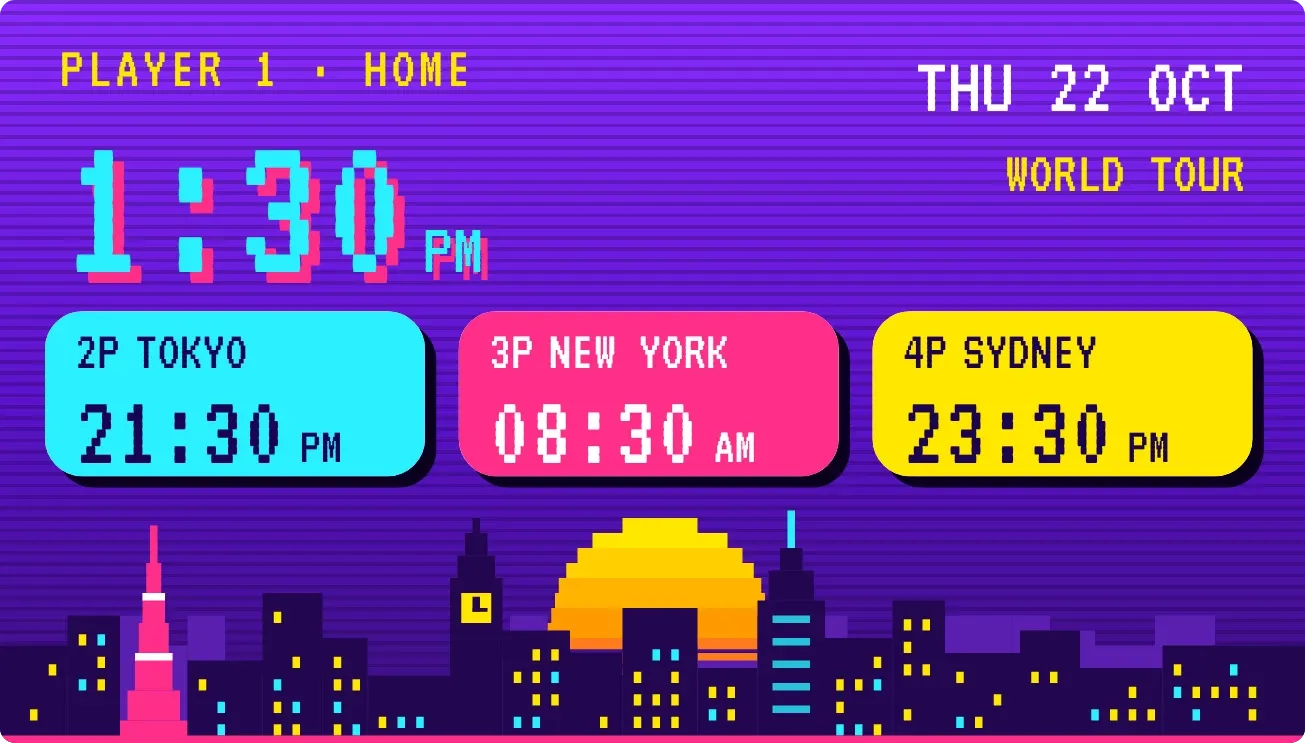 Player SelectPlayful · 4x2 · Free
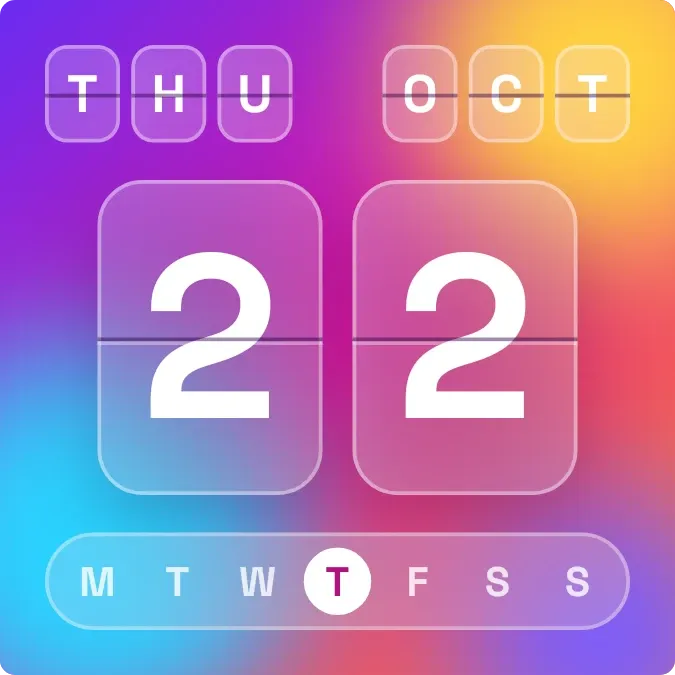 Frosted FlipGlass · 2x2 · Pro
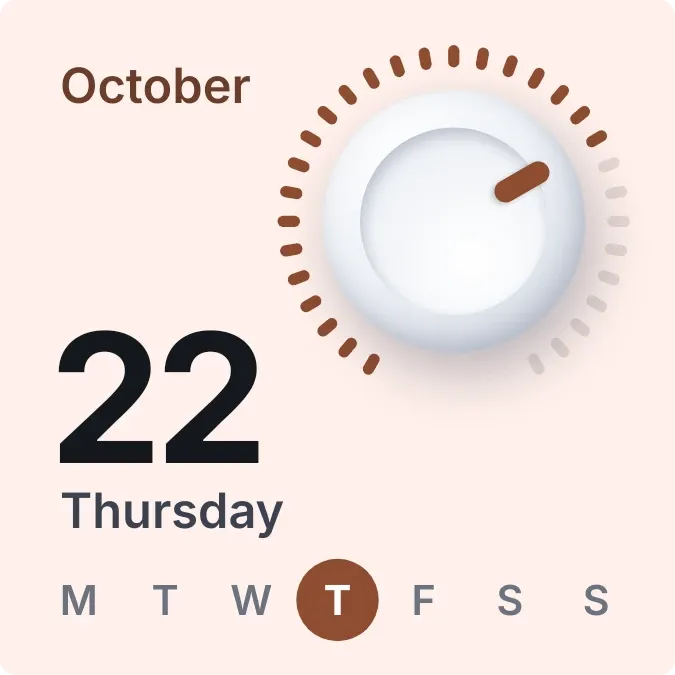 DayturnOne UI · 2x2 · Free